Call statuses
The API returns the status value in capitals, for exampleNO_CONNECTION.
Final statuses
In-progress statuses
INITIALIZINGQUEUEDREADYDISPATCHED
RUNNING call. If nothing was recorded when it ends, its status is CANCELLED.
Error codes
Each failed call has anerror_code and a message that say what went wrong. The codes are grouped by the call’s status.
No Connection
Usually a problem in your configuration or your provider plan. In a code,<PROVIDER> is the name of your voice platform. The Limits section of your platform page under Integrations lists its exact codes.
No Answer
The problem is on your side: your agent or your line.
Make sure your agent is online, accepts calls from the Bluejay caller ID, and routes Bluejay traffic correctly.
Call Dropped
Usually a problem with your agent or your provider. Check your provider status page and your recent agent changes.Out of Funds
INSUFFICIENT_BALANCE: your balance reached zero. Add funds in Settings > Billing, then run the calls again.
System Error
The problem is in Bluejay, not in your agent. Run the call again. If the error repeats, ask in the Slack community.
An email conversation can also show without ending: your agent replied from an address that is not configured on it. The conversation stays open, and the code clears when a reply arrives from a configured address. Add the address to the agent’s reply-from addresses.
If the code is
EVAL_HYDRATION_FAILED, EVAL_PIPELINE_FAILED, or EVAL_QUEUE_FAILED, you can retry only the scoring from the call panel.
Cancelled
Outbound trigger webhook
For an outbound agent, your system starts each conversation. When a run starts, Bluejay sends a POST to your Outbound Trigger Webhook URL, and your system then calls or messages the Digital Human. By default, the body hasphone_number and sim_conversation_id. To send other fields, set a body template with tokens such as {{digital_human.phone_number}}.
Return a 2xx status from your webhook within 15 seconds. After 3 failed tries, the conversation ends with OUTBOUND_TRIGGER_FAILED.
Tokens and headers
Supported tokens include:{{digital_human.id}}{{digital_human.name}}{{digital_human.phone_number}}{{digital_human.email}}{{digital_human.stable_email}}{{digital_human.intent}}{{sim_conversation_id}}{{simulation.id}}{{simulation.name}}{{agent.id}}{{agent.name}}
X-Bluejay-Idempotency-Keyholds the conversation ID. Use it to ignore a repeated request.X-Bluejay-Signatureholds the HMAC-SHA256 of the body, if the agent has a webhook signing key. Verify it before you place the call.
Agent versions
An agent version is a numbered copy of the agent prompt. Save a new version before you change the prompt, so you can compare runs and go back. Each new version gets thelatest label. The first version also gets the production label, and it keeps it until you promote another version. A new simulation and a production evaluation use the production version unless you select another one.
Workflow
A workflow is the multi-agent graph of a provider agent, for example a root agent that hands off to sub-agents. It comes from your provider. Use the Workflow tab of Agent Settings (Squad for a Vapi squad) to see and edit that graph, and to test each path through it with the Workflow simulation type. Pull copies the graph from your provider into Bluejay. Push sends your Bluejay edits to the provider. To import a graph from a document, attach the document in a Bluejay AI chat and ask for a workflow. After you approve the draft, Bluejay AI saves it to the agent. You can import only to an agent that has no workflow provider. An imported workflow has no provider to sync with, so it has no Pull or Push: to change it, edit it in Bluejay or import an updated document.Knowledge Bases
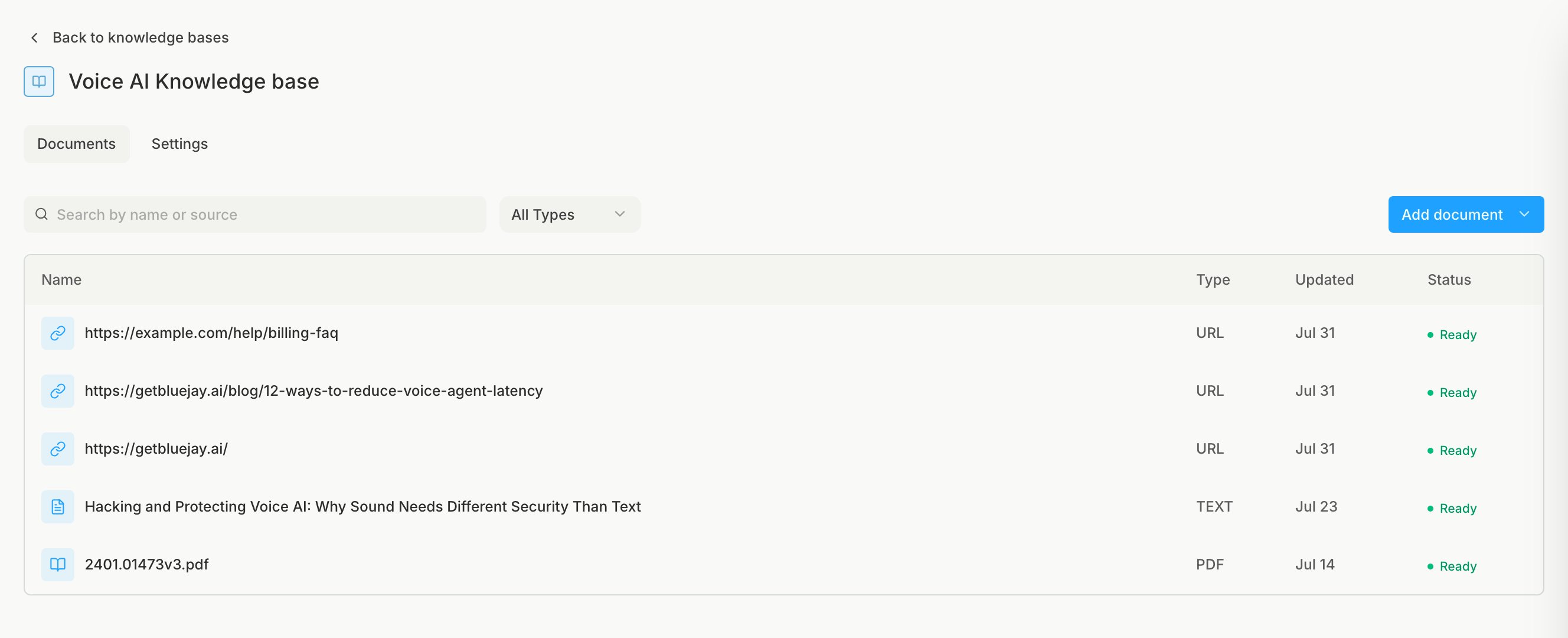
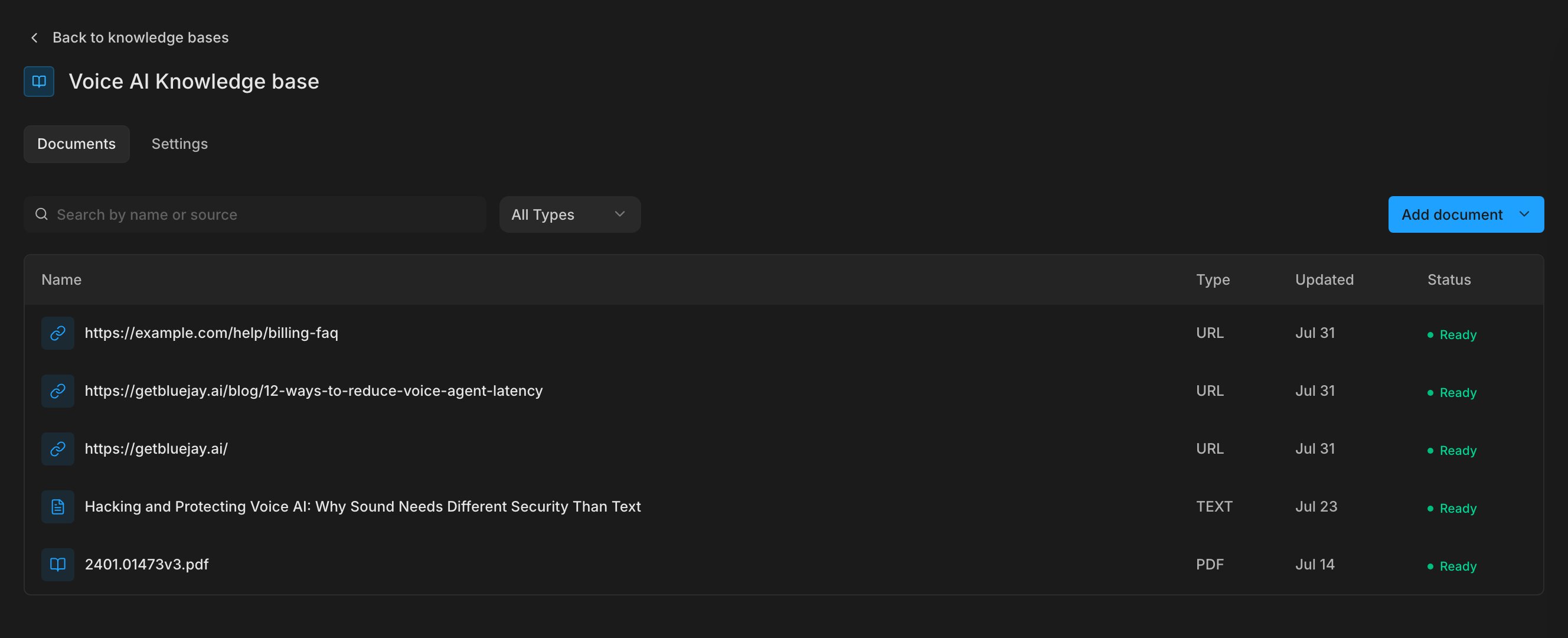
A Knowledge Base holds the facts your agent must know. Bluejay uses it to check that your agent states those facts correctly, and it can also generate Digital Humans that ask about them.Add documents
Connect a Knowledge Base to the agents that use it, and add the same files, text, and web pages your agent uses. Bluejay uses a new document only after its status is Ready. If the status is Failed, add the document again.