Before you start
- Connect PagerDuty or Better Stack, so the alert reaches whoever is on call. See Alerts.
- If your agent only makes outbound calls, set it up to start a call when Bluejay asks. See Outbound agents.
Steps
1
Open the create dialog
In Observability → Uptime, click Create.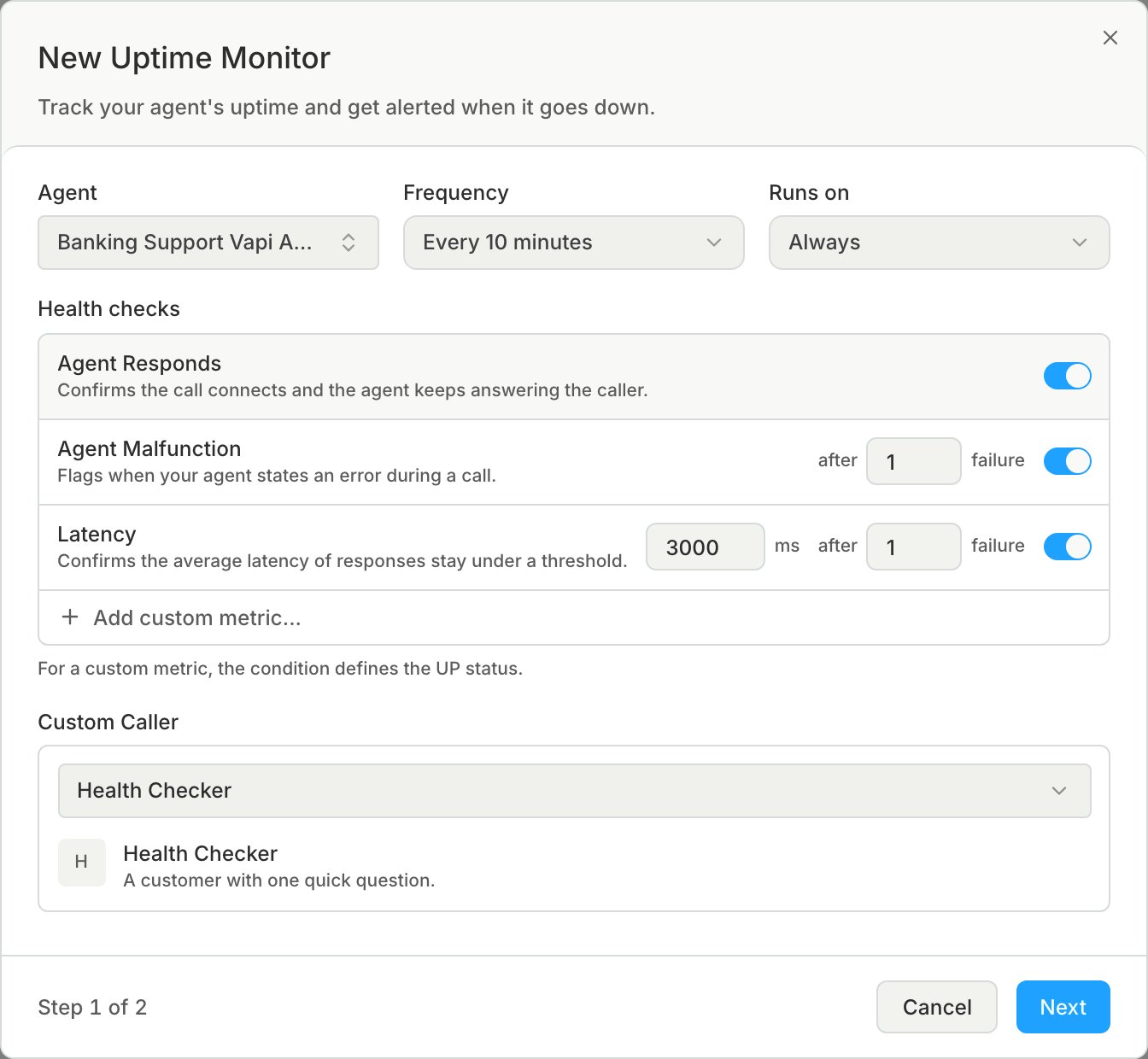
2
Run it around the clock
Pick your agent, then set Frequency to Every 10 minutes. The default is every 5 minutes, and checking more often than that can significantly raise your costs.Leave Runs on at Always. A monitor has one schedule, made of its days and one range of hours, so Always is the only way to cover both nights and weekends.
3
Keep the health checks on
Keep Agent Malfunction and Agent Responds on, so an agent that states an error or stops answering counts as a failure. See Checks.
4
Send failures to your on-call tool
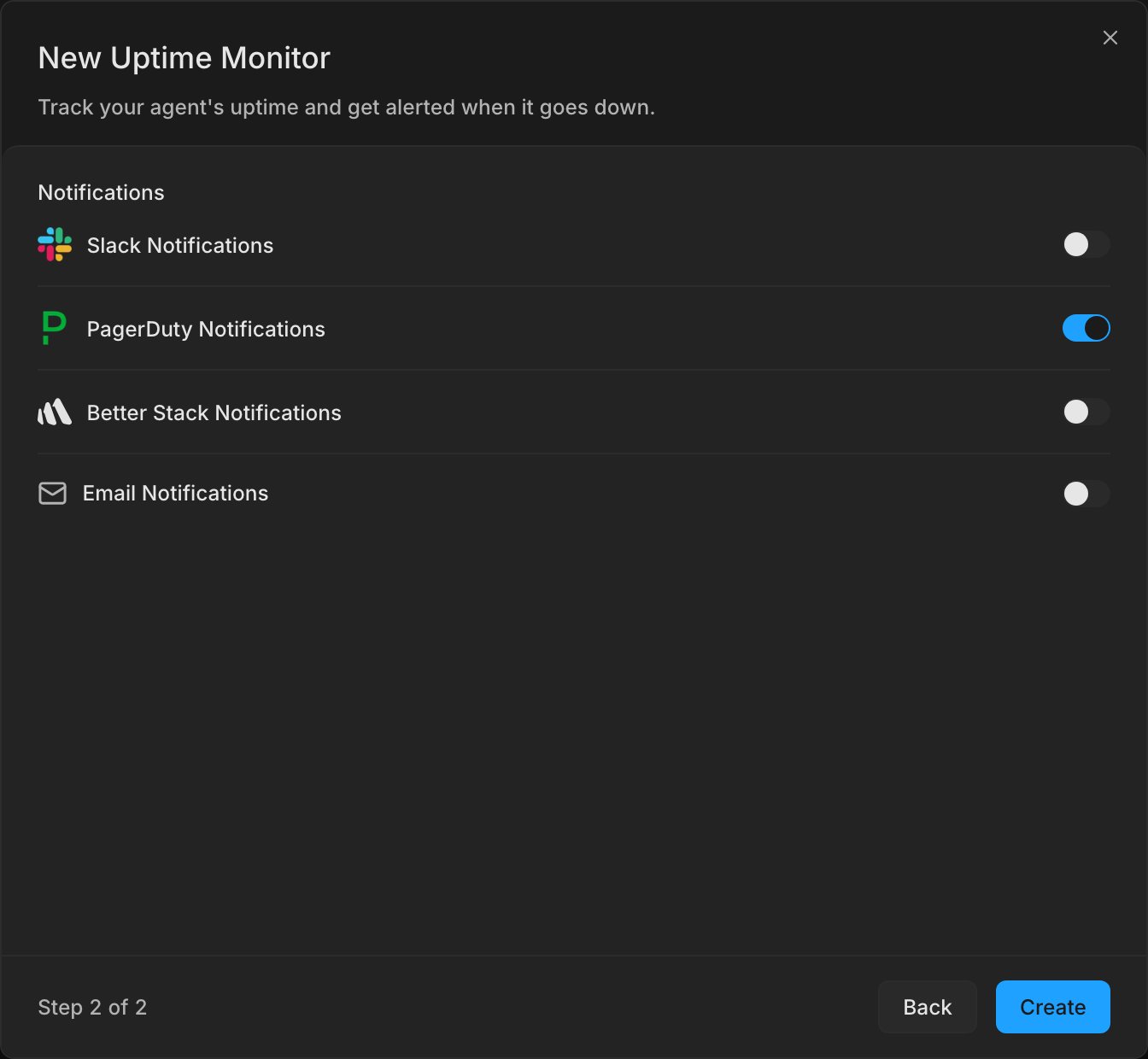
Click Next, then turn on PagerDuty Notifications or Better Stack Notifications. A channel that is not connected cannot be turned on, and the dialog links to its setup. Your escalation policy in that tool decides who gets paged. See Incidents.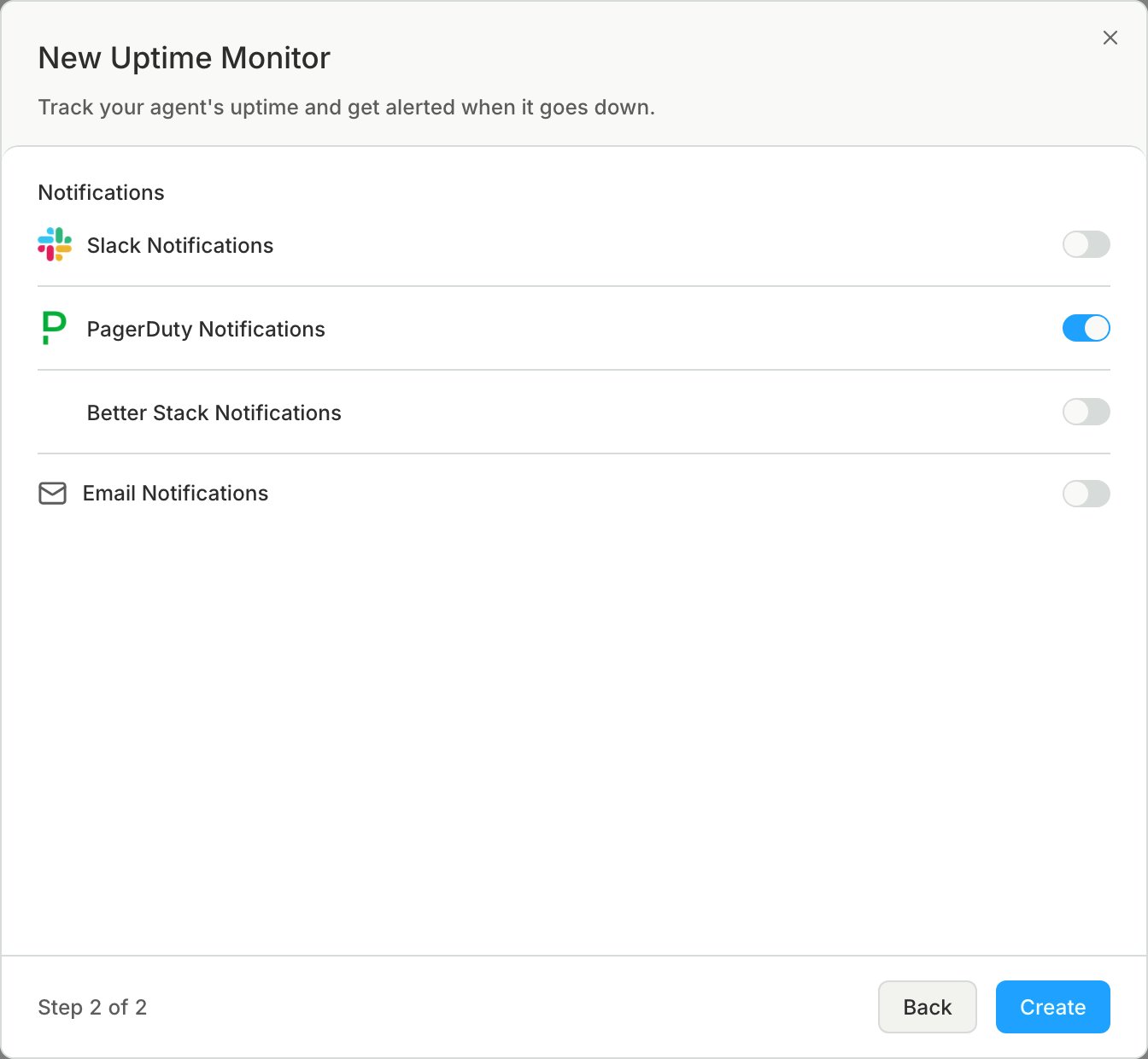
5
Create the monitor
Click Create. The first check starts right away.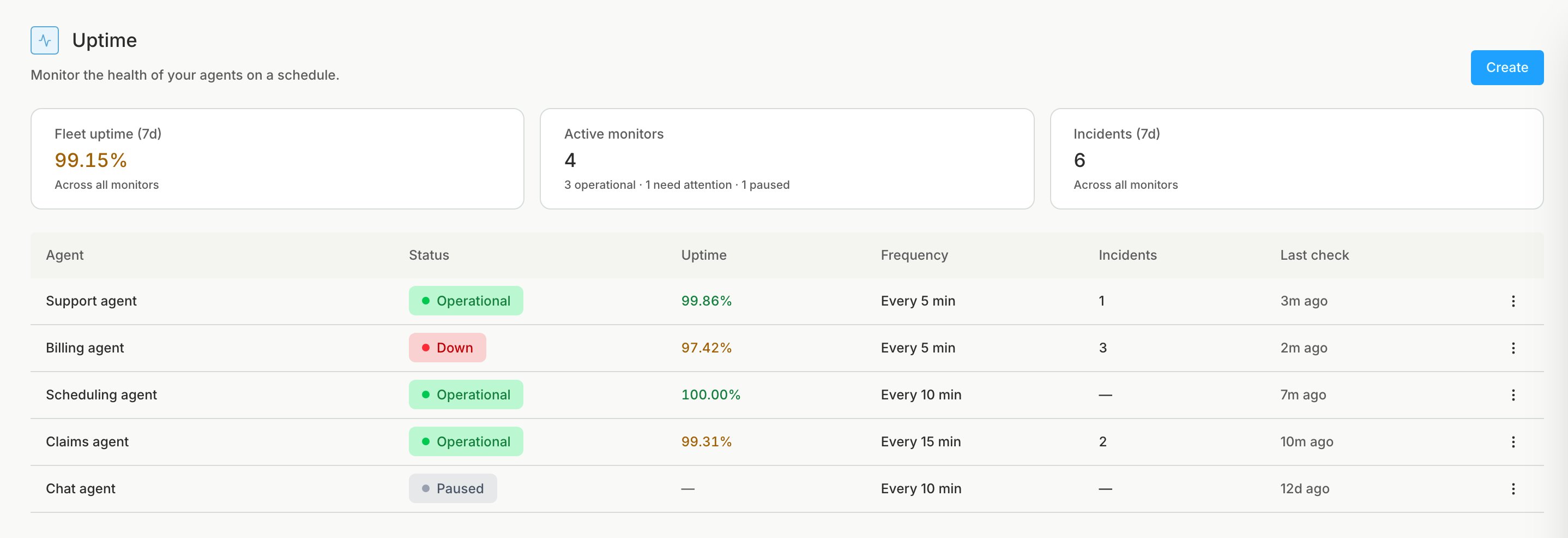
Check the result
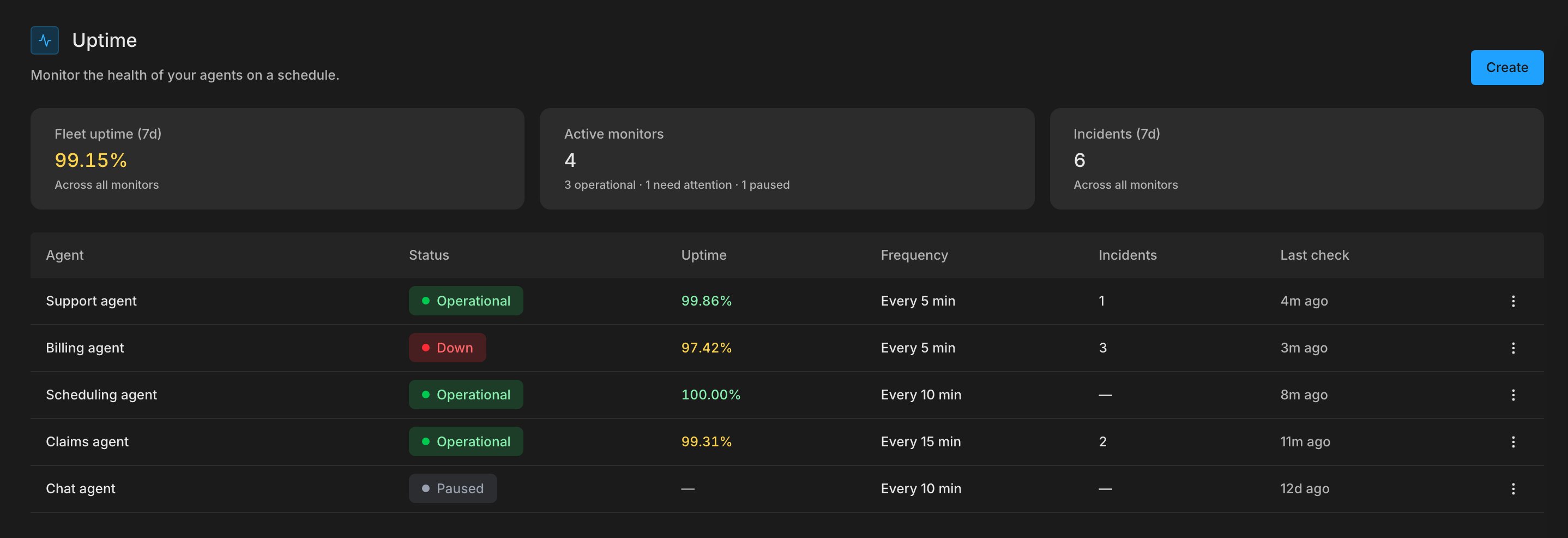
Each run gets one of these verdicts:- Up means all checks passed.
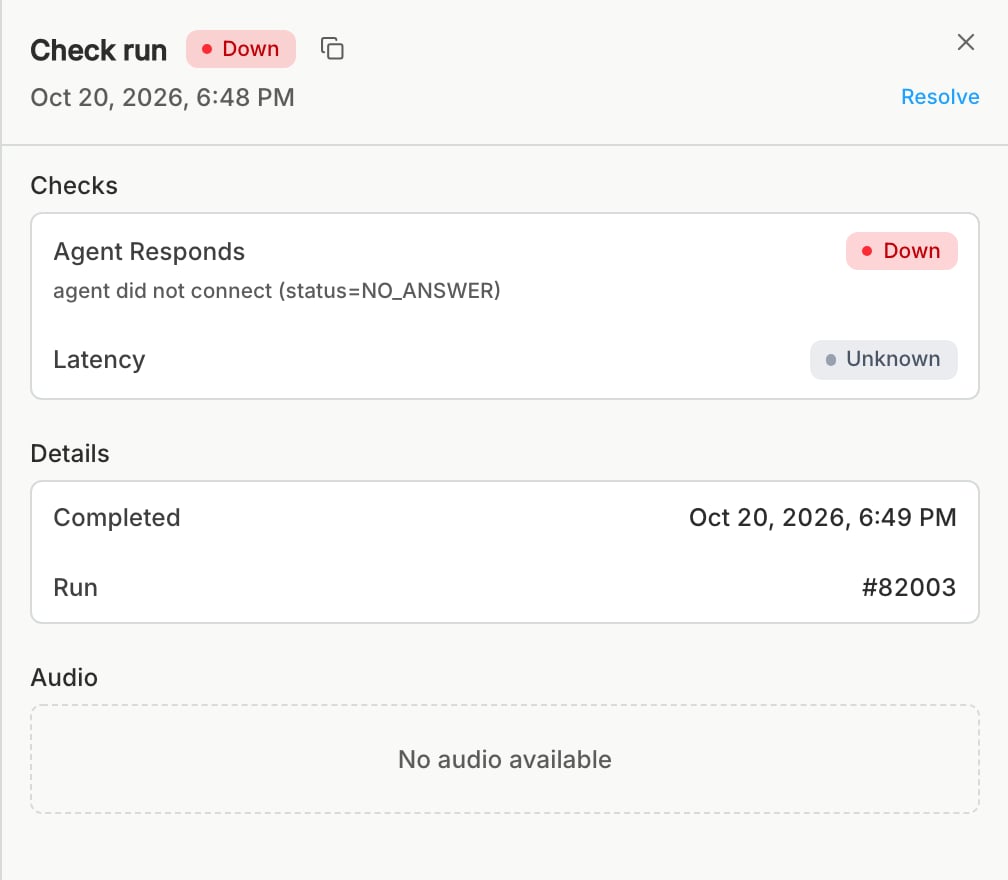
- Down means at least one check failed. Bluejay opens an incident in PagerDuty or Better Stack, and resolves it when the monitor recovers.