

Before you start
- Connect both agents to Bluejay. See Connect your agent.
- Create the custom metrics you want to compare the agents on. In each metric’s Agents field, select both agents. A metric that does not include an agent is not scored for it, so the comparison has nothing to show for that agent.


Run both agents
1
Run agent A
On Simulations, create a simulation for the first agent with any simulation type. Under Custom Metric Settings, select the metrics you want to compare, then run it.

2
Run agent B on the same Digital Humans
Create a second simulation for the other agent and select the Use Previous Digital Humans type. Pick the Digital Humans from agent A’s simulation, or the Community that holds them, so both agents face the same callers. Bluejay runs them as they are and does not generate new ones.

Compare the runs
1
Stage the run from each simulation
Open the first simulation, select its run in Run History, and click Compare Runs. Do the same in the second simulation. Compare is unavailable until at least 2 runs are staged.

2
Open the comparison
Expand the tray to check that it holds one run per agent, then click Compare. Bluejay opens Compare Runs Across Agents.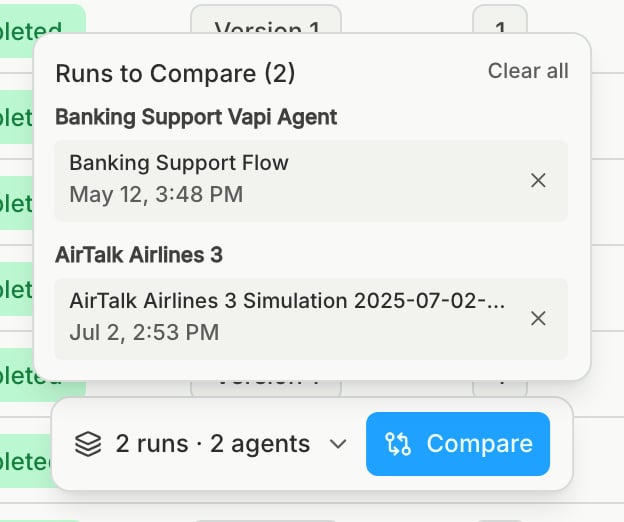
3
Read it one metric at a time
Set Compare by to one custom metric to see which agent fails which check. Start with Custom metrics passed (summary) to see which agent passes more overall. A metric with a free-text or JSON result does not appear in Compare by, because its results have no value to compare.