

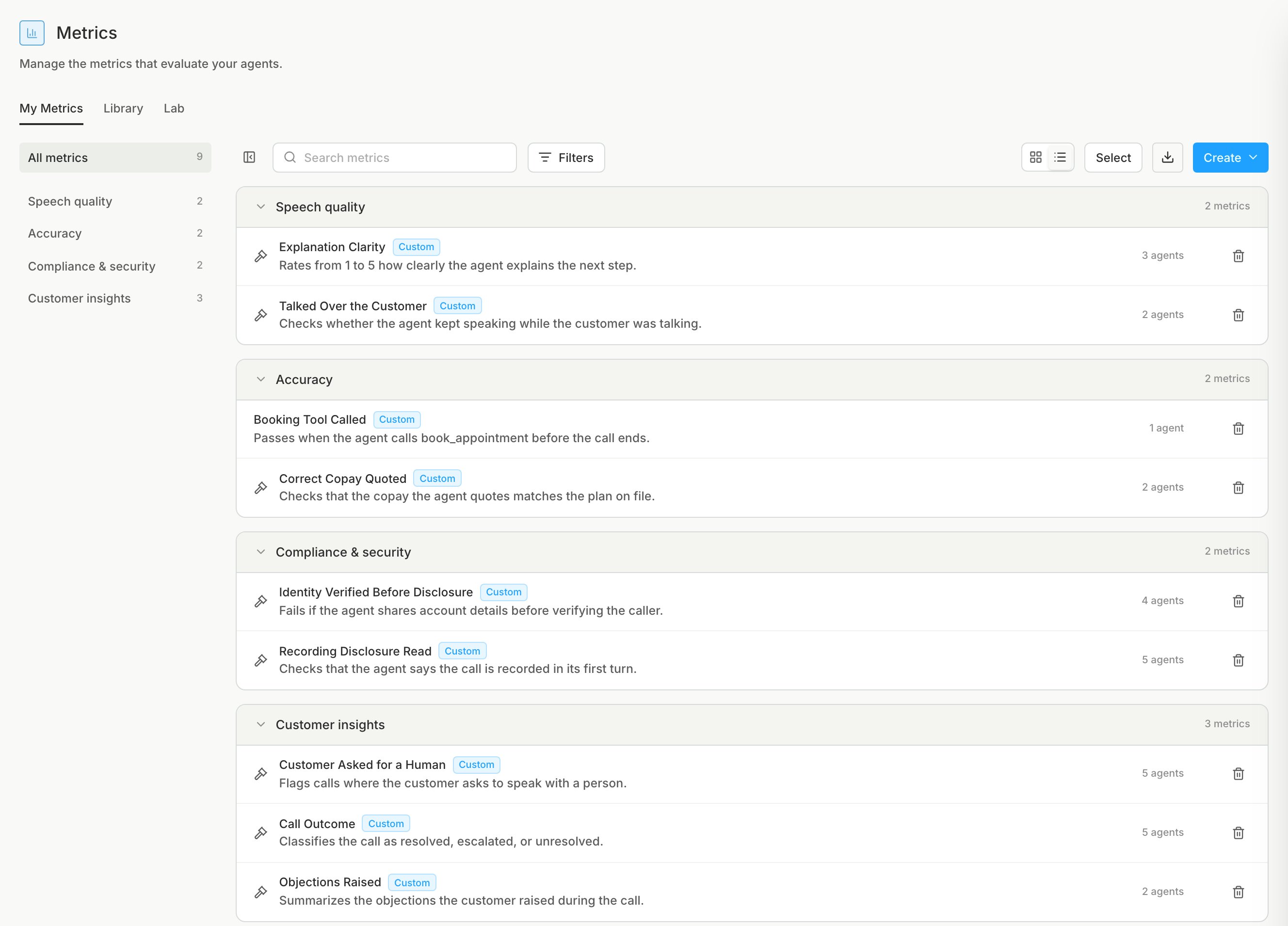
Set up a metric
On the Metrics page, click Create, then Create automatically. Review the drafts and save the ones you want. For a hand-written metric, choose Create manually and use the prompting guide.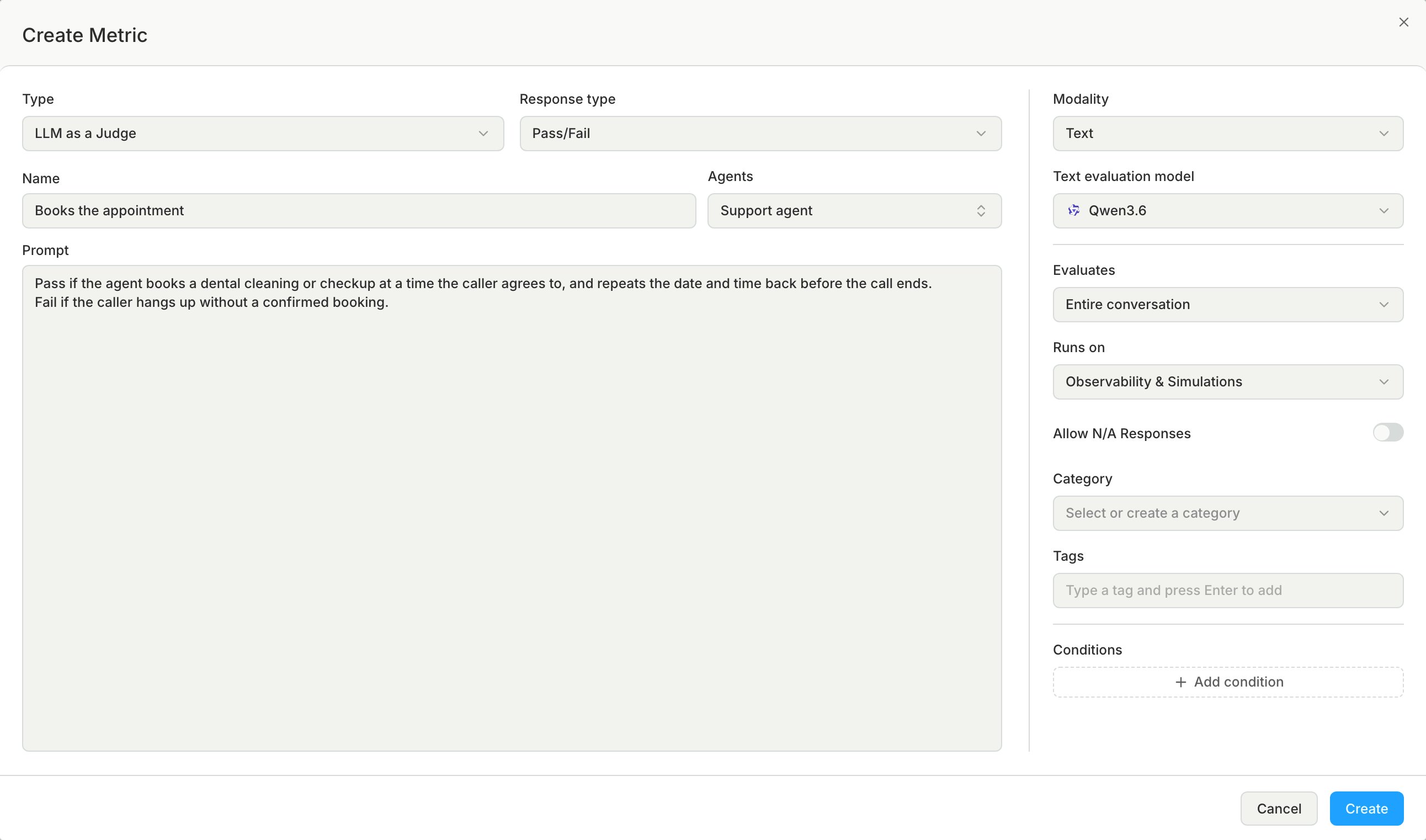
Metric types
Response types
Choose the response type that matches the question your prompt asks:Prompting guide
An LLM as a Judge metric sends your prompt and the conversation to the judge, the AI model that scores the metric. A vague prompt can make the judge pass one call and fail an almost identical call.Rules for all response types
- Write criteria that a reader can answer from the transcript or the audio.
- Test one thing per metric. If two results matter independently, write two metrics.
- Replace words such as “good”, “appropriate”, or “well” with behavior that you can see in the transcript.
- Write what the metric verifies, not what the agent must do. Agent instructions go in the agent prompt.
Prompts by response type
- Pass/Fail
- Number
- Text
- Categorical
- Structured JSON
Dynamic variables
To put a call-specific value into a metric, such as the customer’s name, use a dynamic variable. Write{{key}} in the metric’s Prompt. Before the judge runs, Bluejay replaces each {{key}} with the value of key in the conversation metadata.
metadata is a variable. If you send conversation data through the API, put the keys in the request’s metadata object, as in the example request. If a voice platform sends your calls to Bluejay, the integration page for that platform says if its call metadata is included.
A key can contain only letters, digits, and underscores, and is case-sensitive, so {{customer name}} and {{order.id}} stay as written.
Composite metrics
Use a composite metric to roll several metrics into one score or label. For example, combine a clarity score and a Pass/Fail check into one Scheduling Quality score. A composite metric reads results that the other metrics already produced, so it makes no LLM call. Set Output to one of these:- Numerical: write a formula over the metrics.
- Categorical: add an option for each label, with the conditions that select it.
Conditional metrics
Use a conditional metric when a rule applies only to some conversations. For example, check the refund policy wording only when the agent called the refund tool. On other conversations, the metric does not run and has no result. A condition can check that:- The conversation reached a node of the agent workflow. You pick the node from the workflow, so the metric must grade one agent. In YAML, find node IDs with Get Workflow Summary.
- The agent called a given tool.
- Another metric has a given result, for example Fail.
Tool calls, events, and metadata
A transcript does not show which tools your agent called. To grade tool calls, send them to Bluejay with the conversation. You can send events and metadata in the same way.metadata is a free-form JSON object for the whole conversation, and its keys fill a metric’s dynamic variables.
Send tool calls
Bluejay sends anX-Simulation-Result-Id with each simulated call, and the integration page for your connection says where it arrives. Have your agent read the ID, record its tool calls during the call, and send them with the ID after the call ends.
If your agent cannot read the ID, leave out simulation_result_id and send start_time, end_time, and duration so Bluejay can find the call.
After the call ends, send the data to POST /v1/update-simulation-result:
Tool call fields
Event fields
An event marks a moment in the conversation, for example an escalation or a hold.Metrics Lab
You label conversations with the verdict you expect, then test prompt revisions until the metric agrees with you.Build a lab
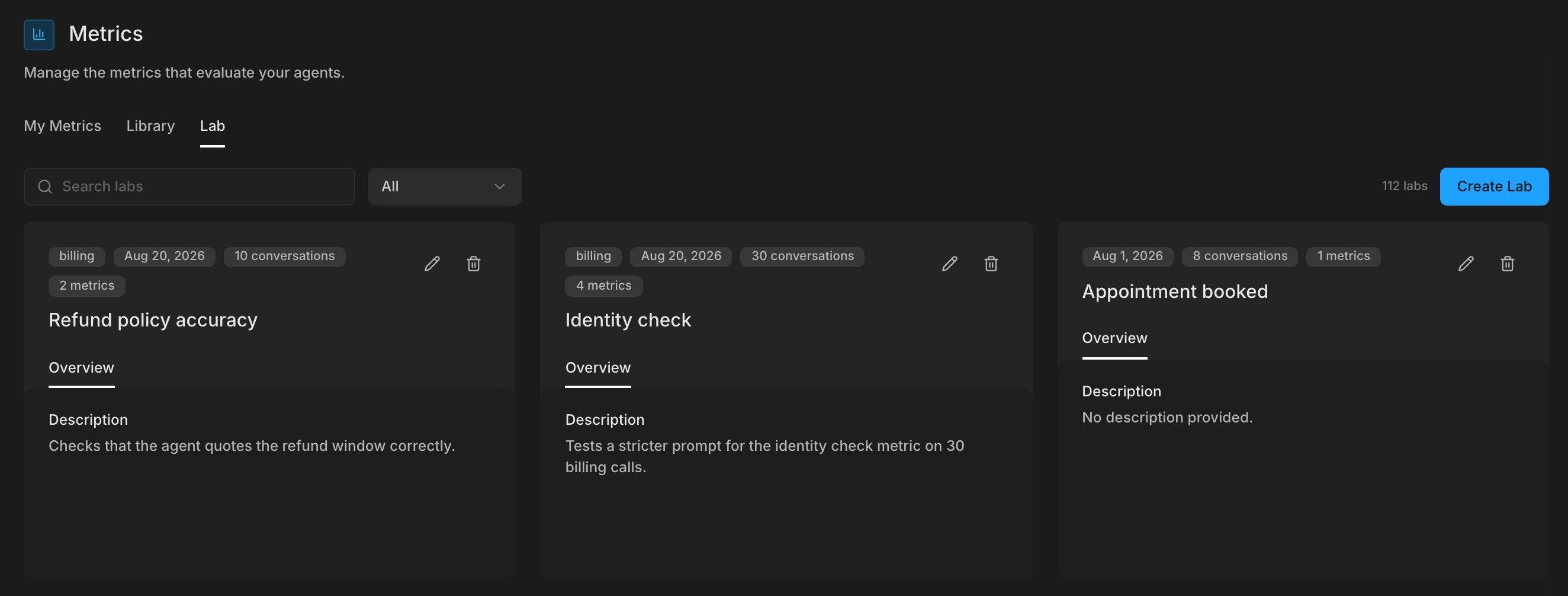
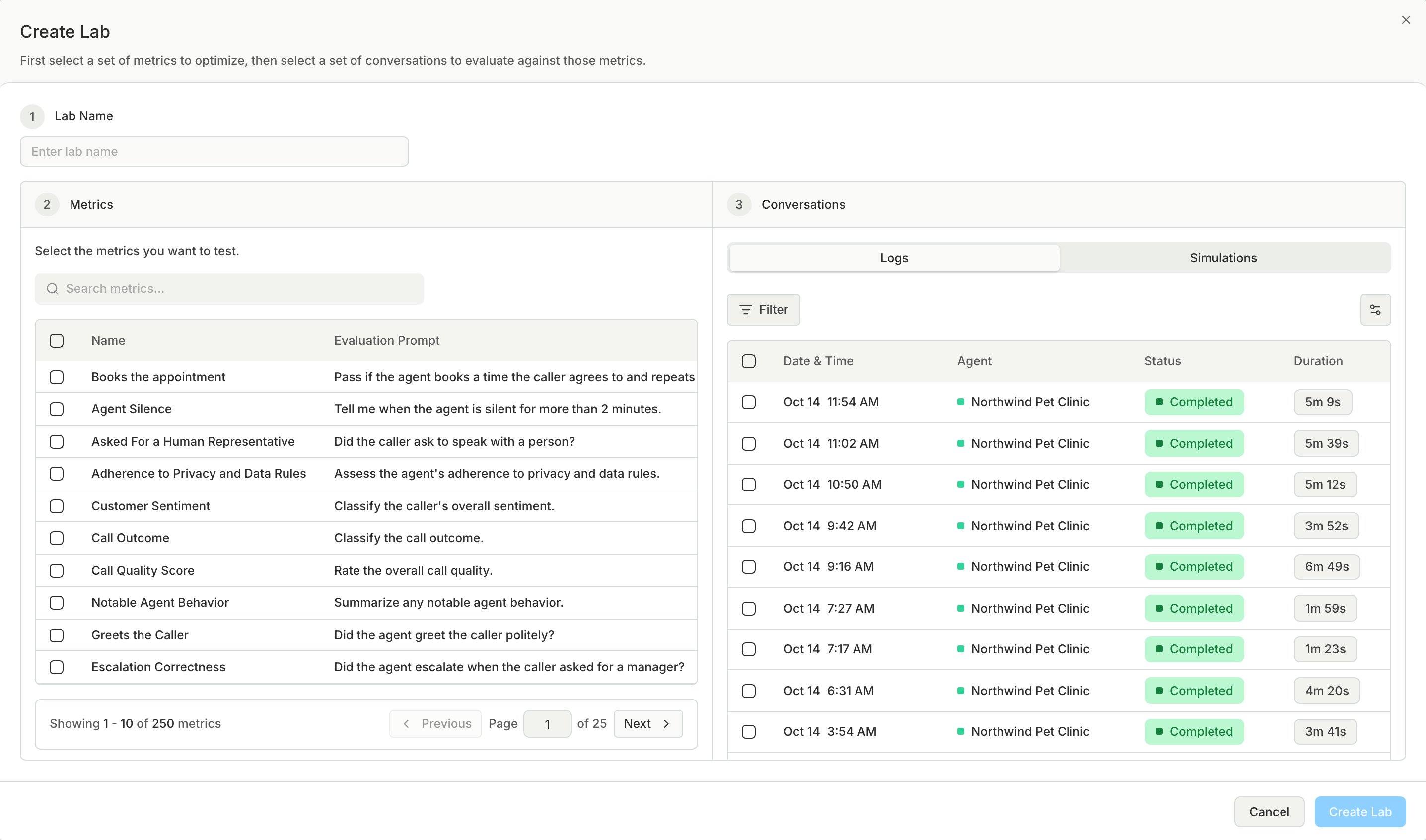
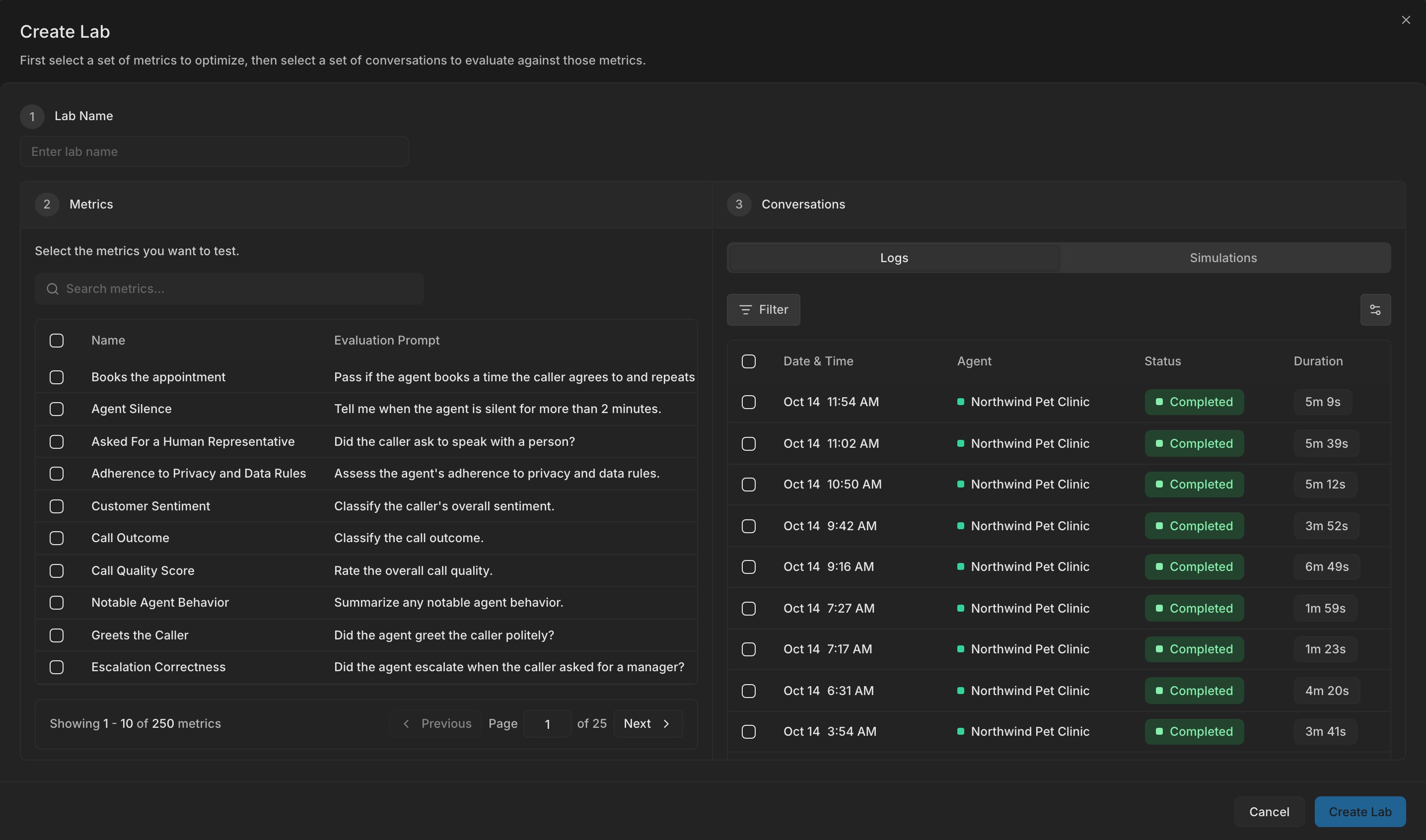
A lab pairs one or more custom metrics with a sample of conversations from an agent or a simulation run. You test prompt revisions against this sample, so the result is only as good as the sample. Select 20 to 50 conversations for each metric, and include clear passes, clear fails, and unclear cases.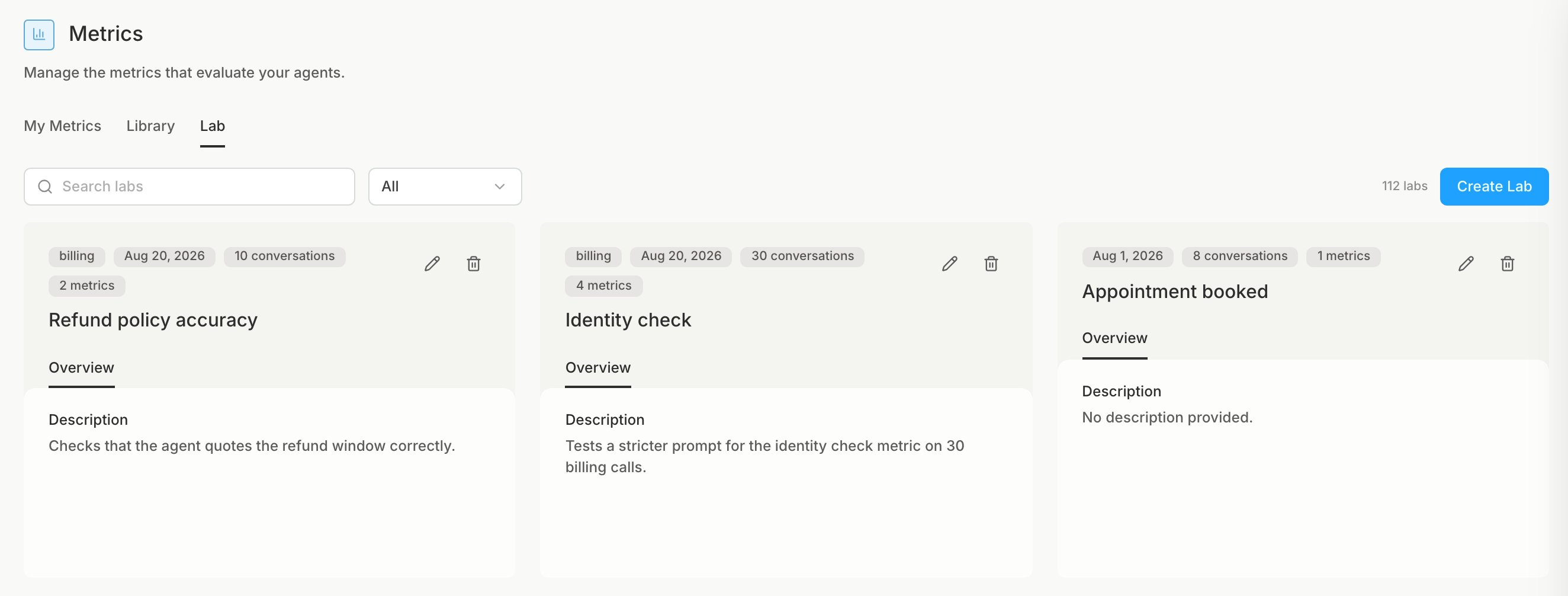
Label the conversations
Your label is the human verdict, and the metric’s result is the AI verdict. The alignment score shows how often the two agree. To save time, label in bulk when many rows share the same verdict.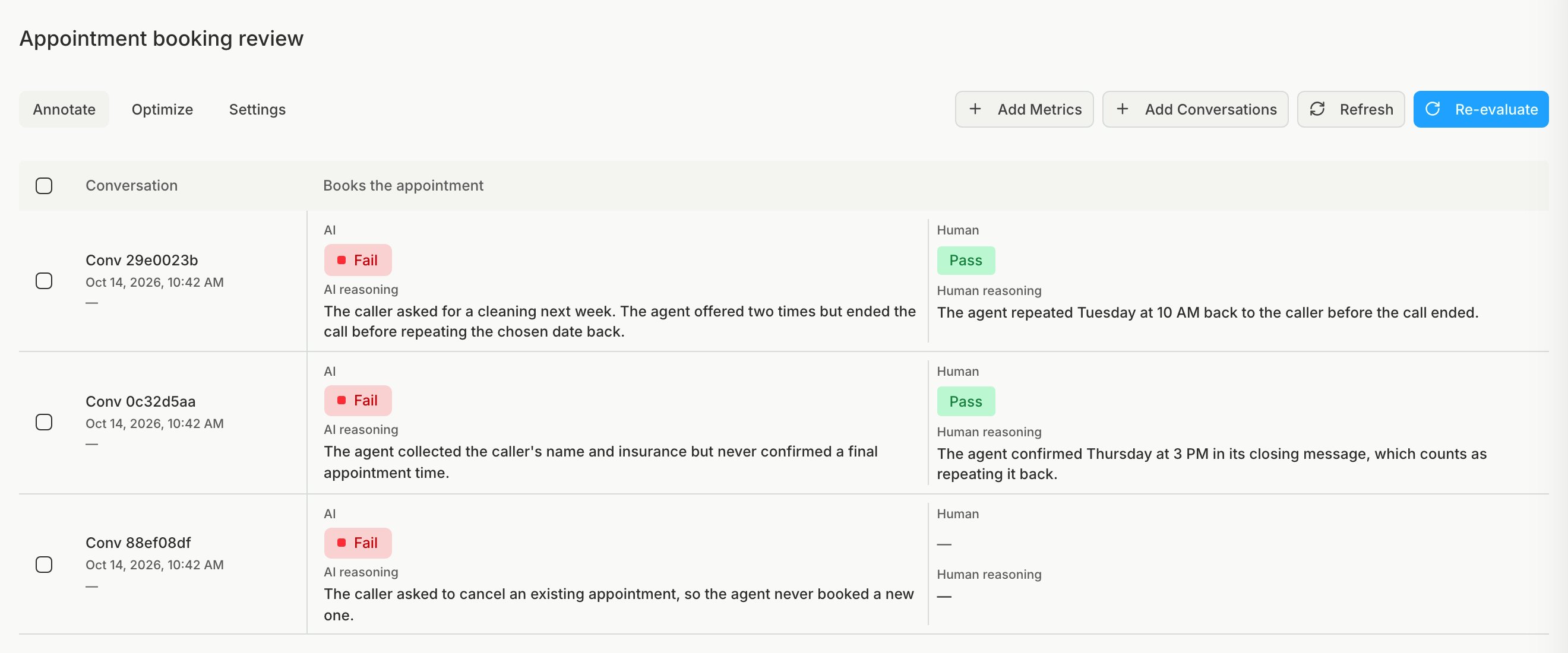
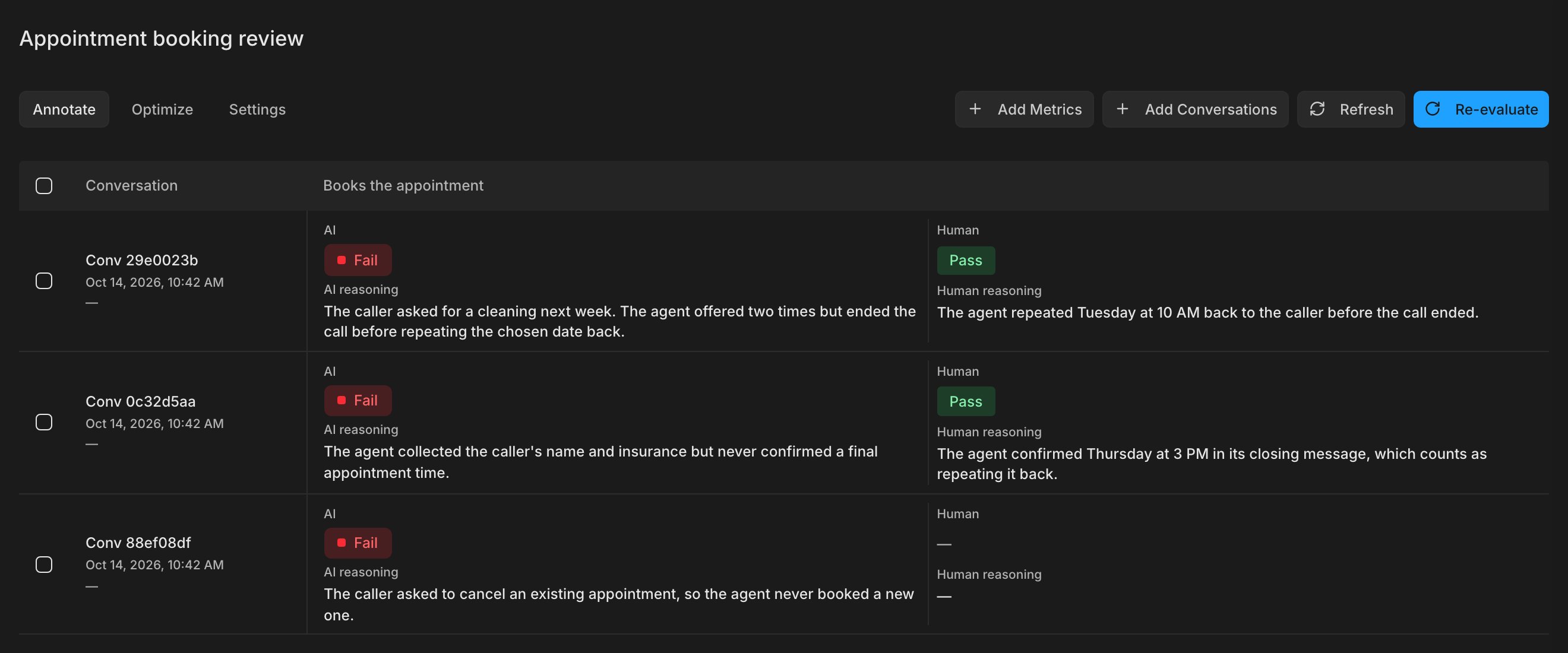
Label every conversation before you read the alignment score. The score compares only rows that have a human verdict.