Bluejay tests the bots you build in Amelia (SoundHound) by holding real conversations with them. Point Bluejay at your Amelia deployment, name the bot you want to test, and run Digital Humans against it over chat or voice. Bluejay also pulls your Amelia build into Bluejay: your AI agents, with their instructions and tools, and your conversation flows, drawn as a graph so you can see every path through them.

Prerequisites

  • An Amelia deployment Bluejay can reach over https. A deployment on a private network or on localhost is rejected.
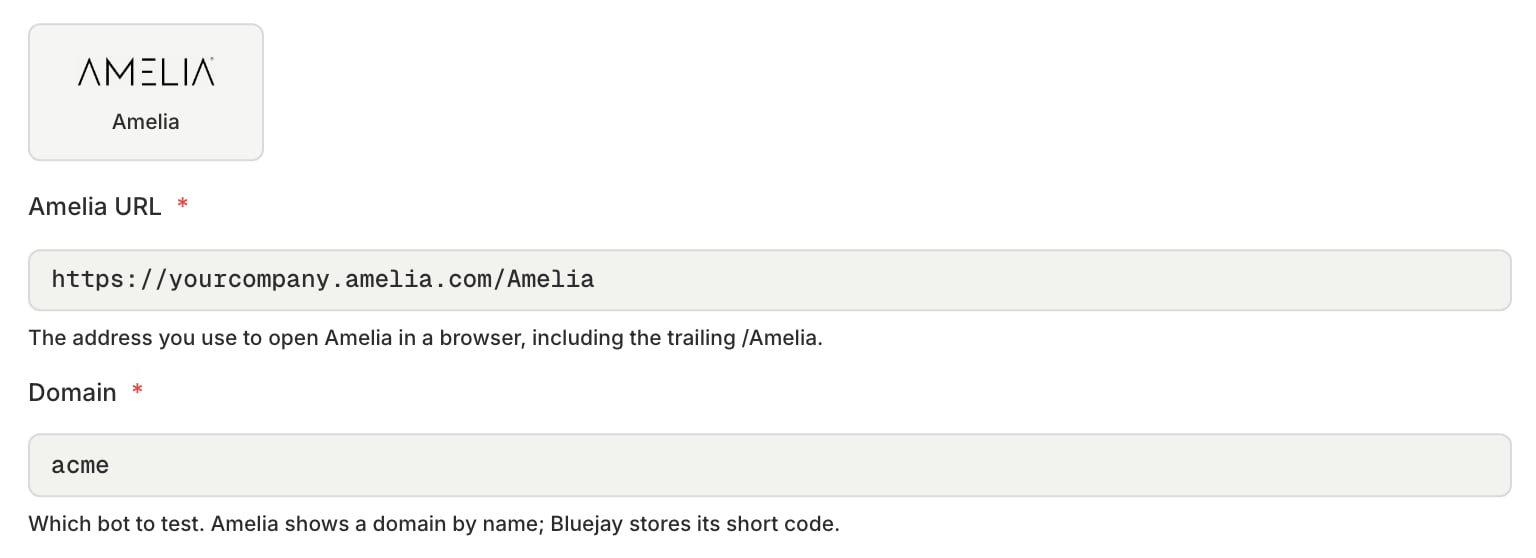
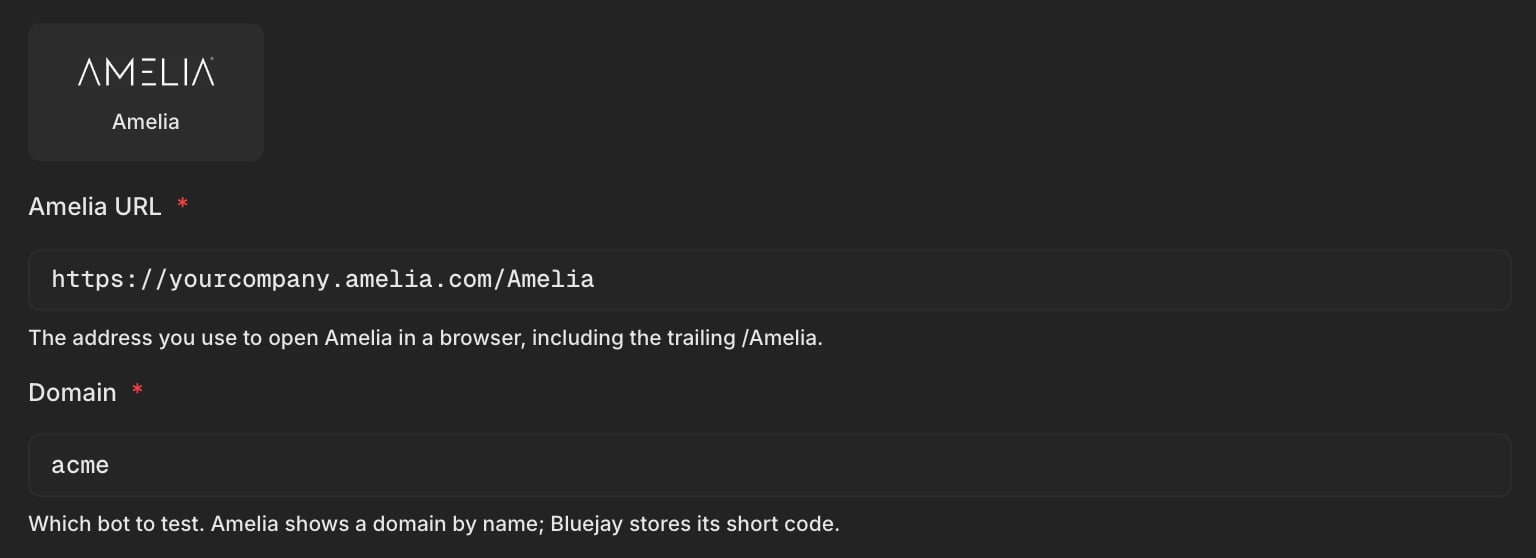
  • The domain code of the bot you want to test. In Amelia, a domain is one bot, and its code is the short identifier shown in the domain picker at the top of the Amelia window.
  • An Amelia user account that can view your domain. This is needed only to pull your agents and flows into Bluejay, so you can skip it if you only want to run simulations.
Bluejay opens a conversation the same way Amelia’s own web chat does. A domain that requires each user to sign in before chatting is not supported yet.

1. Add your Amelia sign-in details

Amelia has no API key and no service account. It exposes no endpoint that hands out a token, so the only credential it accepts is the username and password of a real Amelia account. Bluejay stores both encrypted and uses them for one purpose: reading your AI agents and conversation flows, and writing flows back when you push one.
  1. Log into your Bluejay Dashboard.
  2. Click your Organization menu (bottom-left), then Integrations, then Amelia.
  3. Fill in:
  1. Click Save.
This is a full Amelia login, so use an account with only the access it needs. To rotate it, type the new password into the same field and save again.
Simulations do not use these credentials. Skip this step for now if you only want to run chat or voice tests, and come back to it when you want to pull your agents and flows into Bluejay.

2. Connect an agent

An agent in Bluejay represents the bot you are testing. Each agent points at one Amelia domain.
  1. Create an agent, or open an existing agent’s Connection settings.
  2. Pick Voice for a spoken call or Text for a chat conversation, then choose Amelia.
  3. Fill in:
  1. Save.
Both Agent and Flow are optional, and they do different jobs:
  • Agent decides what Bluejay pulls in and shows you: the agent’s instructions and the tools it can call. It does not change which agent answers a call.
  • Flow decides where a conversation starts. Bluejay starts that flow instead of letting Amelia pick one from whatever the Digital Human says first. Leave it empty to let Amelia route.
Set both when you want to pin the entry point and track a particular agent’s instructions. Both dropdowns list what is in the domain code above, and both have a None option to clear them.
Keep the /Amelia on the end of the URL. That last segment is the context root of the deployment, and Bluejay uses the URL exactly as you enter it to reach the bot. Without it, every simulation fails the moment it starts.
Amelia nests things in this order: a deployment holds organizations, an organization holds domains, and a domain holds both conversation flows and AI agents. Each save of a flow or an agent becomes a new revision. Bluejay works one domain at a time, which is why the domain code is all it needs to start talking.
Amelia decides which AI agent answers a conversation, and it can hand over to another agent partway through. There is no way to dial one agent directly. If you need a run to reach a specific agent every time, build a flow in Amelia whose Execute Cognitive Agent block names that agent, then point Bluejay’s Flow field at it.

3. Run a simulation

Whether a run is chat or voice is decided by the agent’s connection, so there is nothing extra to choose at run time. Open the agent, create a simulation, add Digital Humans with their scenarios and success criteria, then start the run.
  • Chat simulations exchange one message at a time, exactly as Amelia’s web chat does.
  • Voice simulations stream audio in both directions in real time. Amelia does its own listening and turn-taking, and no phone number is involved.
Each result records the Amelia conversation ID and links to that conversation in Amelia, so you can read Bluejay’s transcript and evaluation next to Amelia’s own record of the same call.

4. Import your Amelia agents

Bluejay can pull your whole Amelia domain in at once, creating one Bluejay agent per AI agent so you have something to run simulations against straight away.
  1. Go to Organization, Integrations, Amelia.
  2. Click Sync from Amelia.
Each AI agent in Amelia becomes a Bluejay agent in a Synced from Amelia folder, set up for chat. The agent’s instructions become its first agent version in Bluejay, so you can read and diff them like any other prompt. Agents already connected to Bluejay are refreshed rather than duplicated, and any agent that names neither an AI agent nor a flow is skipped. The toast tells you what happened, for example Added 12 to Synced from Amelia, refreshed 3, skipped 1 that name no agent or flow.
The button stays disabled until the Amelia URL, username and password are all saved. Sync runs against the saved credentials, so save before syncing.
Amelia agents are read-only in Bluejay. Sync brings the instructions and tools in so you can test and diff them, but editing an agent from Bluejay is not supported: change it in Amelia and sync again. Conversation flows can be pushed back, agents cannot.
Over the API:
To list the AI agents in a domain without importing anything:

5. Pull a flow into Bluejay

Bluejay can copy one conversation flow out of Amelia and show it as a graph: what the bot says at each step, and the condition on each branch between steps. Use it to see the paths through a bot and to generate Digital Humans that cover them. Sync needs two things: the domain code already on the agent, and the flow name. The flow name is required because a domain holds many flows, and Bluejay will not guess which one you meant.
1

Pick the flow

Open your agent, go to Connection Settings, and choose the flow from the Flow dropdown. Bluejay lists the flows in the domain code you entered above. If it cannot reach Amelia, the field accepts the flow name typed by hand, exactly as it appears in Amelia.
2

Save the agent

Save the connection settings so the flow name is stored on the agent.
3

Sync

Go to the Workflow tab and select Sync. Bluejay reads the flow’s latest revision and draws it as a graph. Sync again whenever the flow changes in Amelia.
The Sync button is disabled until the agent has a domain code and either an AI agent or a flow. The button says which one is missing.
An AI agent is instructions and tools, not a graph, so there is nothing to draw and the Workflow tab is hidden while the Agent field is set. Clear that field to get the flow graph back. To read an agent’s instructions in Bluejay, import it from Integrations as described above, which puts them on the Prompt tab.
You can do the same over the API. List the flow names in a domain:
Set the one this agent tracks with Update Agent, then pull it in:
Setting an Agent takes precedence over a Flow when Bluejay decides what to sync. To sync the flow graph, leave the agent field empty.

What sync does and does not do

  • Edit flows in Amelia, not in Bluejay. Changing nodes and branches from Bluejay is not supported for Amelia. Bluejay refuses those edits rather than risk writing a broken flow into your bot. Make the change in Amelia, then sync again.
  • A push replaces the whole flow. Pushing sends the stored flow back as one unit: Amelia validates it, saves it, and deploys it. If Amelia reports a problem with the flow, nothing is saved.
  • Every save in Amelia creates a new revision, including the save a push performs. Sync always reads the flow’s latest revision, so a flow that has never been deployed has nothing to read yet.

Troubleshooting


Summary