

Prerequisites
- An ElevenLabs account
- Your ElevenLabs API key
- Your ElevenLabs Agent ID
- A Bluejay account
Configuration Instructions
1. Set up the ElevenLabs webhook
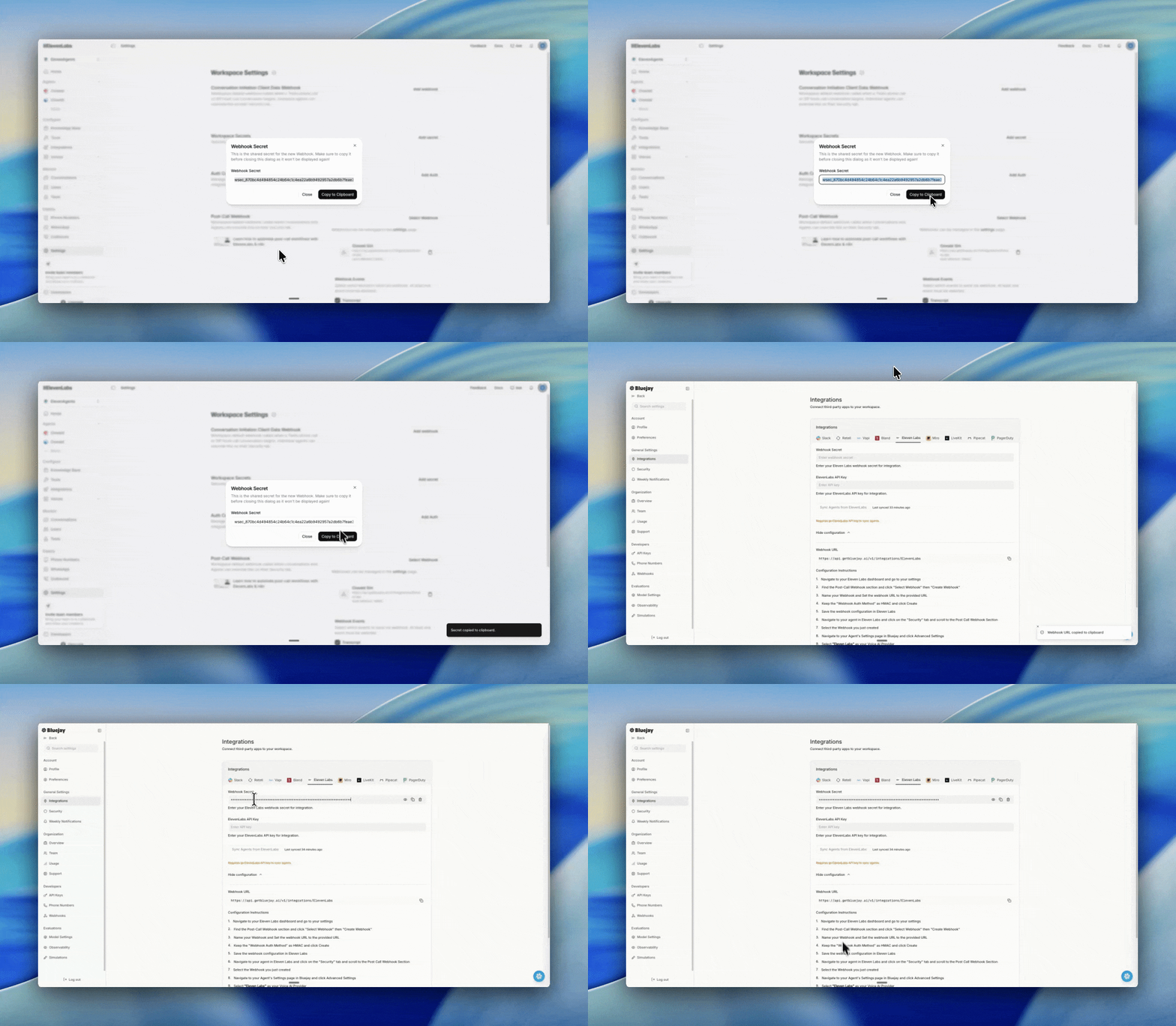
- In ElevenLabs, go to Settings > Post-Call Webhook > Select Webhook > Create Webhook.
- Name your webhook and paste this URL into the URL field:
- Keep the Webhook Auth Method as HMAC and click Create.
- Save the webhook configuration in ElevenLabs.

2. Paste the webhook configuration into Bluejay
- Copy the webhook configuration shown in ElevenLabs.
- In Bluejay, open Settings, then Integrations, and paste the configuration into the ElevenLabs integration panel.
3. Sync your ElevenLabs agents to Bluejay
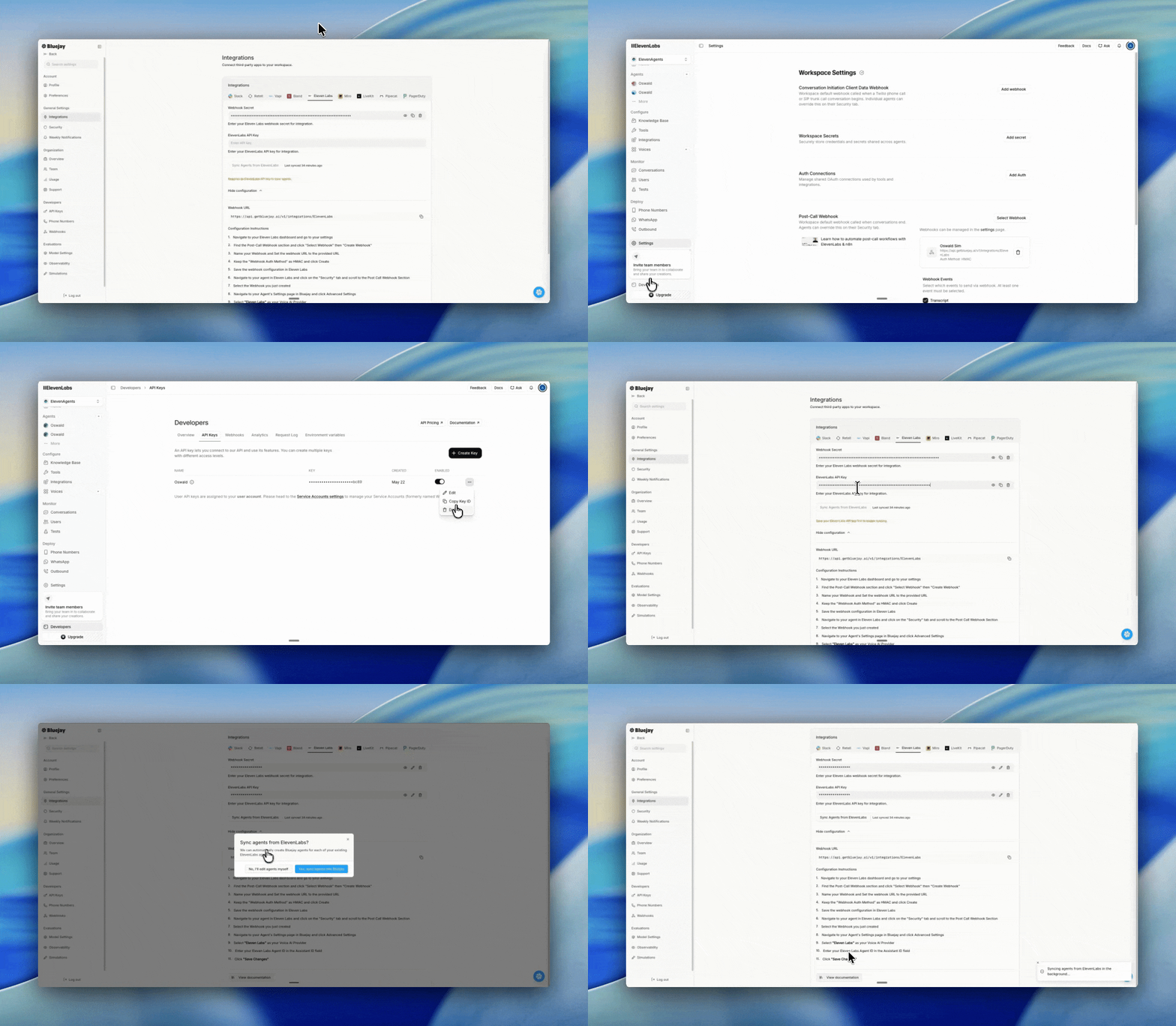
- In ElevenLabs, click the Developers tab in the bottom-left of the sidebar.
- Open the API Keys section.
- Create a new API key or copy an existing one.
- In Bluejay, paste the API key into the ElevenLabs integration panel and click Save Changes, then click Sync Agents from ElevenLabs. This imports your ElevenLabs agents into Bluejay.
Using your own webhook
If you already port your own webhook into ElevenLabs, you can also send ElevenLabs transcripts directly to Bluejay’s webhook. Create an API key in Bluejay.metadata object (different than data.metadata that comes from ElevenLabs). Here we add two fields, member_id and clinic that Bluejay will import:
{{member_id}} in a metric’s prompt.
Note that Bluejay reserves and overwrites the following metadata fields: eleven_labs_conversation_id, eleven_labs_user_id, eleven_labs_agent_id, organization_id, call_duration_secs, termination_reason, cost, main_language, or original_webhook_data.
Up Next
ElevenLabs Simulations
Run Bluejay simulations against your ElevenLabs agents.