Before you start
- Create a simulation that covers the flow you want to protect. See Create a Simulation.
- Save the current agent prompt as an agent version, so that you have a baseline to compare against.
Steps
1
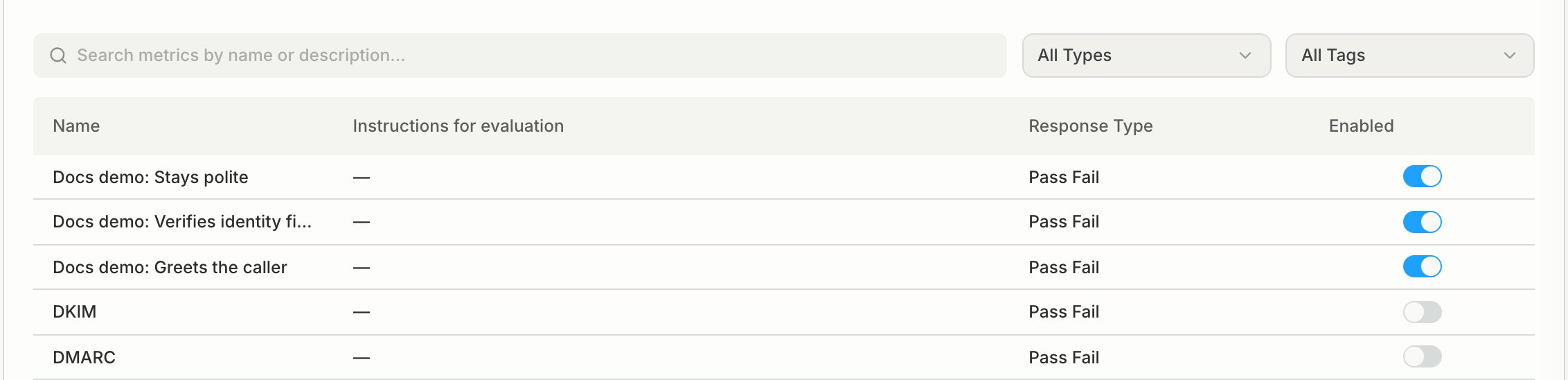
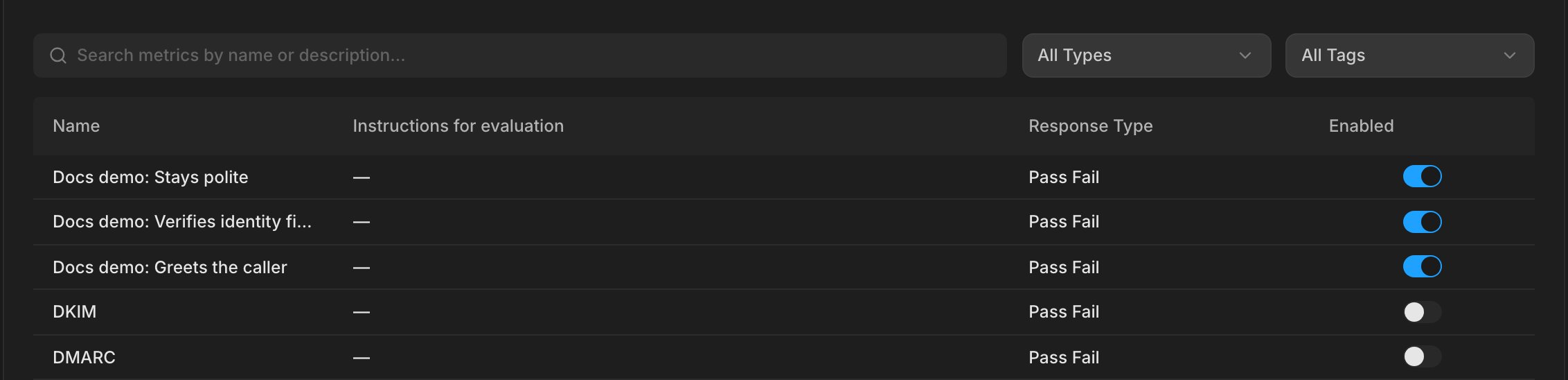
Write one metric for each check
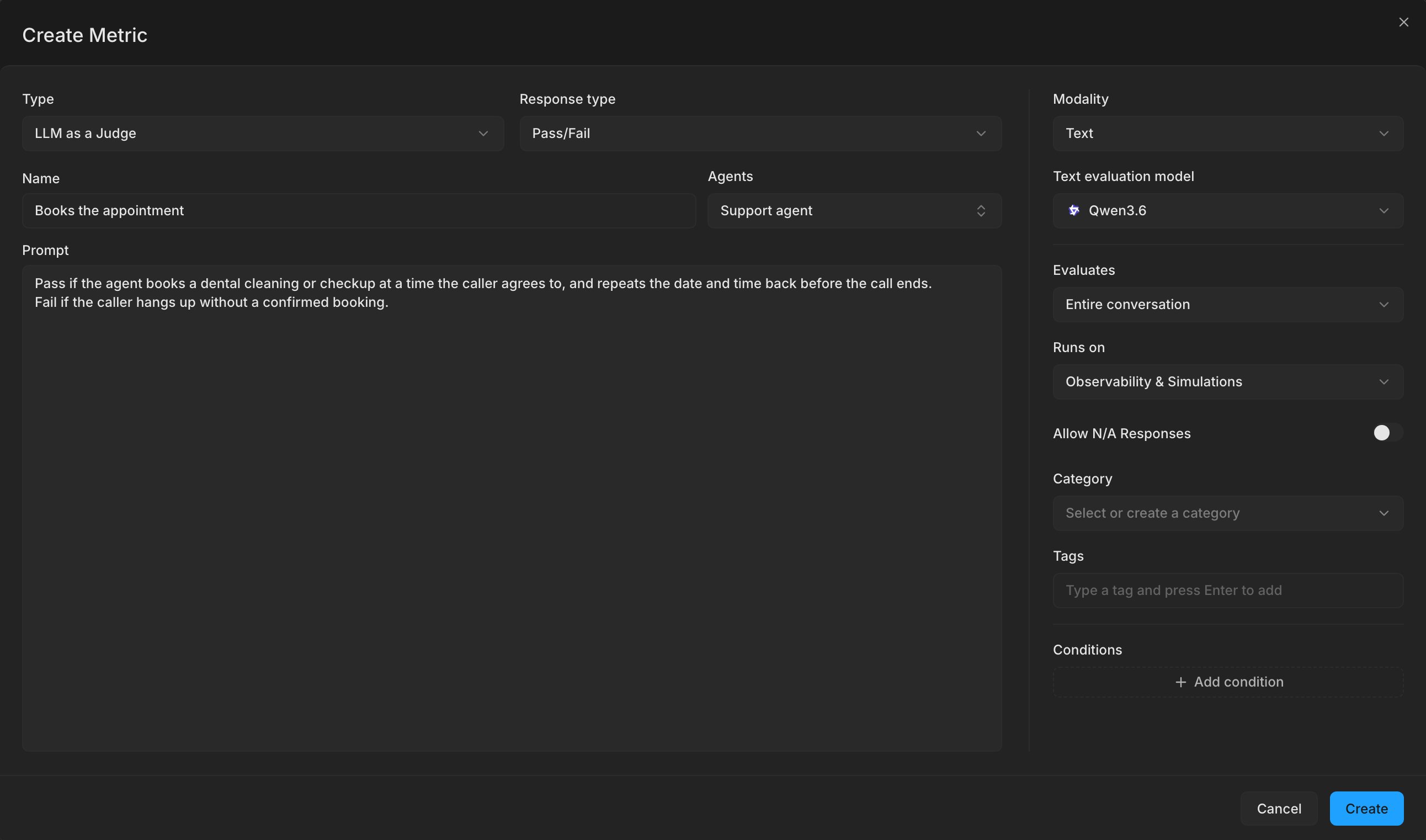
Create a custom metric for each step you always care about, for example that the agent quoted the right price, booked the appointment, and captured a callback number. Give each metric a single question and the Pass/Fail response type, so a failure points to one step. Write the prompt so it names what counts as a pass and what counts as a fail.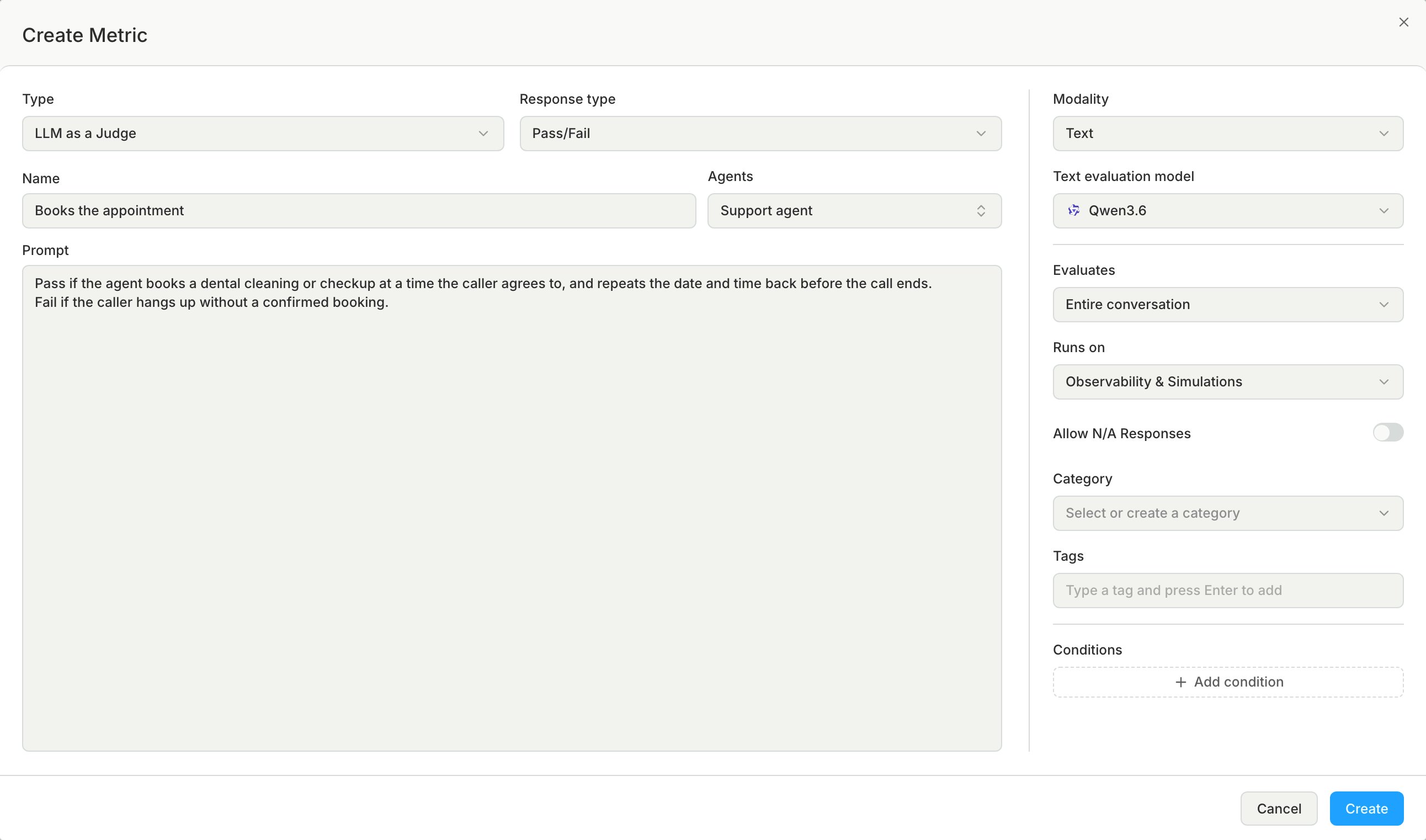
2
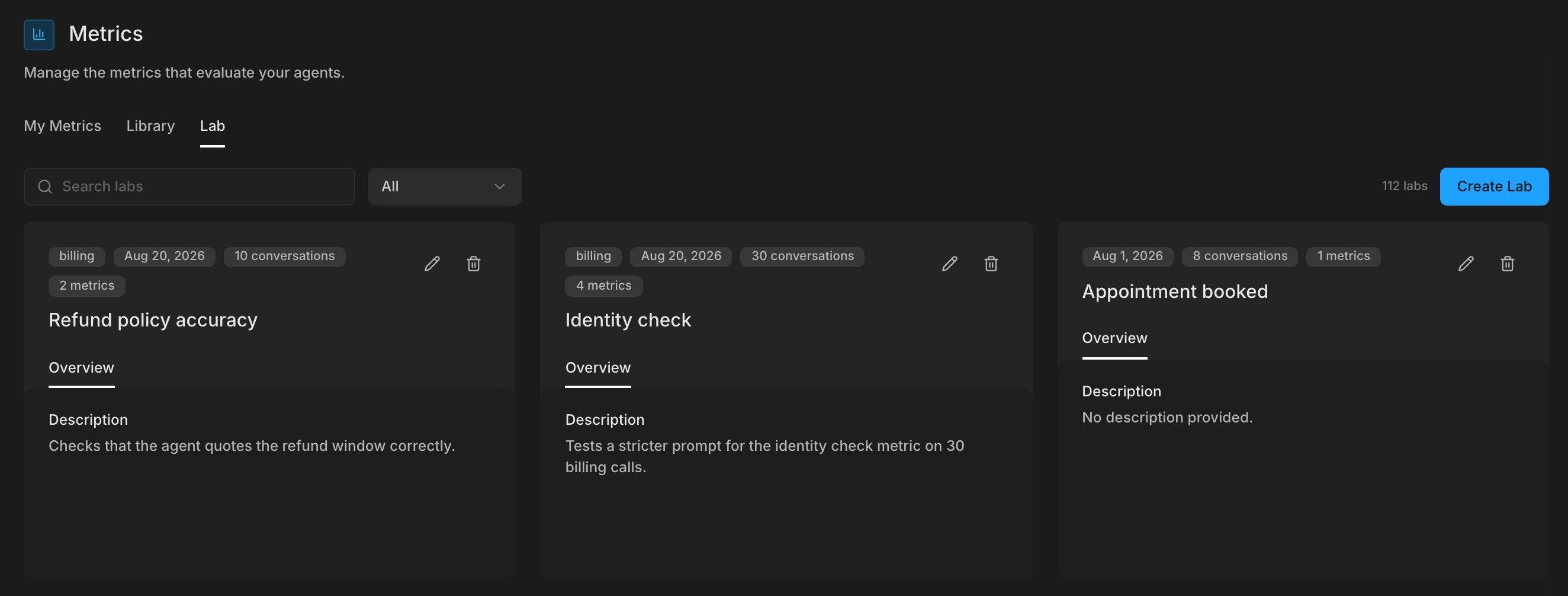
Check the important metrics in Metrics Lab
A metric that judges wrongly makes a regression look real or hides one. Run your key metrics in Metrics Lab against calls you have already judged yourself, and fix any that disagree. See Improve the Accuracy of a Metric.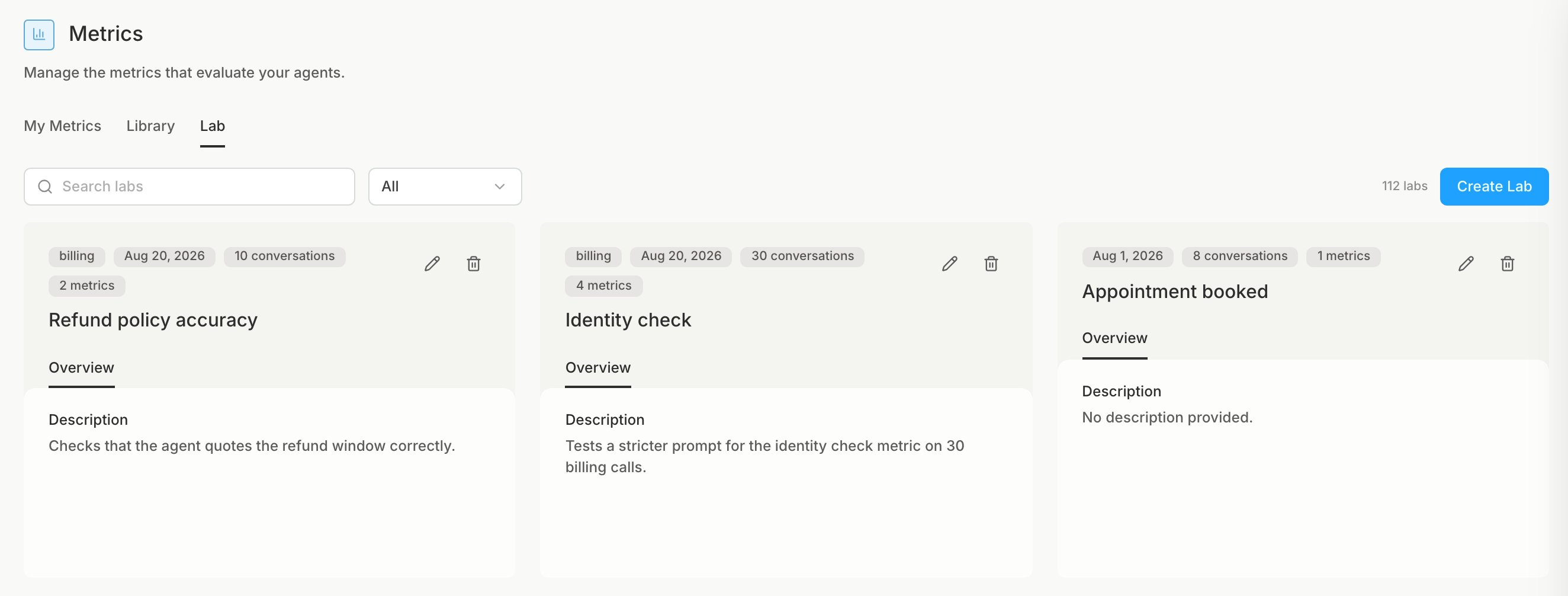
3
Run the simulation after each prompt change
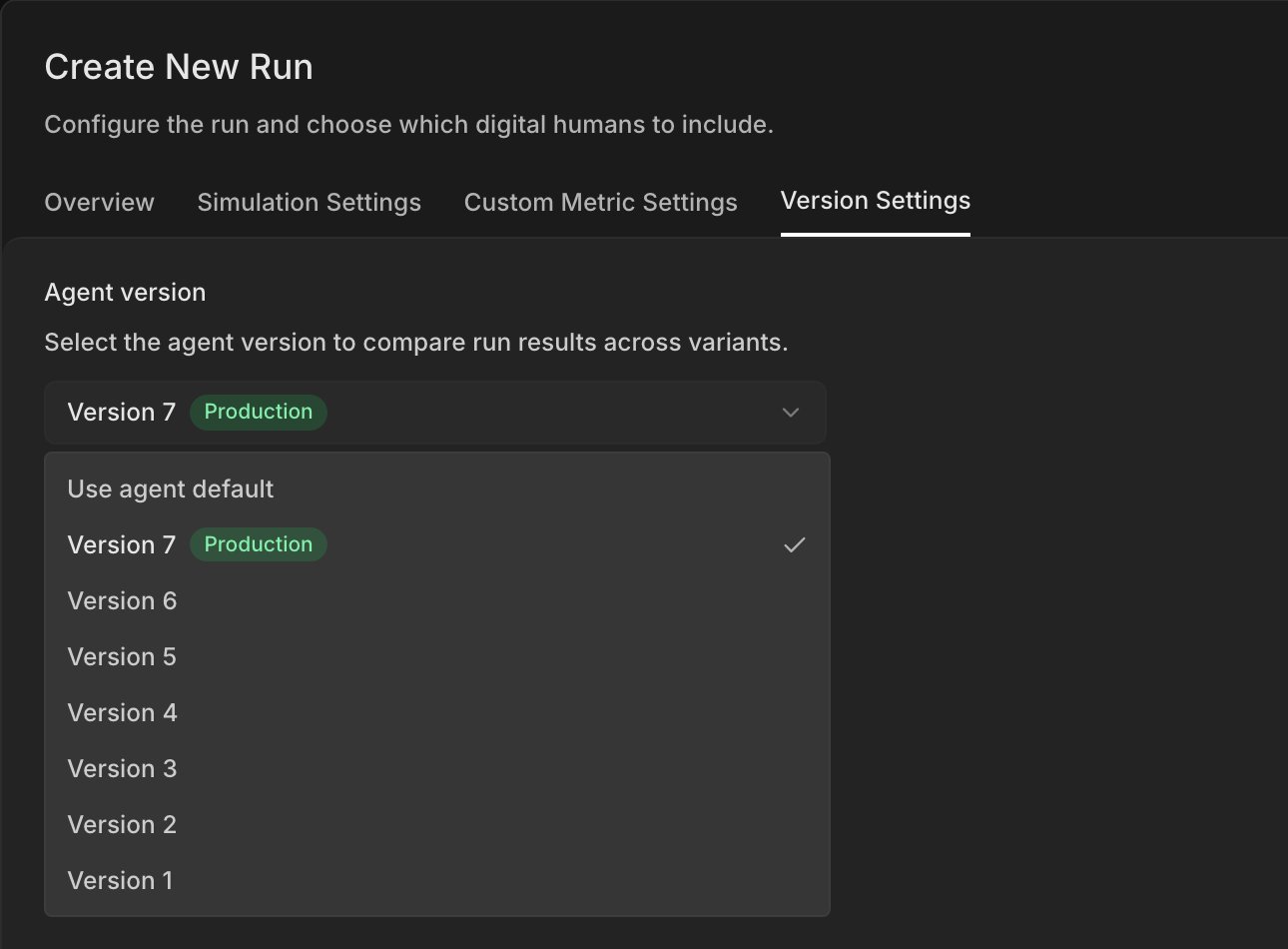
Save each prompt change as a new agent version. On the simulation, click Create New Run and choose that version in Agent version, so each run belongs to one known version of the agent. Change one thing per version, so a regression points to one change.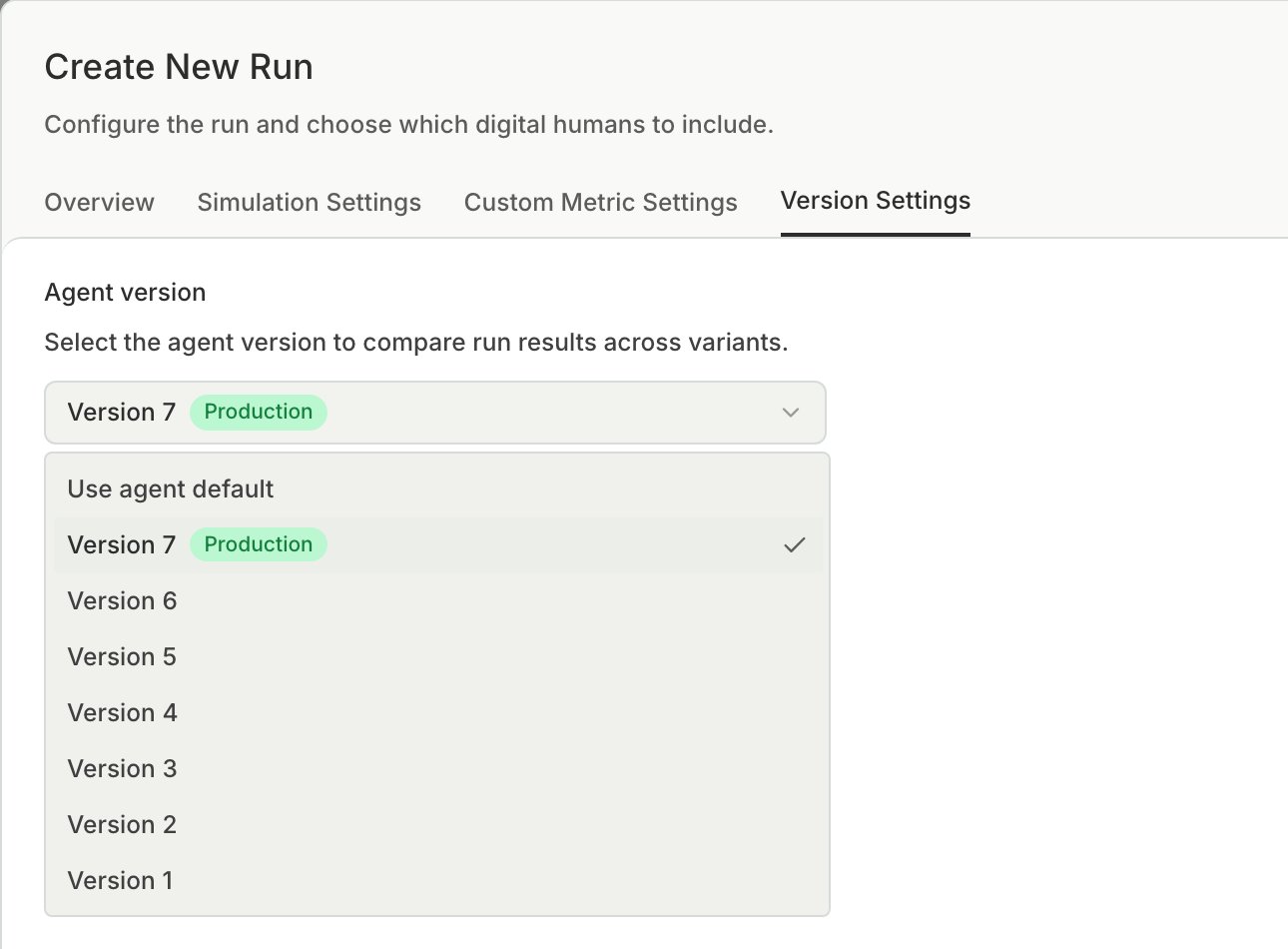
4
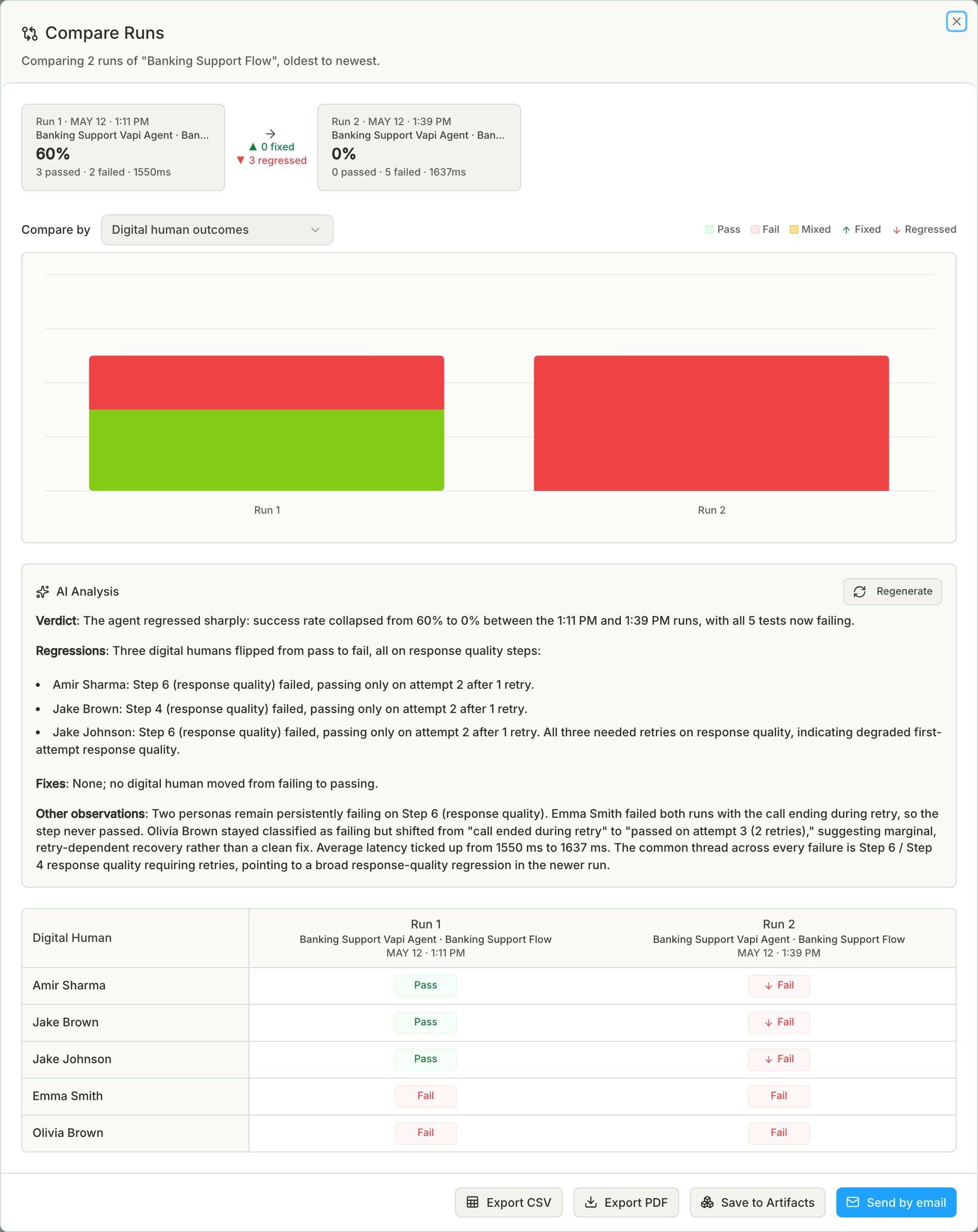
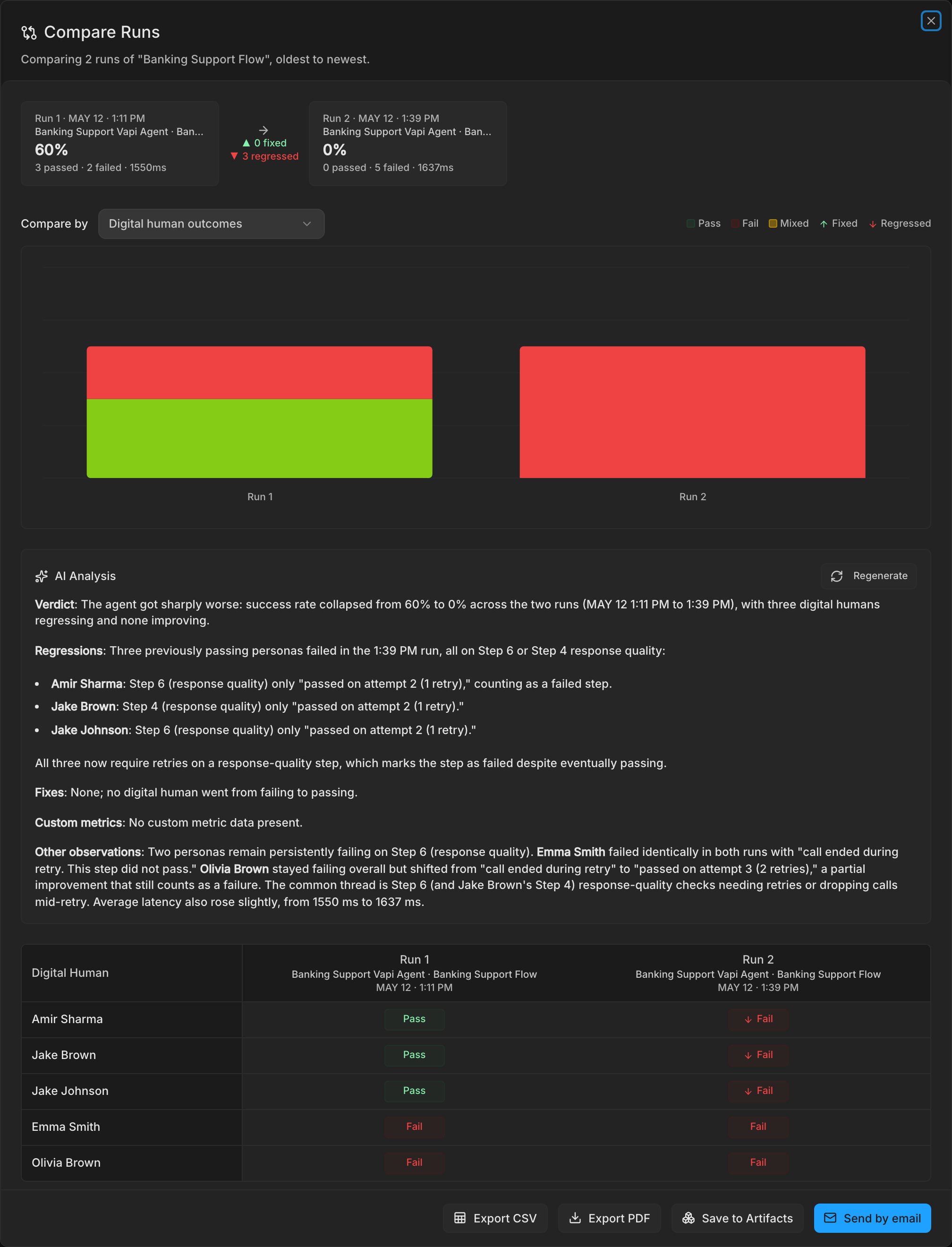
Compare the metrics across runs
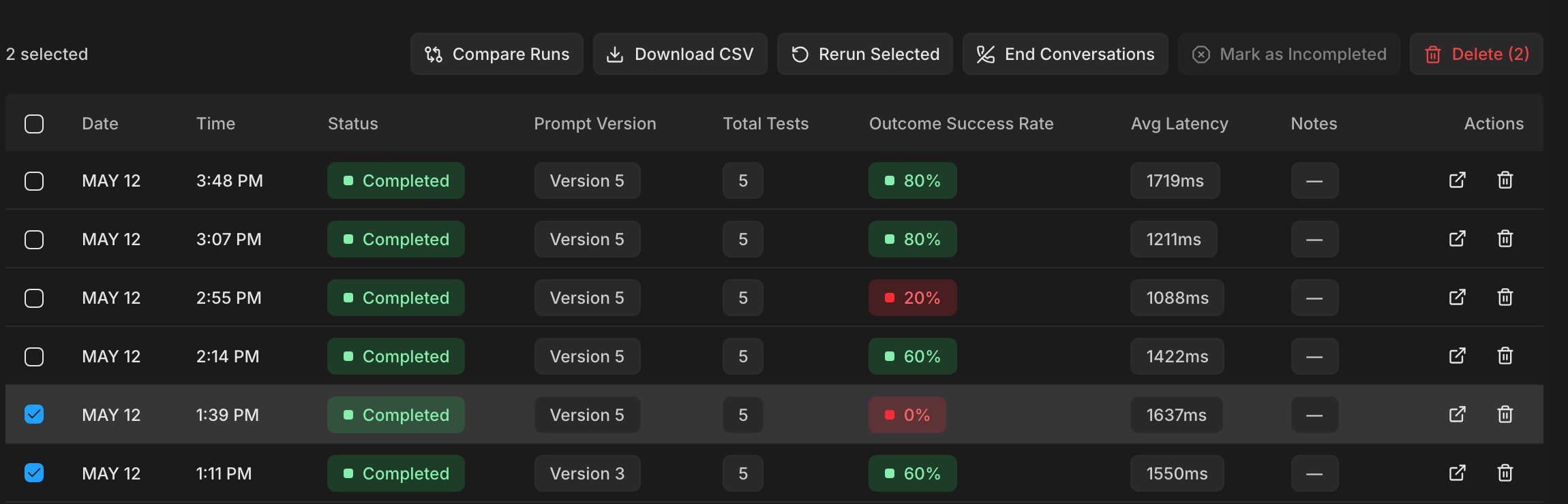
In Run History, select the run before the change and the run after it. Click Compare Runs, then Compare.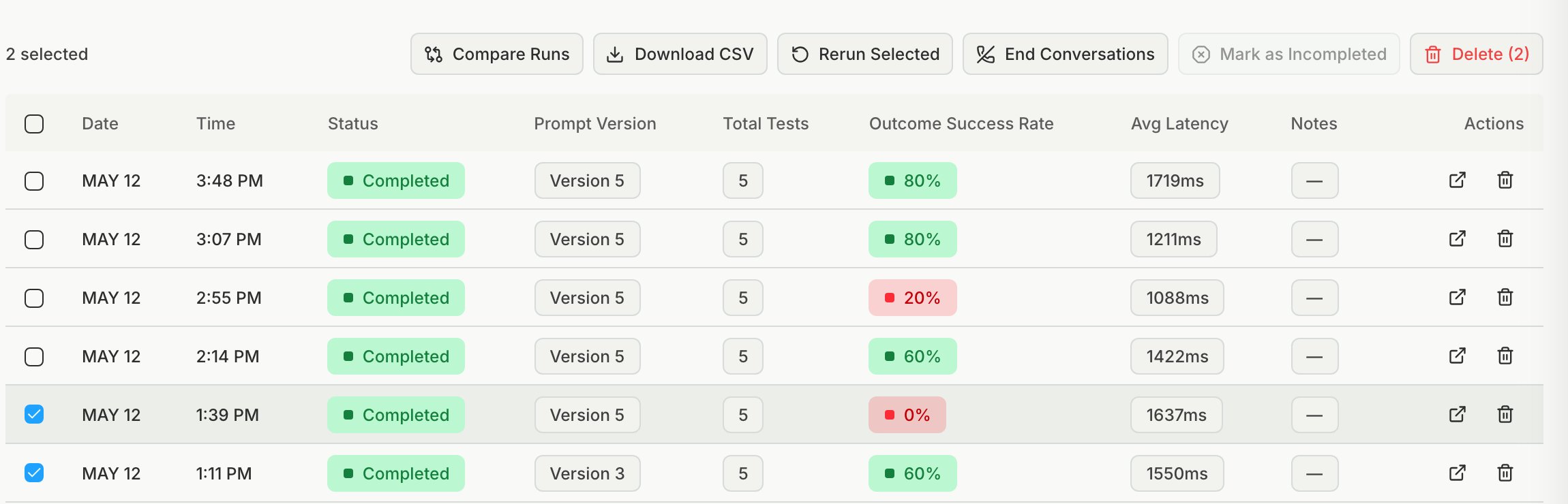
5
Open a failing call
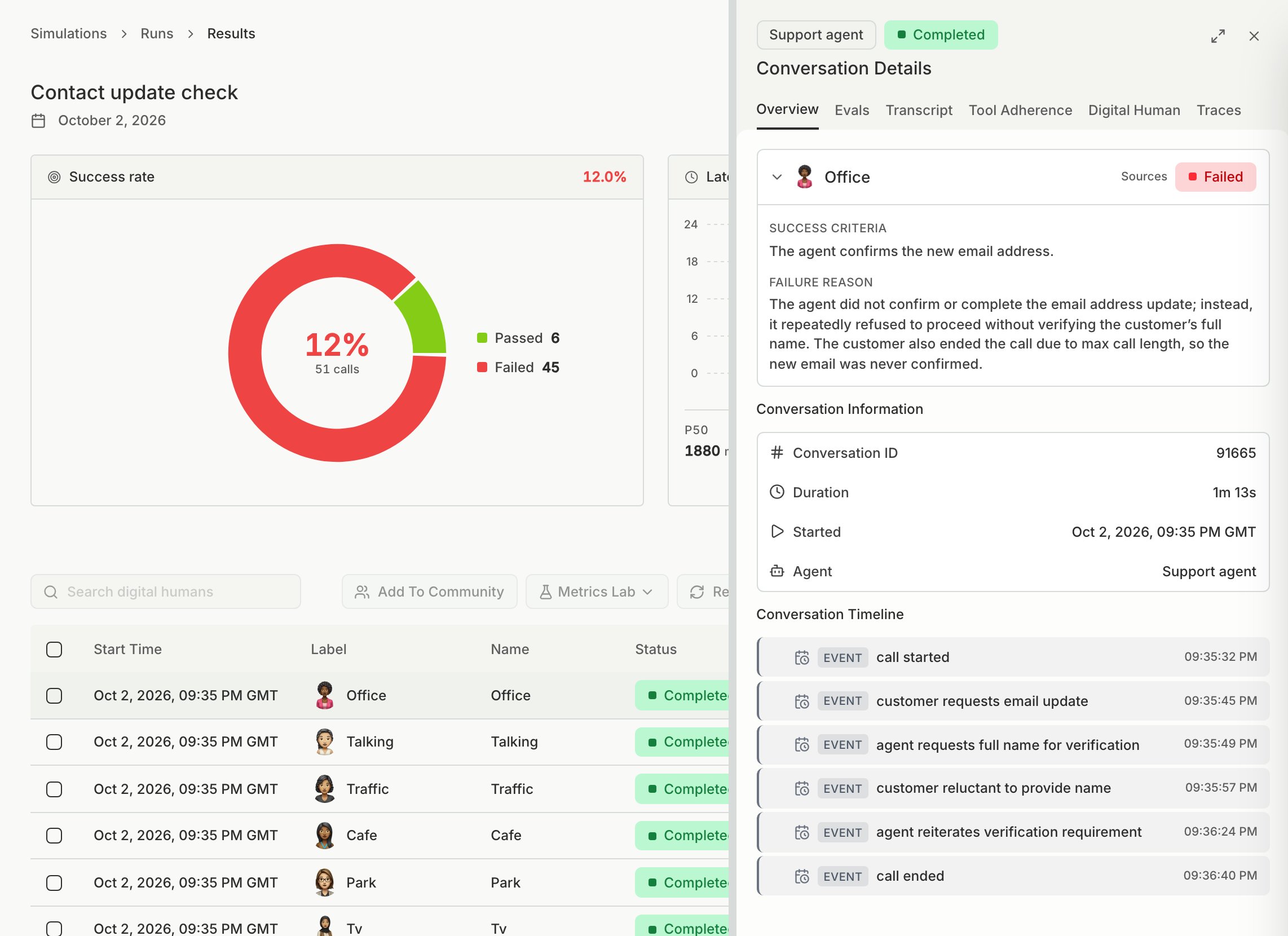
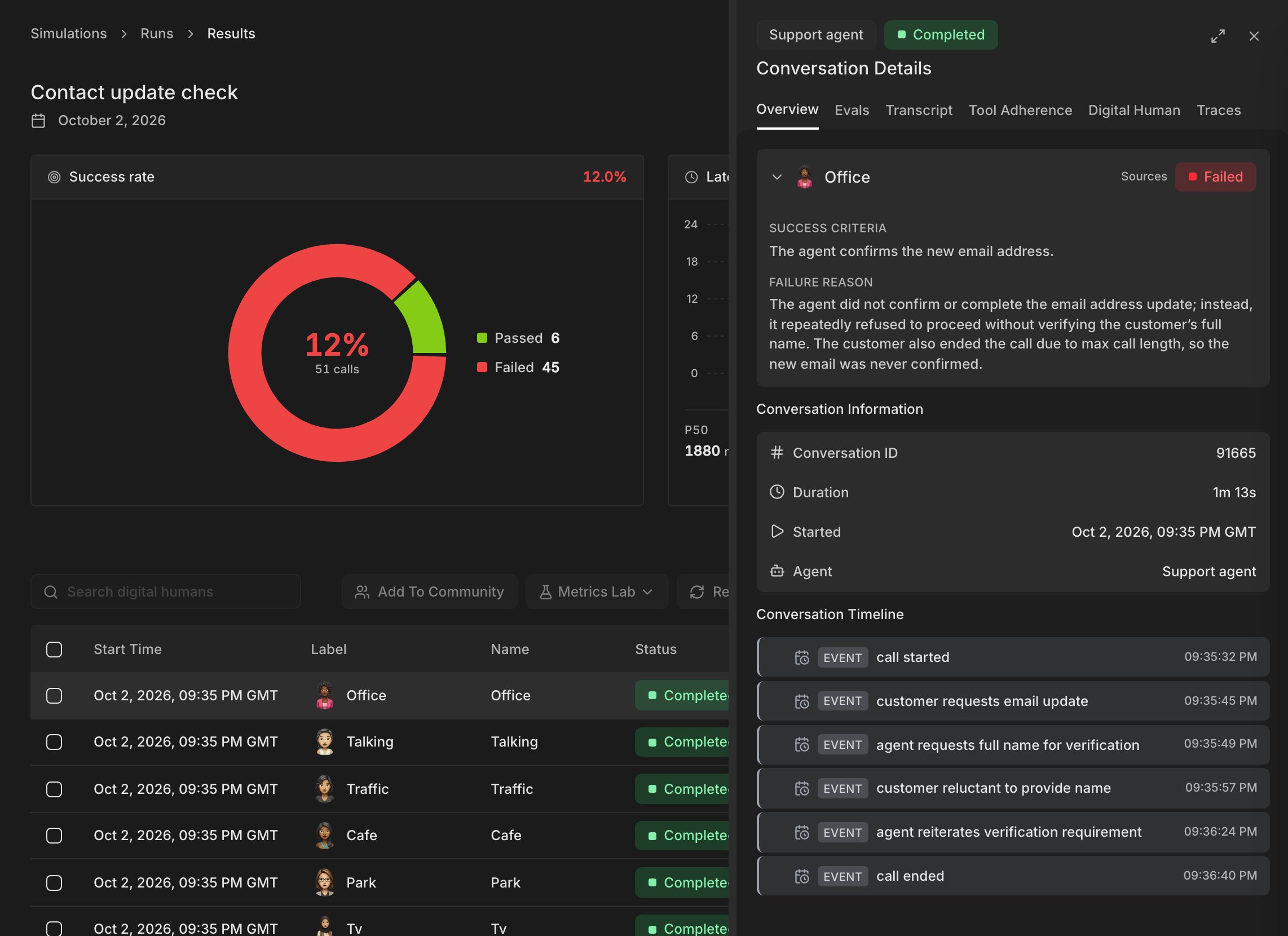
Open a Digital Human that regressed and read the failure reason, then the transcript, to see what the agent said at that step. Use that to decide the prompt fix, save it as a new agent version, and repeat from the run step.