

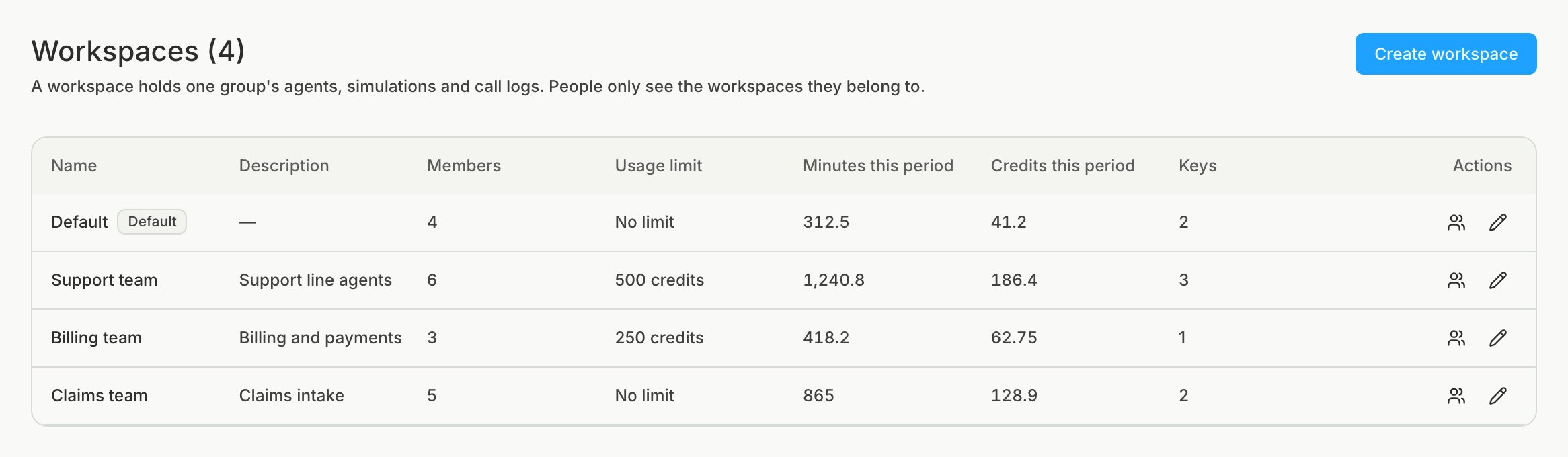
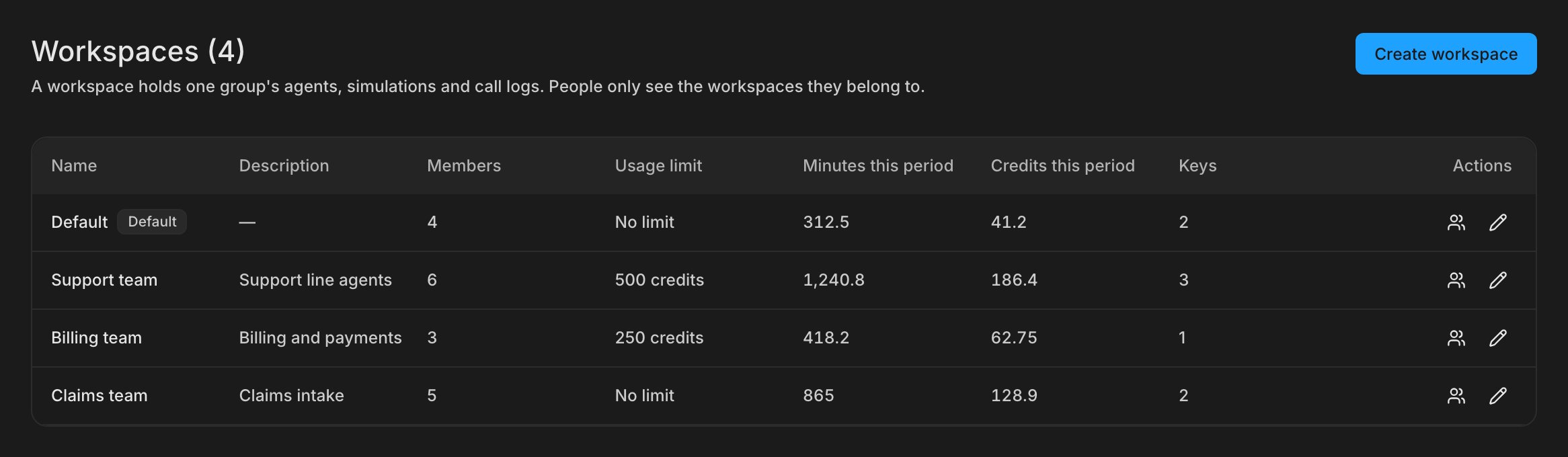
Create a workspace
You need to be an organization admin to create, edit, or delete workspaces.1
Create it
In Settings, under Workspaces, click New workspace.The Usage limit is optional. Once the workspace spends this many credits in a billing period, new runs in it are refused until the next period or until you raise the limit.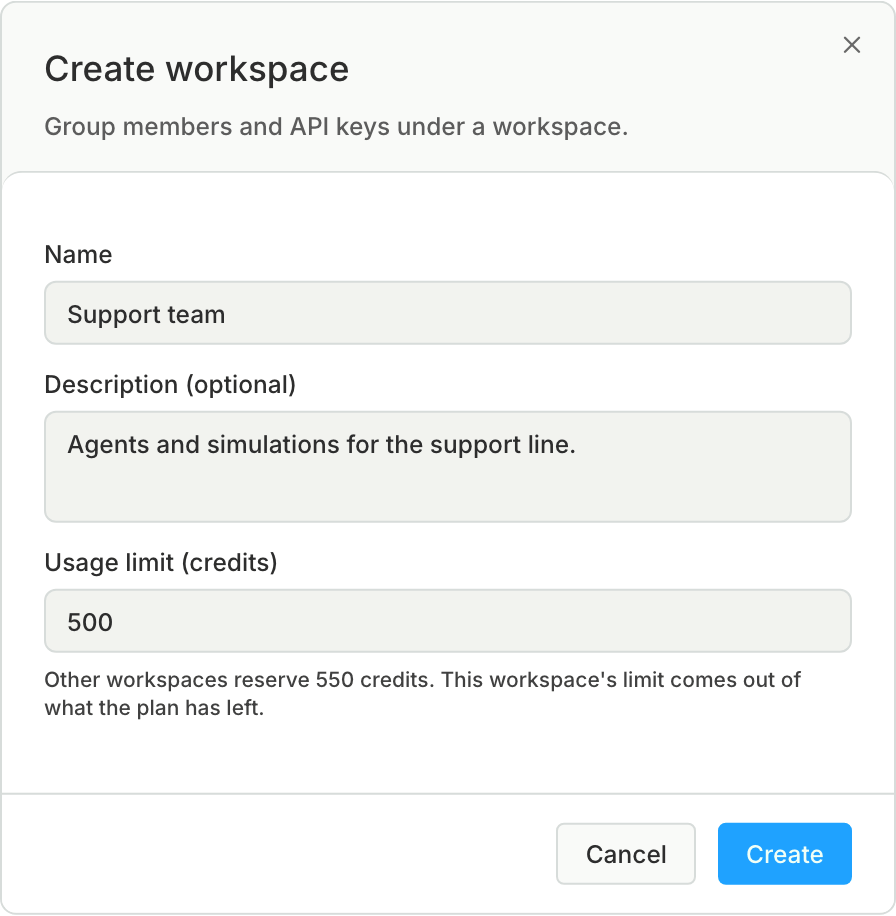
2
Add people
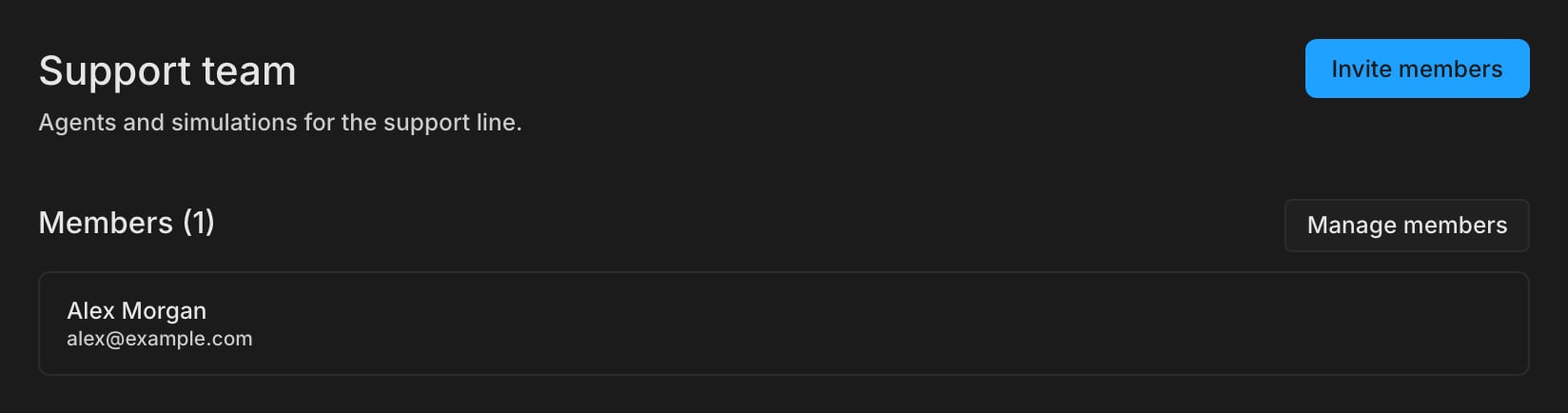
Open the workspace under Settings → Workspaces and click Invite members, or Manage members to add people already in your organization.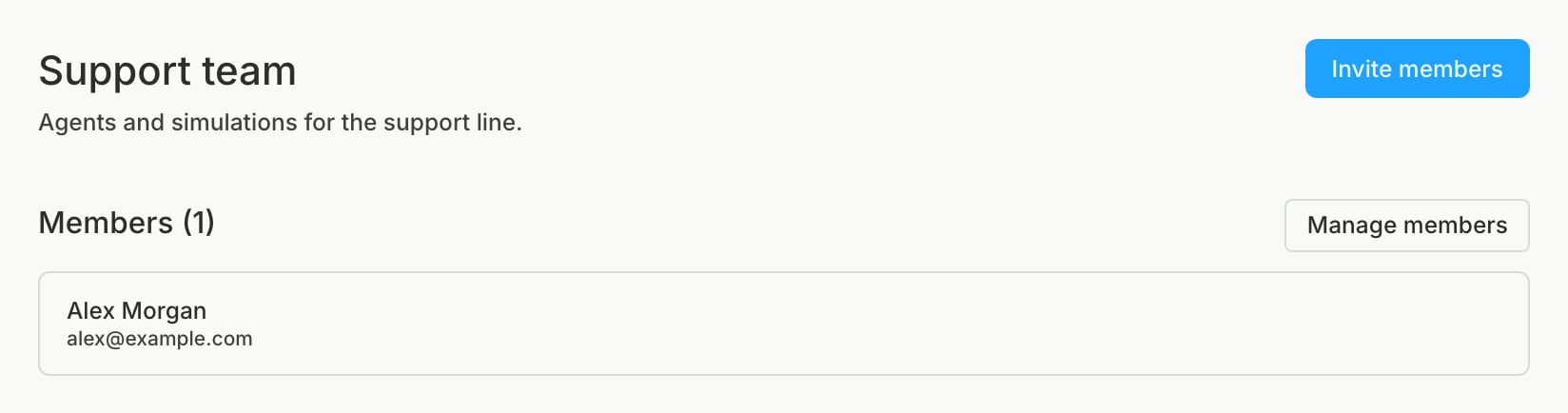
Who sees what
- Admins see and manage every workspace without being added to it.
- Members see only the workspaces they were added to. A member who belongs to no workspace works in the Default workspace.
The Default workspace
Every organization has a Default workspace, and it cannot be deleted. When you delete another workspace, its agents, simulations, and other work move into Default, and so do its members. The delete is blocked if an agent in the workspace shares an external agent ID with an agent in Default, so change or remove one of each pair first. API keys scoped to the deleted workspace stop working. Its integration keys are deleted too, unless Default has none of its own.What a workspace holds
Belongs to a workspace:- Agents, simulations, Digital Humans, custom metrics, dashboards, and issues
- Alerts and uptime monitors. An alert watches only its own workspace’s agents, even when it applies to all agents.
- Webhooks. A webhook fires only for agents in its own workspace.
- Phone numbers. Buy numbers in the workspace whose Digital Humans use them.
- Integration keys, including the PagerDuty and Better Stack keys that alerts use
- API keys with Workspace scope
- People, roles, and billing
- The Slack connection
- API keys with Organization scope
API keys
When you create a key on the API Keys page, its Scope decides where it reaches:- Workspace: reads and writes only in the workspace you pick.
- Organization: acts as you and reaches every workspace you can open. Anything it creates lands in the workspace you last switched to in the app.
Limits
- You cannot move an agent, phone number, or anything else to another workspace. Create it again in the workspace you want, or buy new numbers there.
- Workspace names must be unique within the organization.