

Connect
1
Deploy the agent
Deploy your agent to Pipecat Cloud with the Pipecat quickstart. Note the agent name in
pcc-deploy.toml.2
Add a public API key
In the Pipecat dashboard, open API Keys and create a key on the Public tab. In Bluejay, open Settings → Integrations and choose the Pipecat tab. Paste the key there. A private key does not work: Bluejay needs a key that starts with
pk_.3
Create the agent
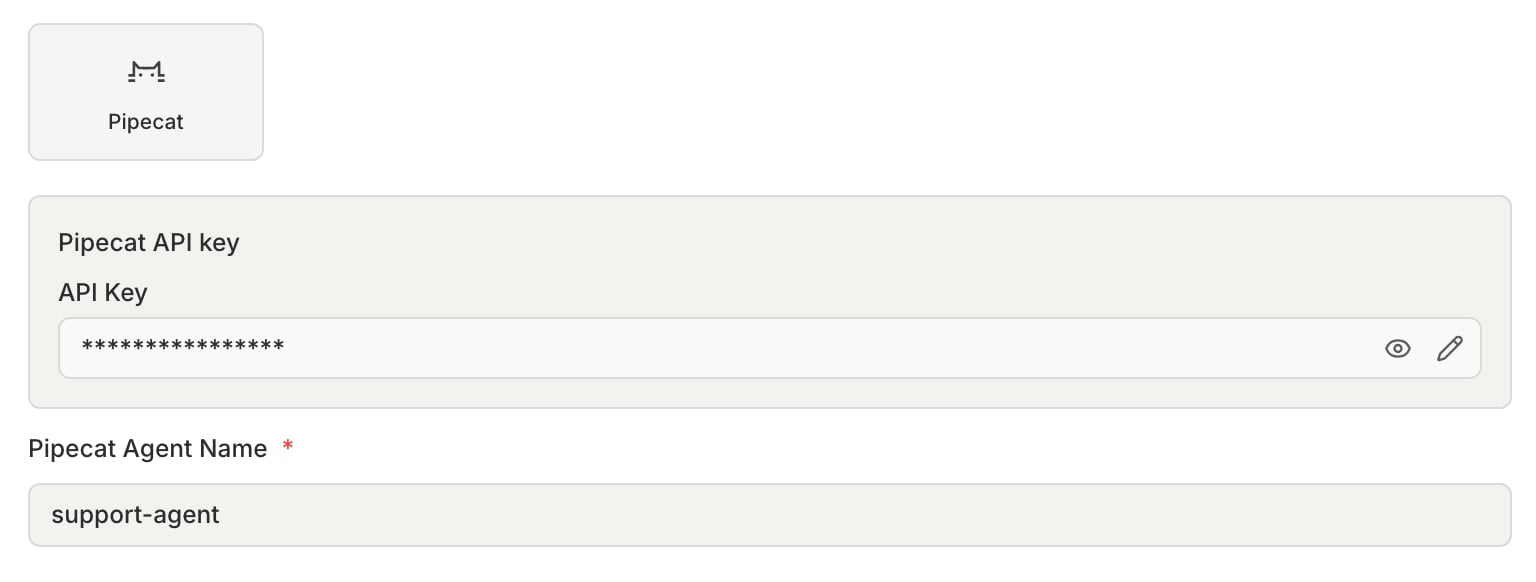
Create an Inbound Voice agent with the Pipecat connection type, and enter the agent name as Pipecat Agent Name. The Pipecat connection supports inbound agents only.
Fields
For each simulated call, Bluejay starts a session for your agent in a Daily room and joins the room as a Digital Human. After you create the agent, you can set two more fields in its Connection Settings:- Pipecat Agent Configuration: JSON that Bluejay sends to your agent as
bodyon start. - Pipecat Room Properties: JSON that Bluejay merges into the Daily room properties.
args.body. Bluejay adds the simulation IDs (X-Simulation-Result-Id and the other X- keys) to the body it sends on start. Then send the tool calls to /v1/update-simulation-result.