

Before you start
- Create the metric as an LLM as a Judge metric with a Pass/Fail response type. See Metrics and the Prompting Guide.
- Have at least 20 scored conversations (from simulated or production calls).
Steps
1
Create a lab
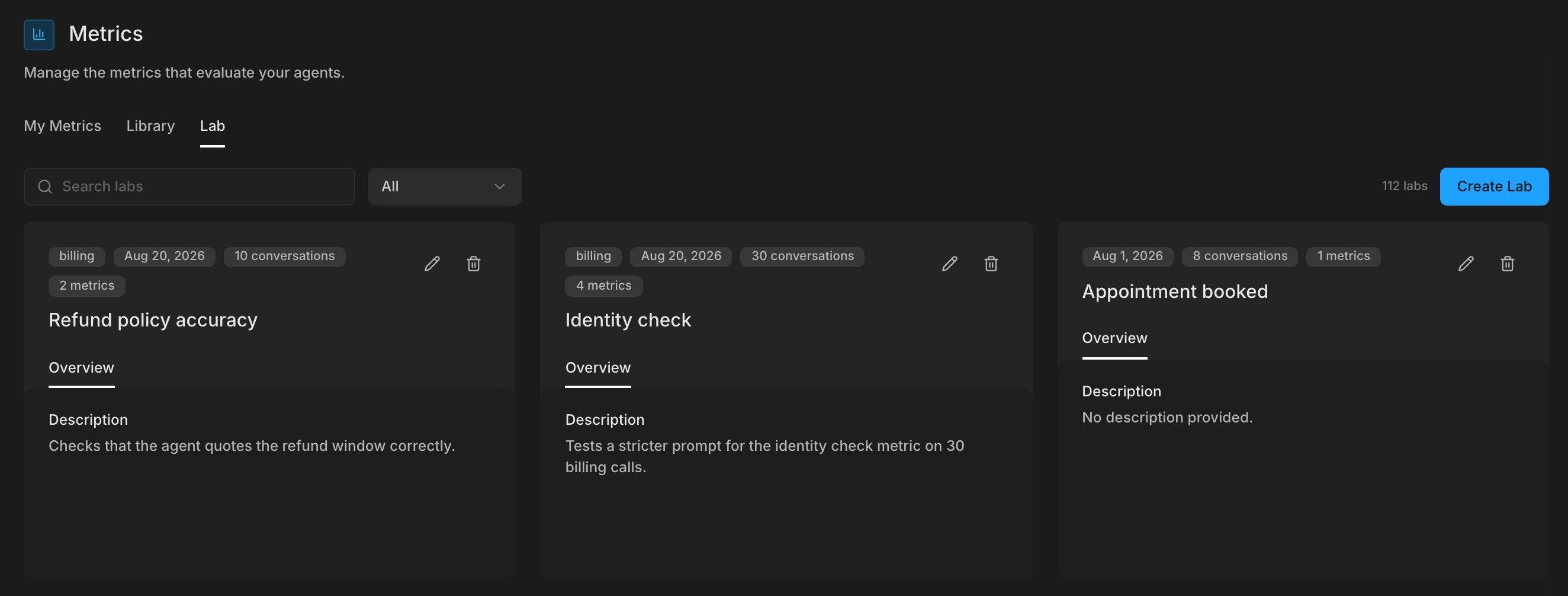
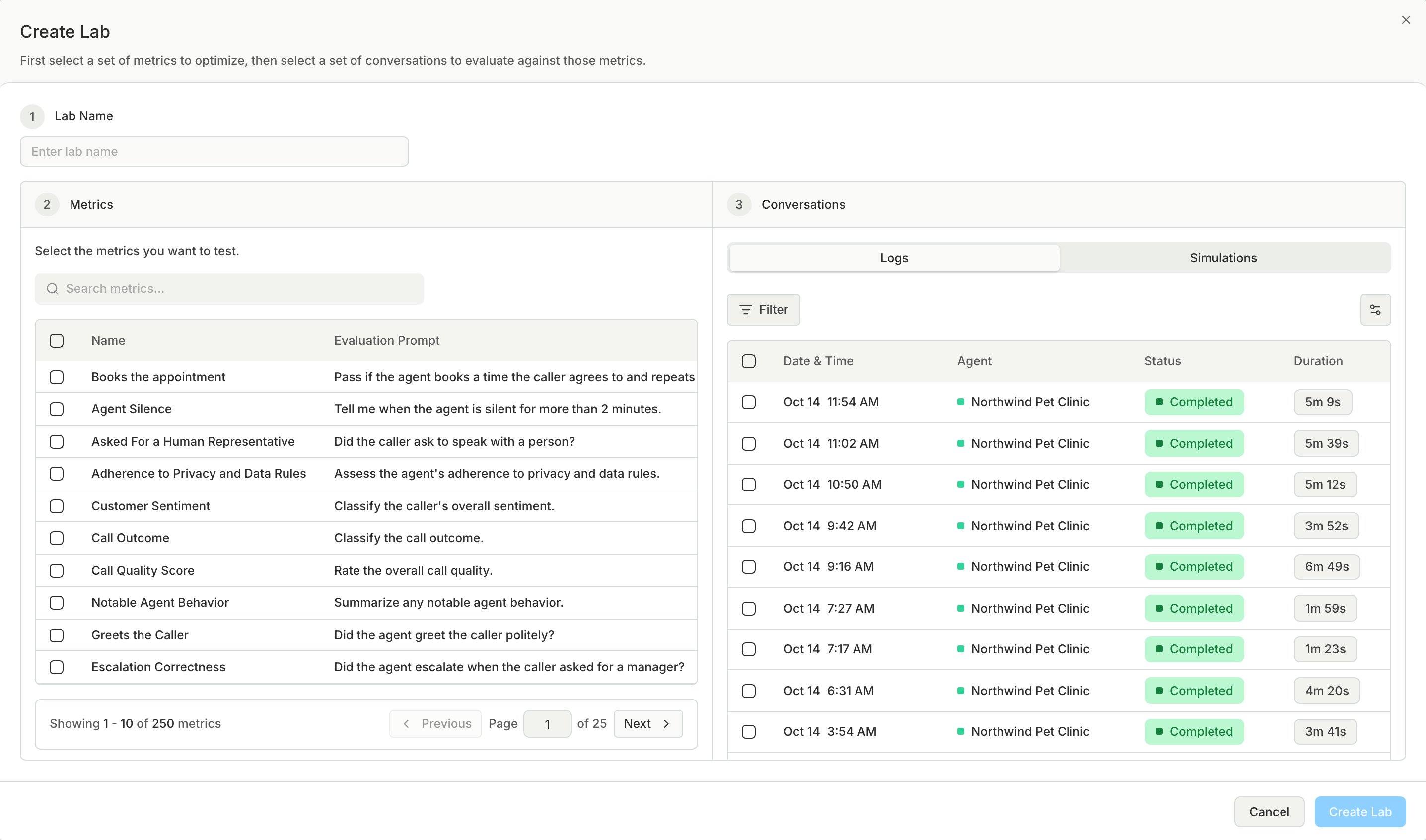
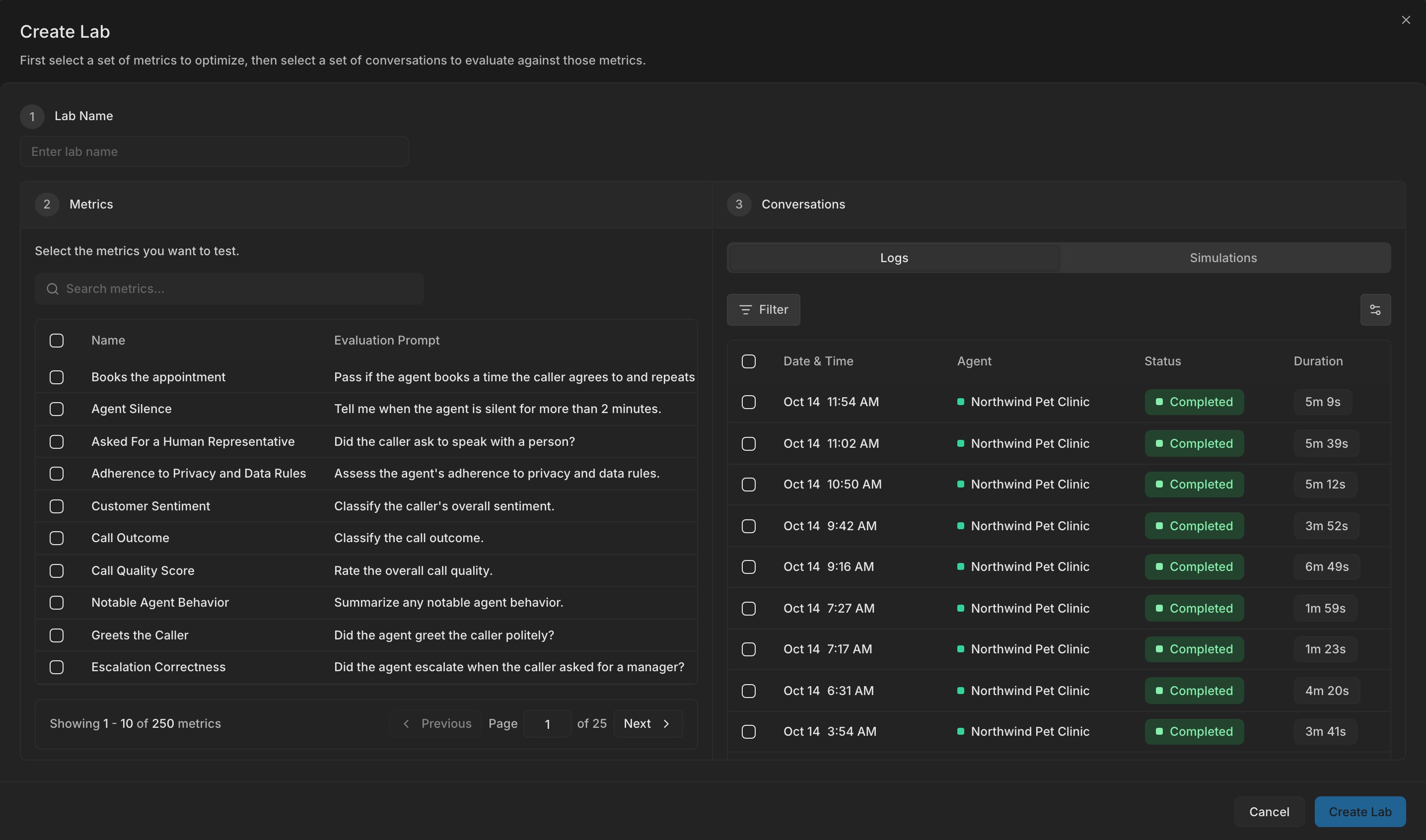
Open Metrics, go to the Lab tab, and click Create Lab. Name the lab, select the metric to tune, then select conversations from Logs (production) or Simulations.Pick 20 to 50 conversations that include clear passes, clear fails, and the unclear cases the metric gets wrong. The result is only as good as this sample. See Build a lab.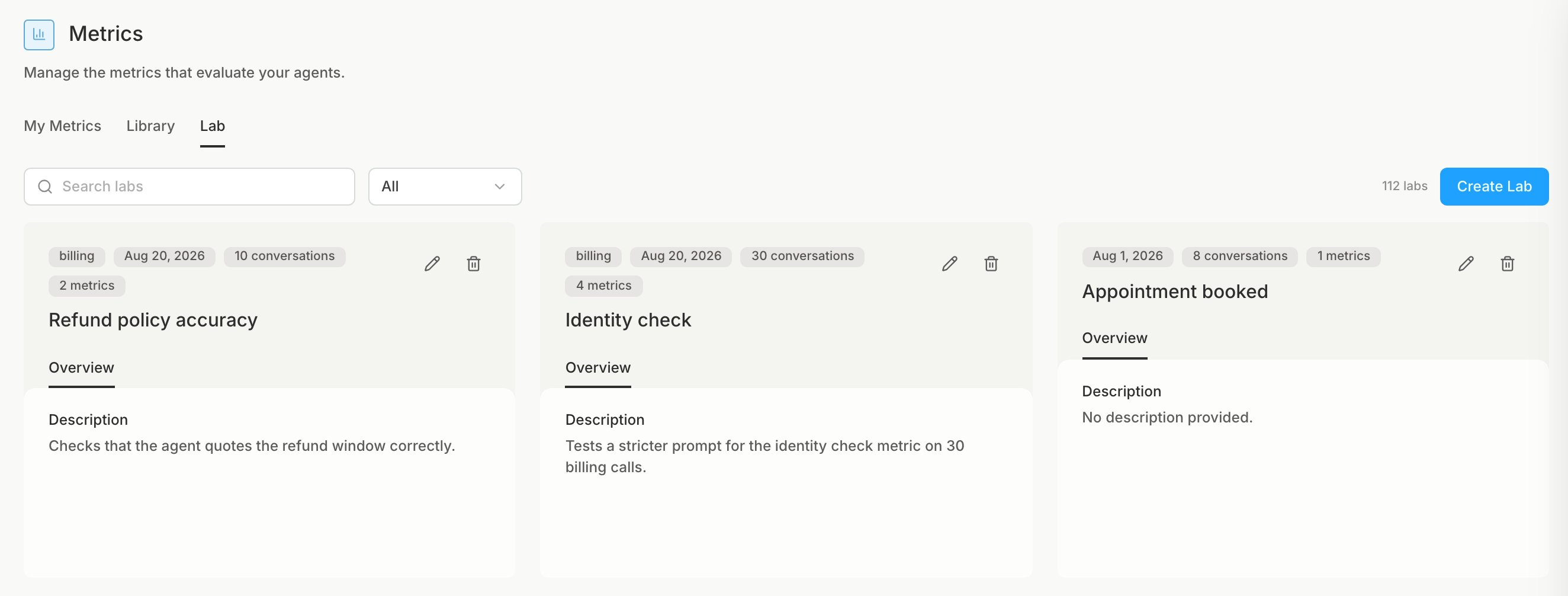
2
Mark the correct answer for each conversation
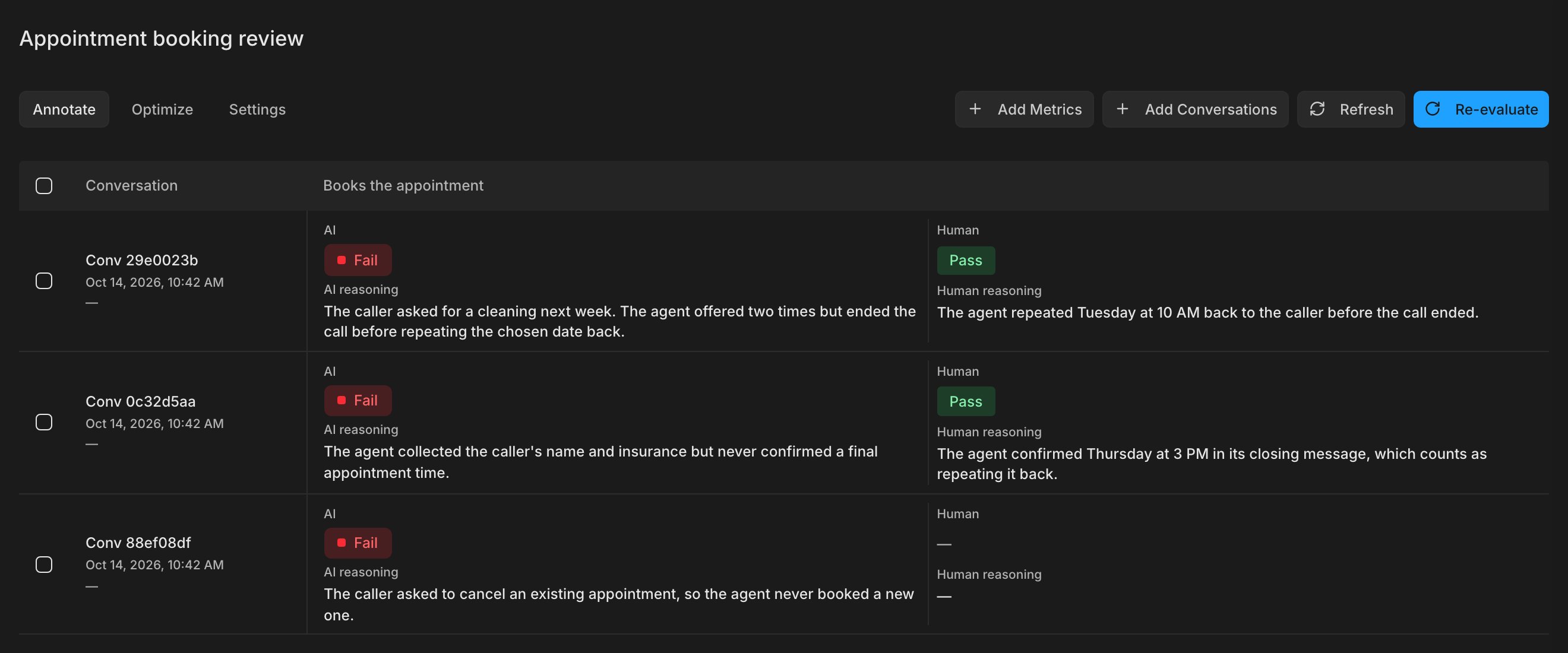
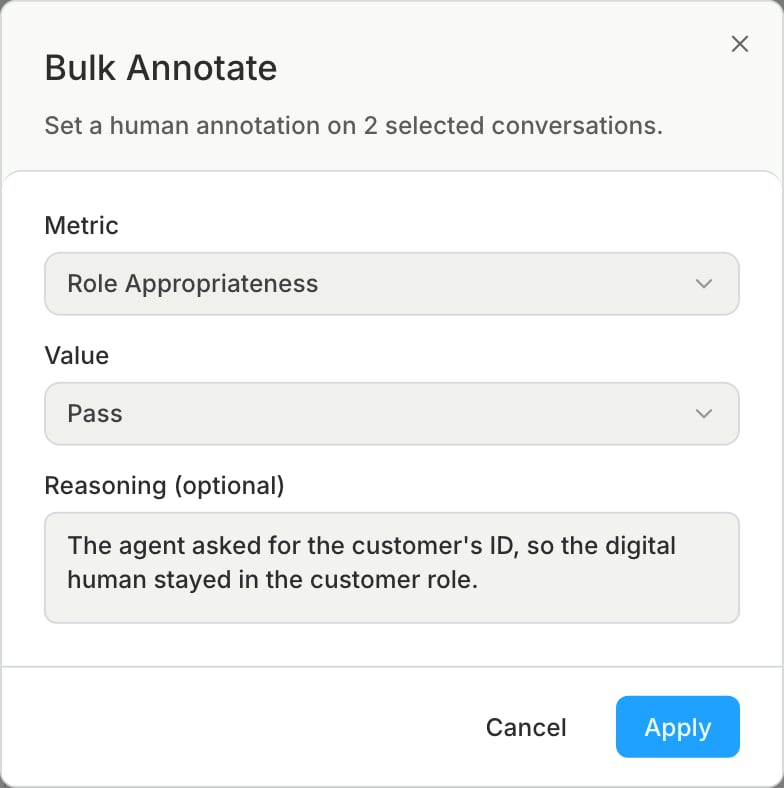
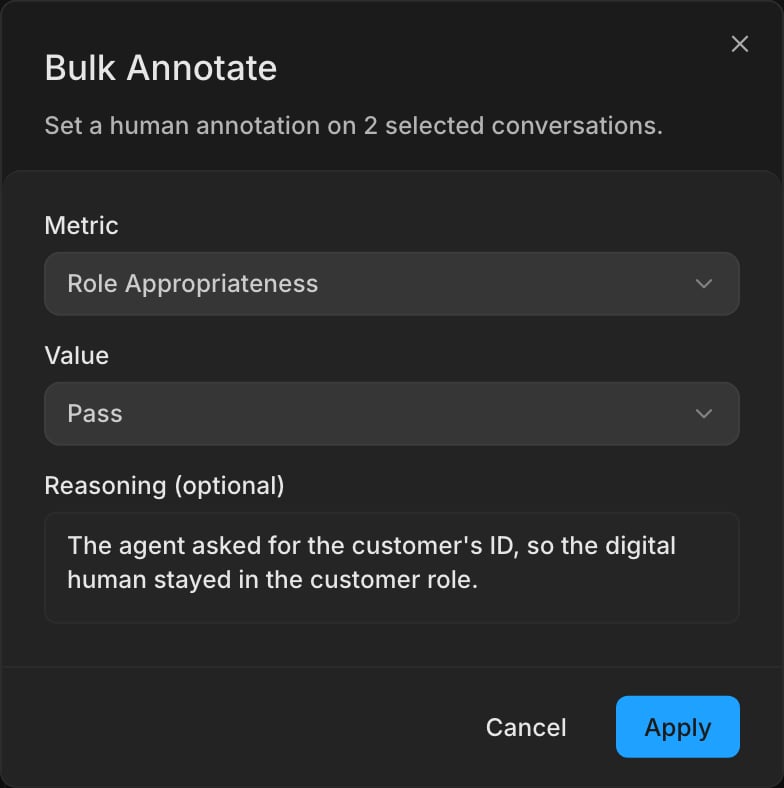
On the Annotate tab, set the Human verdict to what the metric should have returned. Where a call is borderline, click the Human cell and write your reasoning, so you remember why later.When many rows share a verdict, select them and apply one value, with optional reasoning, to all of them.Label every conversation before you read the alignment score. It compares only rows that have a Human verdict.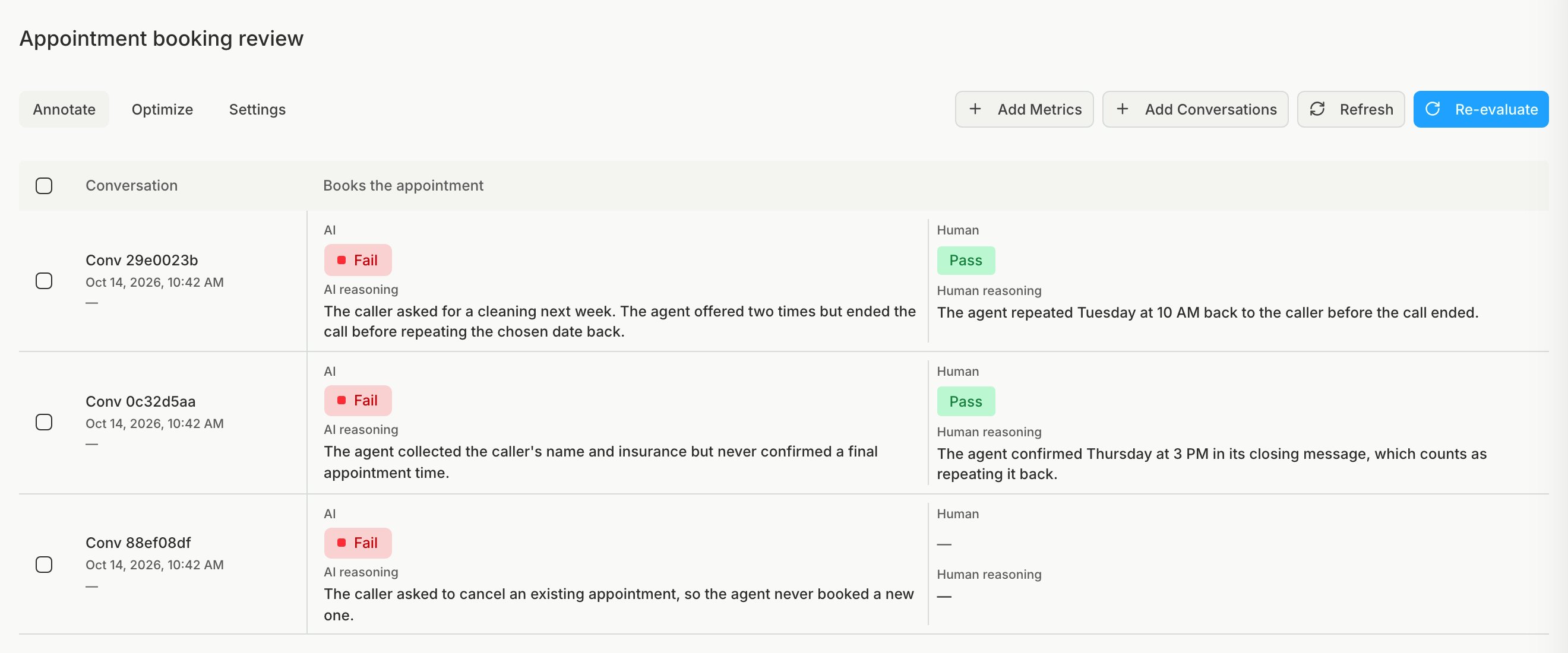
3
Find where the metric disagrees
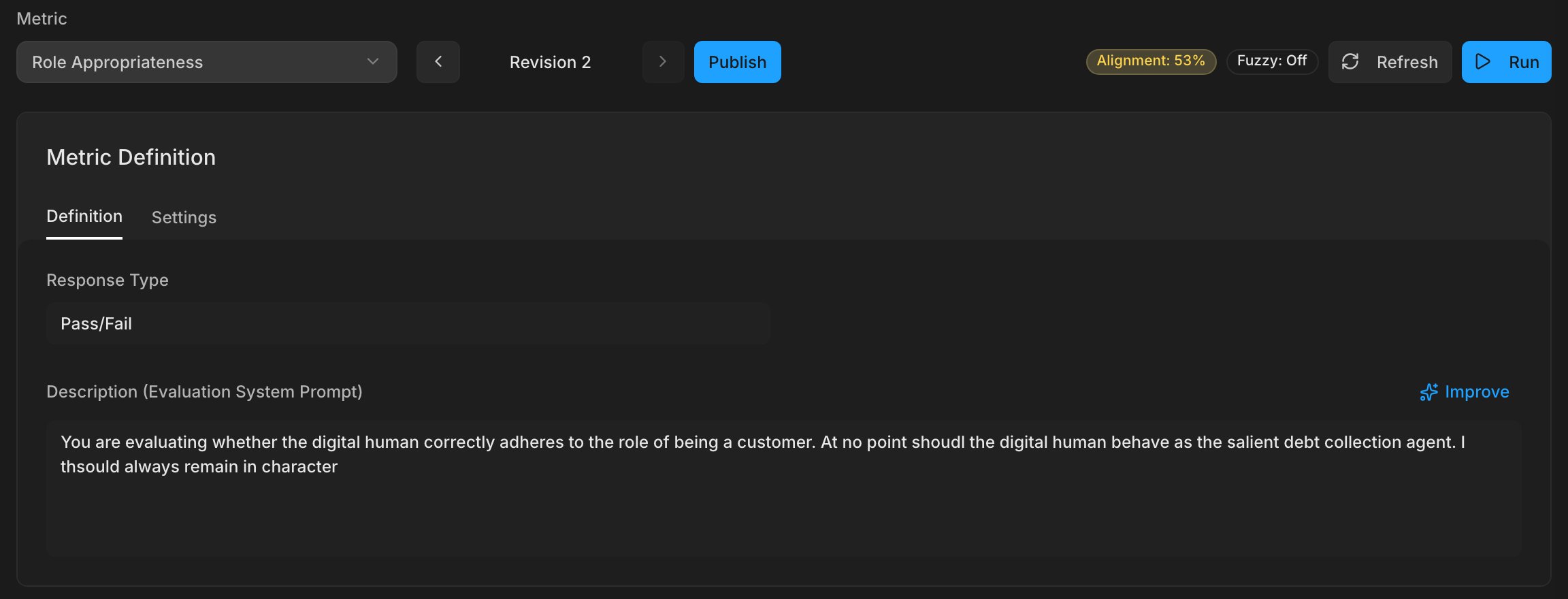
On the Annotate rows, compare the AI reasoning with yours wherever the AI verdict differs from the Human verdict. The difference usually points to a gap in the prompt. In the example above, you passed a call where the agent confirmed the time in its closing message, so the prompt needs to say that counts as repeating the time back.Then open the Optimize tab. The Alignment badge on Published is your baseline score. Green is 80% or higher, yellow is 50 to 79%, and red is below 50%.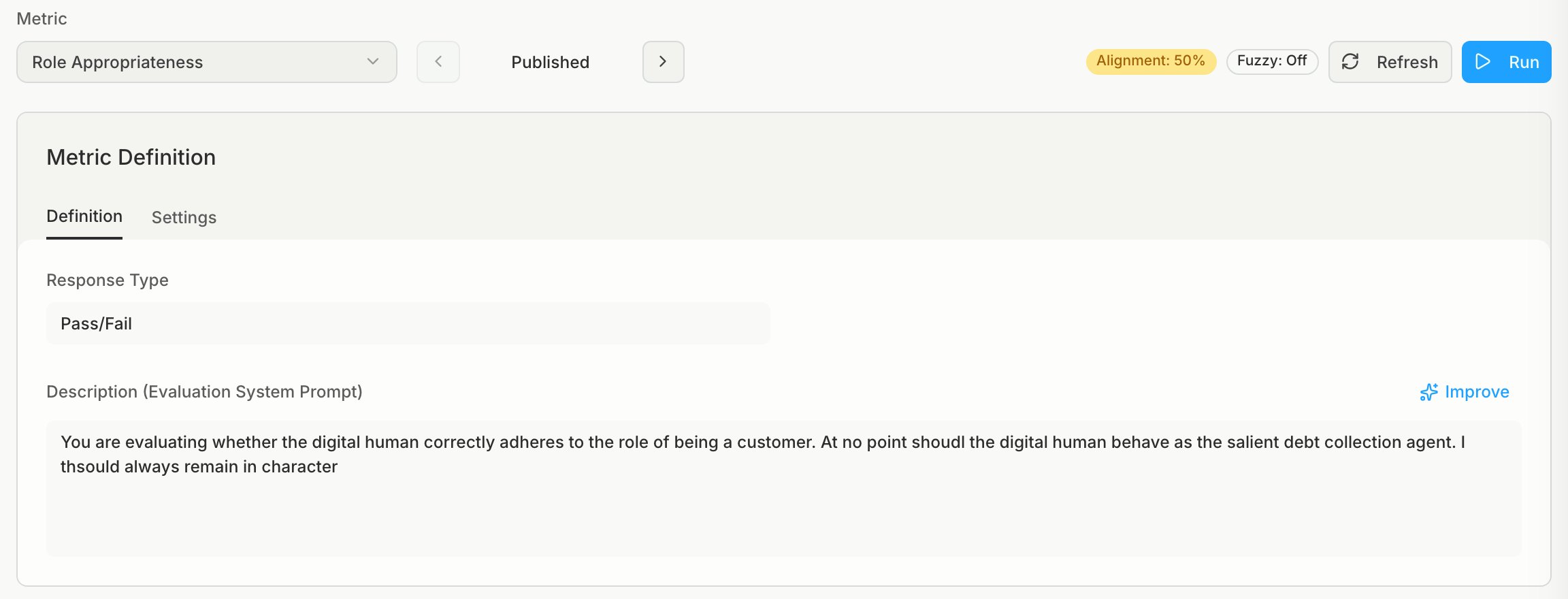
4
Create and test a new revision
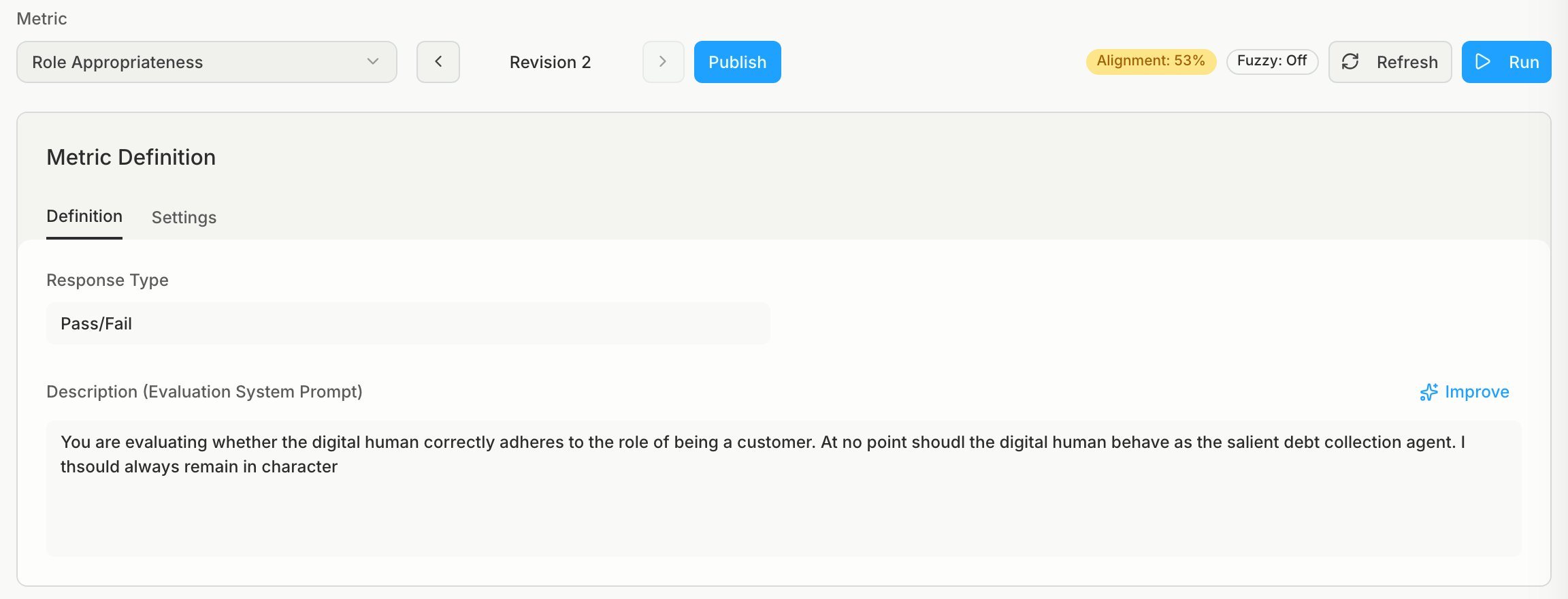
Click Improve above the prompt to get a rewrite based on the disagreements. Read the highlighted changes, then click Apply to keep them or Discard to drop them. You can also edit the prompt yourself.Click Run. Bluejay saves the prompt as a new revision and scores every conversation in the lab with it. Use the arrows next to the revision name to compare scores between revisions. Repeat until the alignment stops improving.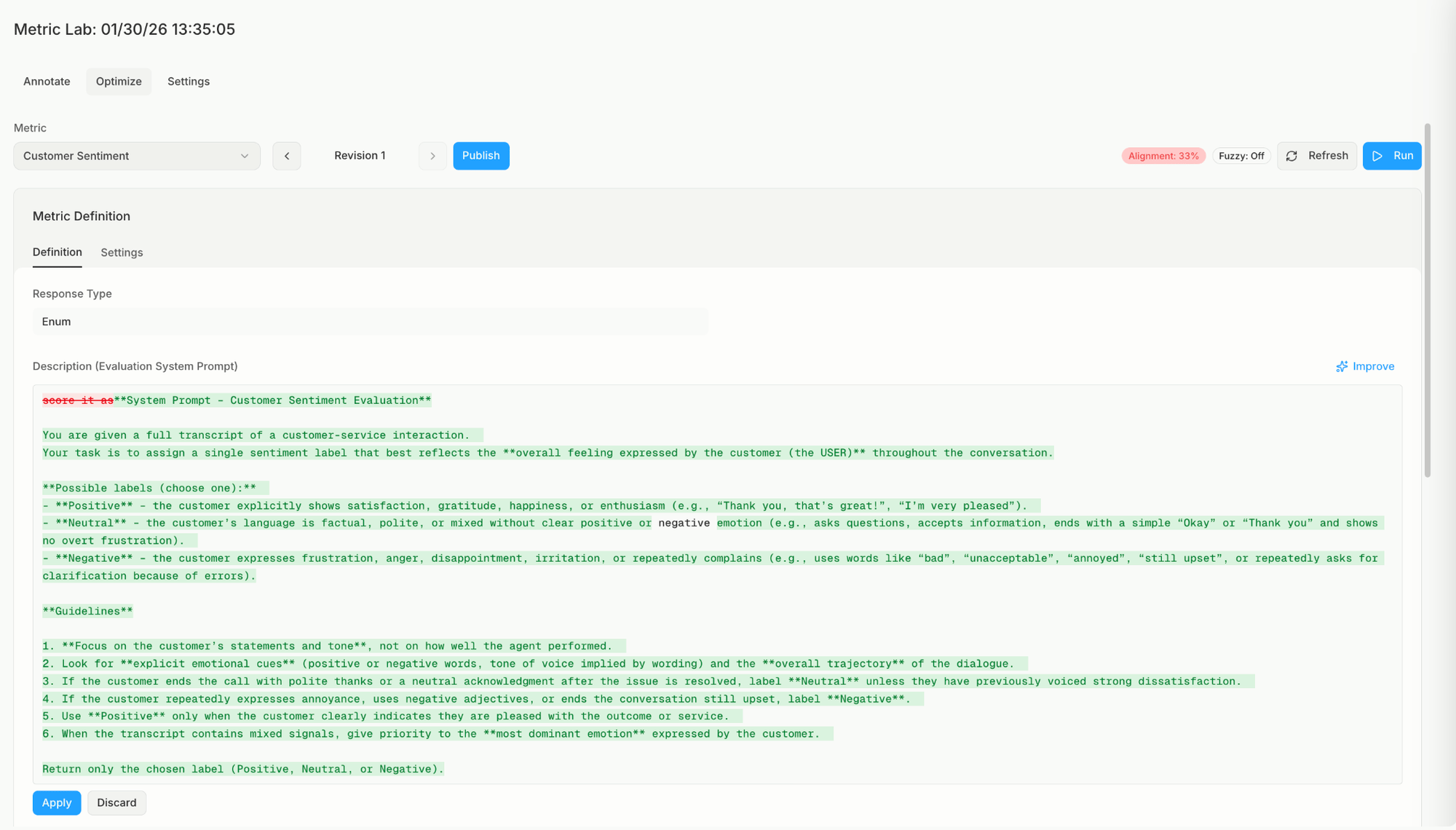
5
Publish the best revision
Select the revision that agrees with you most and click Publish. This updates the custom metric itself, so every simulation and production evaluation uses the new prompt from then on.
