

Connect
Bluejay sends messages to the bot through its Webhook channel, and the bot replies to a Bluejay webhook URL. So you set up both sides.1
Copy the Kore.ai credentials
In Bot Builder, open Channels & Flows, then Webhook, then Configurations. Set the channel app’s JWT signing algorithm to HS256, because Bluejay does not support RS256. Then copy the bot ID, client ID, and client secret.
2
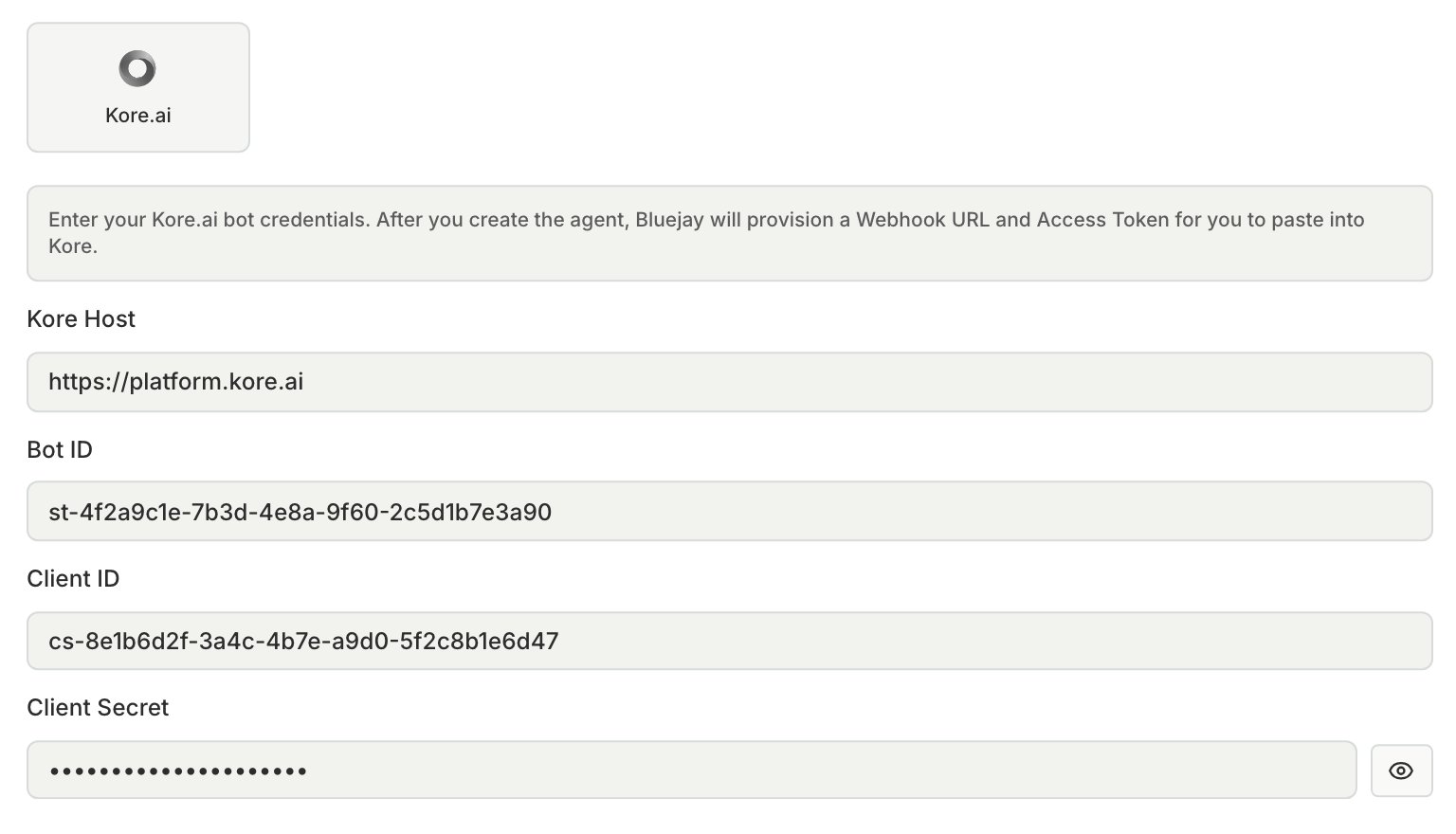
Create the agent in Bluejay
Create a Text agent with the Kore.ai connection type.
- Kore Host: the platform domain only, for example . Bluejay adds .
- Bot ID starts with
st-, and Client ID starts withcs-. - Client Secret: if you rotate it in Kore.ai, update it here too.
3
Point the Kore.ai channel at Bluejay
Set Integration Mode to Asynchronous, and paste the webhook URL into Post URL and the token into Access Token. Save the channel, then publish the bot. The Webhook channel sends no messages until you publish.
Create the agent with the API
Create the agent with the API
POST /v1/generate-kore-inbound-token with the agent_id to get the access token. A second call replaces the token. POST /v1/get-kore-inbound-token returns the current token. The webhook URL is https://api.getbluejay.ai/v1/kore-webhook/<agent_id>.Test
Add the agent to a simulation and run it. With the API, queue a run with/v1/queue-http-text-simulation-run.