

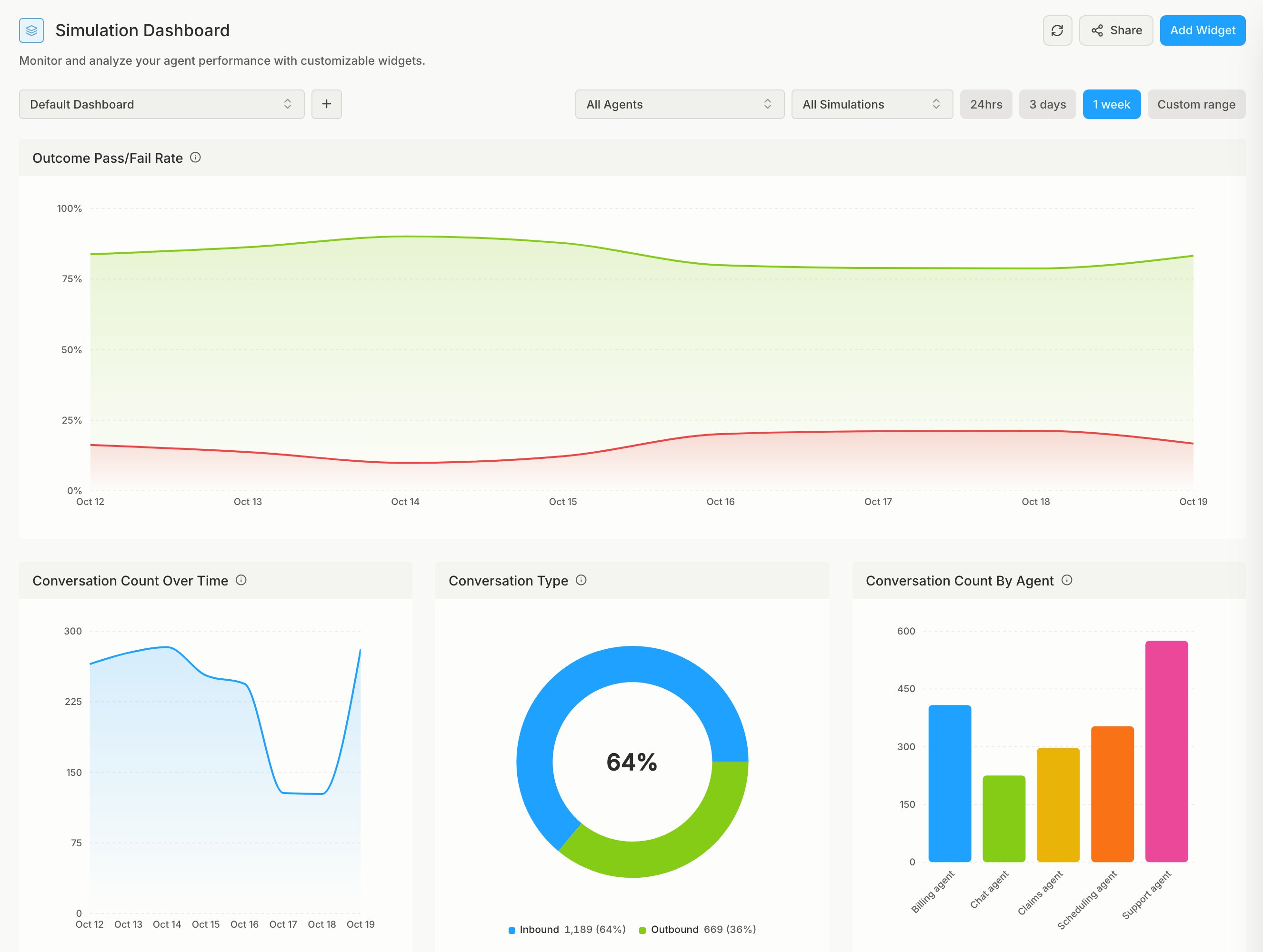
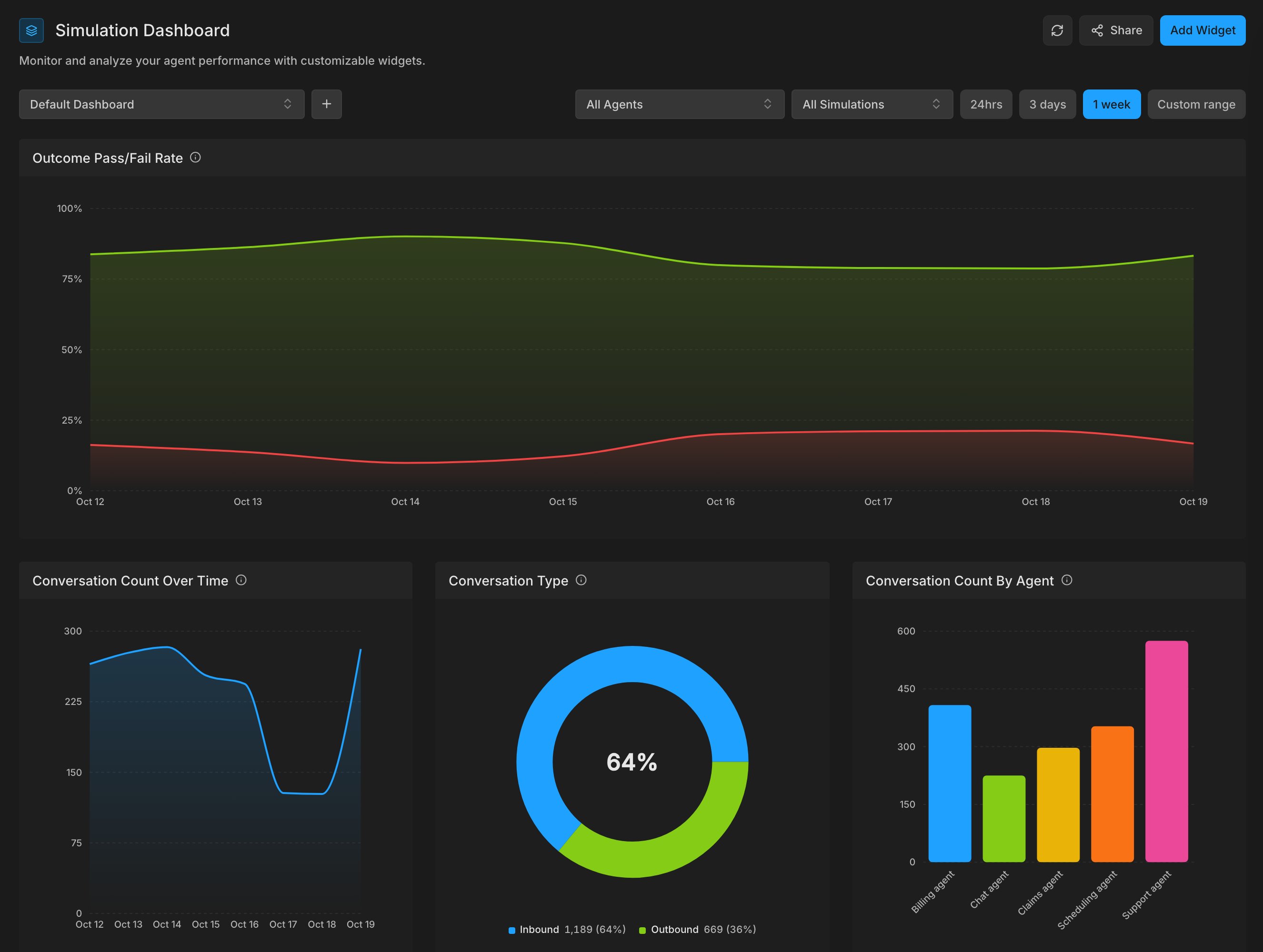
Build a dashboard
A dashboard holds widgets. Each widget charts one or more metrics, over time or broken down by agent or type.Public dashboards
Share a dashboard through a link with people who don’t have a Bluejay account (such as a customer or a stakeholder). Open a custom dashboard and click Share. Under Visible tabs, choose which parts of a conversation, such as the transcript or traces, a viewer can open from a widget.- Viewers see live data, not a snapshot, and can change the time range and filter by the shared agents.
- Viewers can’t edit widgets or the layout.
- A link stays active until you delete it. Deleting it stops it working at once.
- You can change a link’s agents and visible tabs later, but not its password. To change the password, create a new link.
Using Bluejay AI
Ask Bluejay AI to build or change a dashboard in plain language. It can:- Create a dashboard and fill it with widgets for the metrics you name, including your custom metrics.
- Change a widget’s metrics, chart type, or grouping, or remove it.
- Arrange the widgets on a dashboard.
- Draw a one-off chart in the chat without saving it to a dashboard.
- “Make a simulation dashboard of pass rate by agent”
- “Add a bar chart of turn count by agent”
- “Chart conversation count by day for the last month”