Before you start
- An outbound voice agent in Bluejay. See Connect your agent.
- The menu your agent will meet: the prompts it hears, the keys for each option, and where hold music plays.
Steps
1
Create an IVR Flow
On the Scenario Builder page, open the IVR Flows tab and click New IVR Flow. Bluejay opens an empty flow named New IVR Flow in the builder.In an IVR Flow, the Digital Human plays the business’s phone system and your agent is the caller. The left panel groups the nodes by who they belong to: Message and DTMF are your agent’s actions, and IVR Menu, Hold, and Human Agent are the business’s side.

2
Add the IVR Menu
Add an IVR Menu node and connect it to Start. Add one option per key the real menu offers, and write what the caller hears for that option, for example “press 1 for billing”. Give your agent the same wording the business uses, because the agent decides which key to press from what it hears.Two settings change how the call behaves: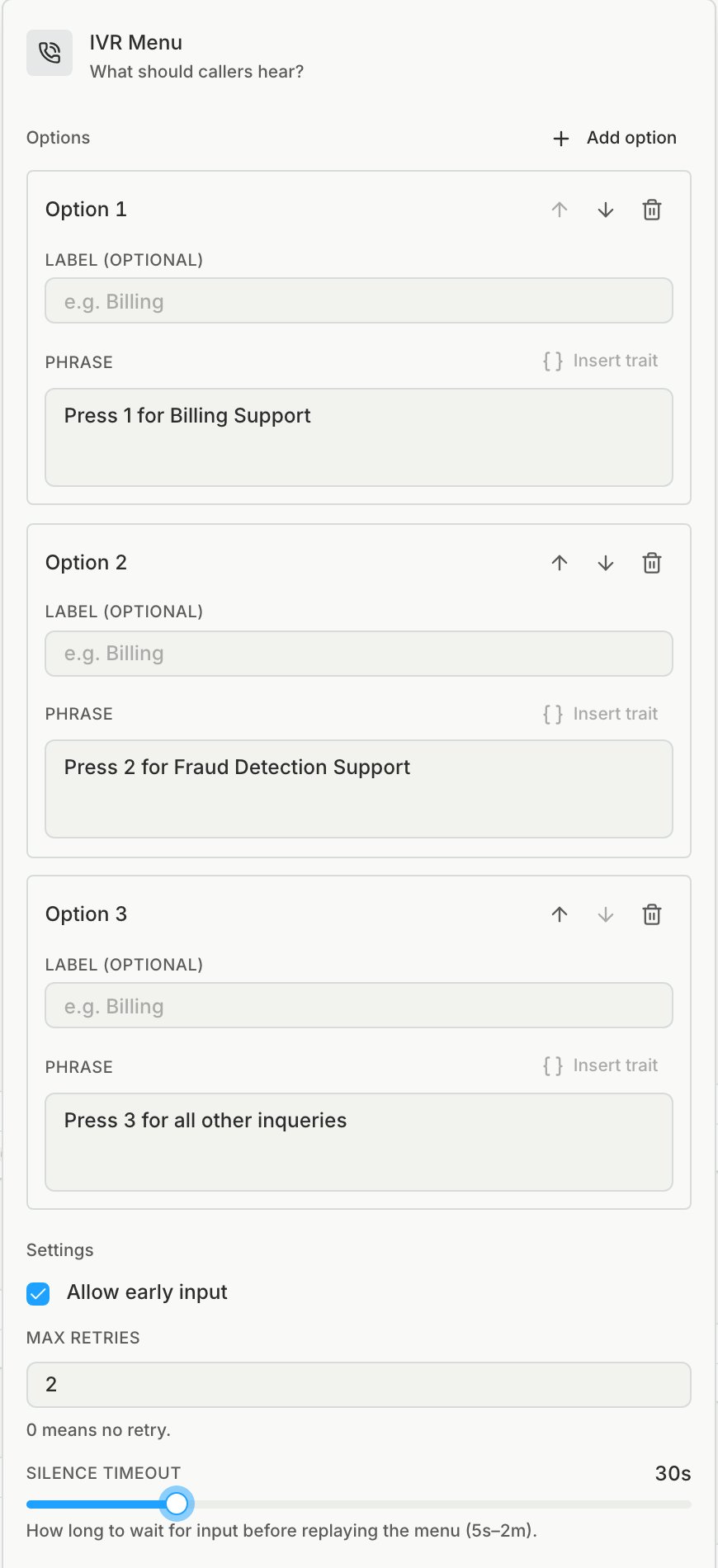
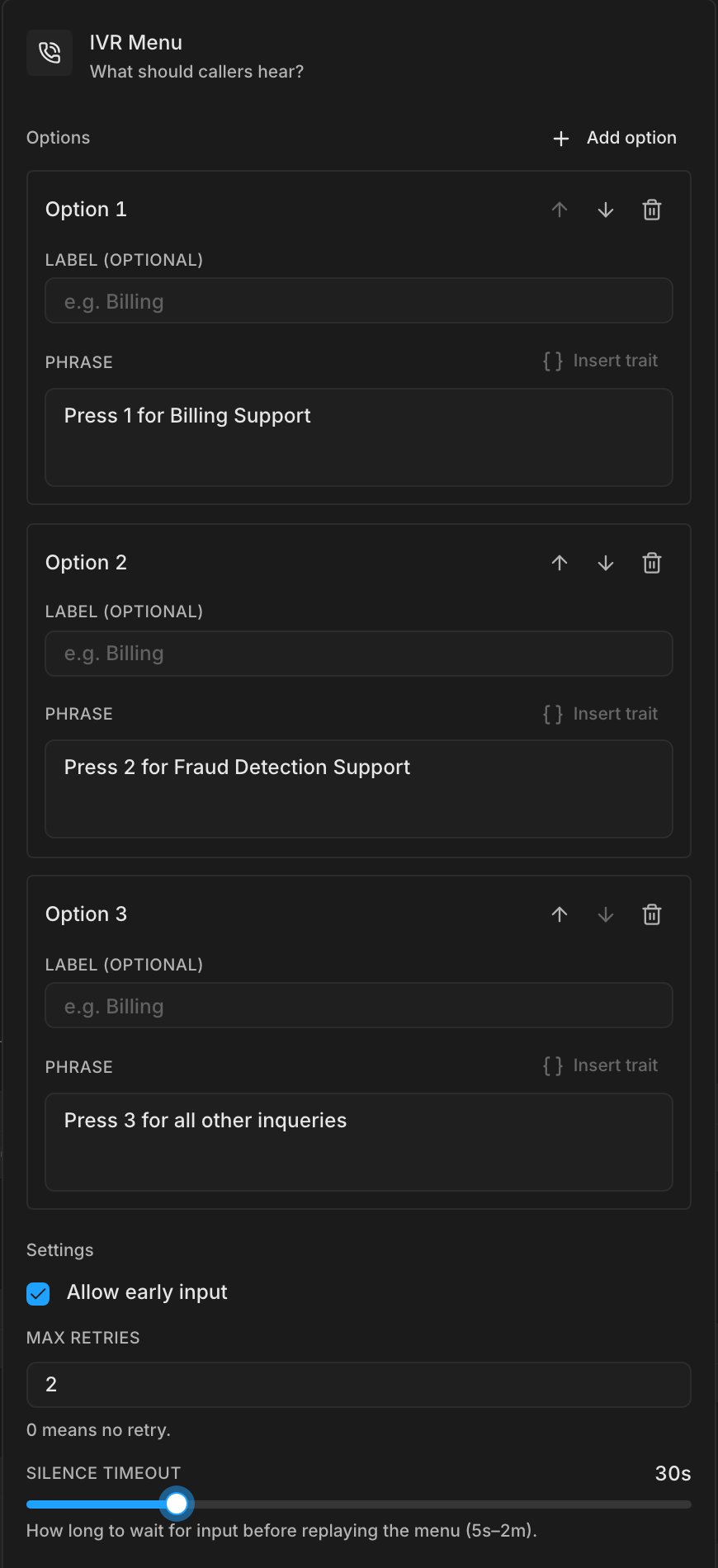
- Allow early input lets your agent press a key before the menu finishes reading.
- Max retries is how many times the menu replays when your agent says nothing. It runs from 0 to 10, and 0 means no replay. With a value above 0, a Silence timeout of 5 seconds to 2 minutes sets how long the menu waits before it replays.
3
Add the key presses your agent should make
Add a DTMF node under each option and enter the key your agent should press. Connect the option to its DTMF node, then continue from there to the next menu or step.Press the key that matches the goal of your test, not always the first option. To test more than one route, draw a path for each key.
4
Add hold time and the person who answers
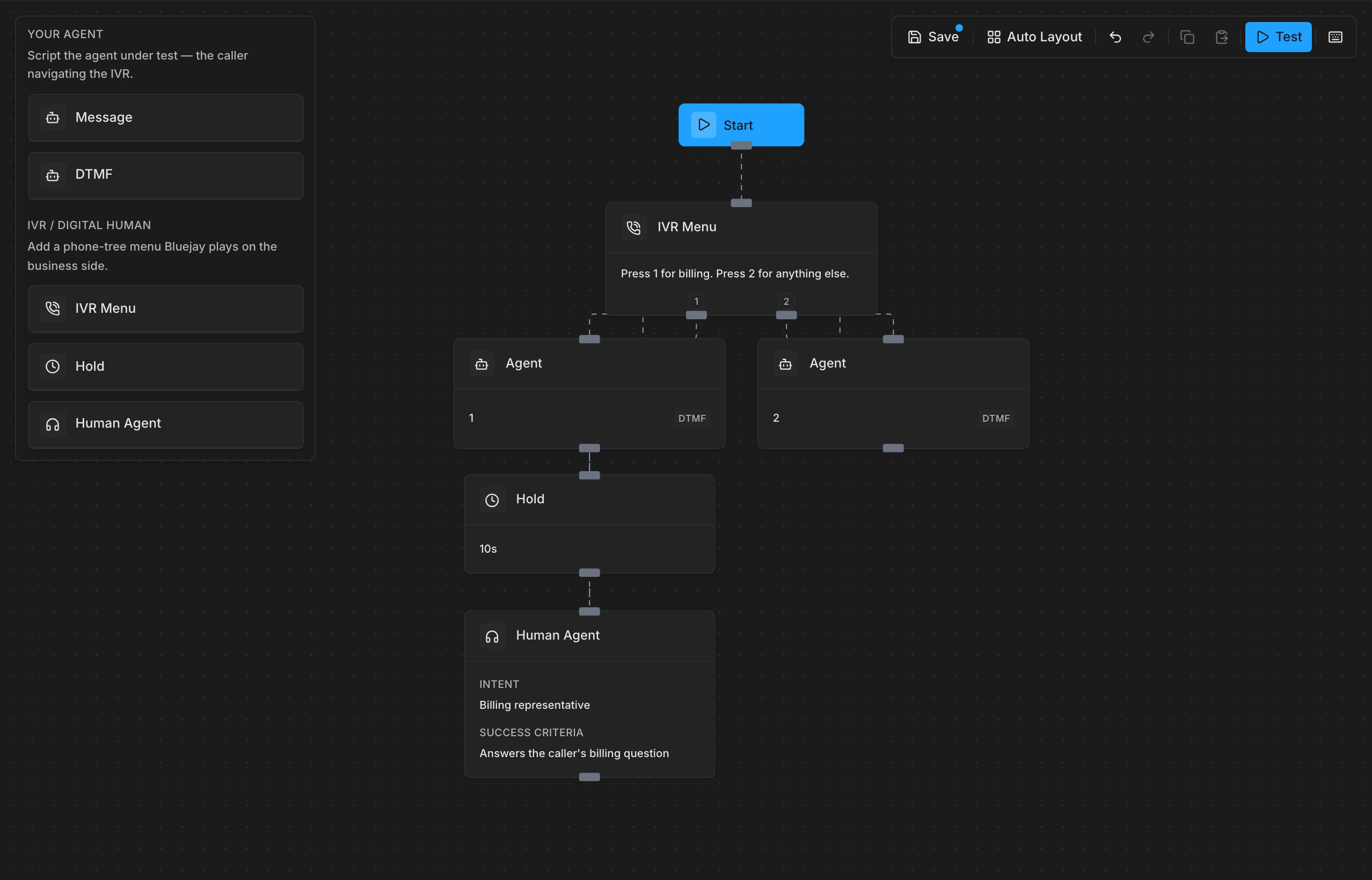
After the last key press, add a Hold node wherever the real line plays hold music. The hold runs from 0 to 2 minutes, so match the wait your agent sees in production. Your agent should stay on the line through it.End the path with a Human Agent node. Its intent is who answers, for example “Billing representative”, and its success criteria is what counts as a good answer.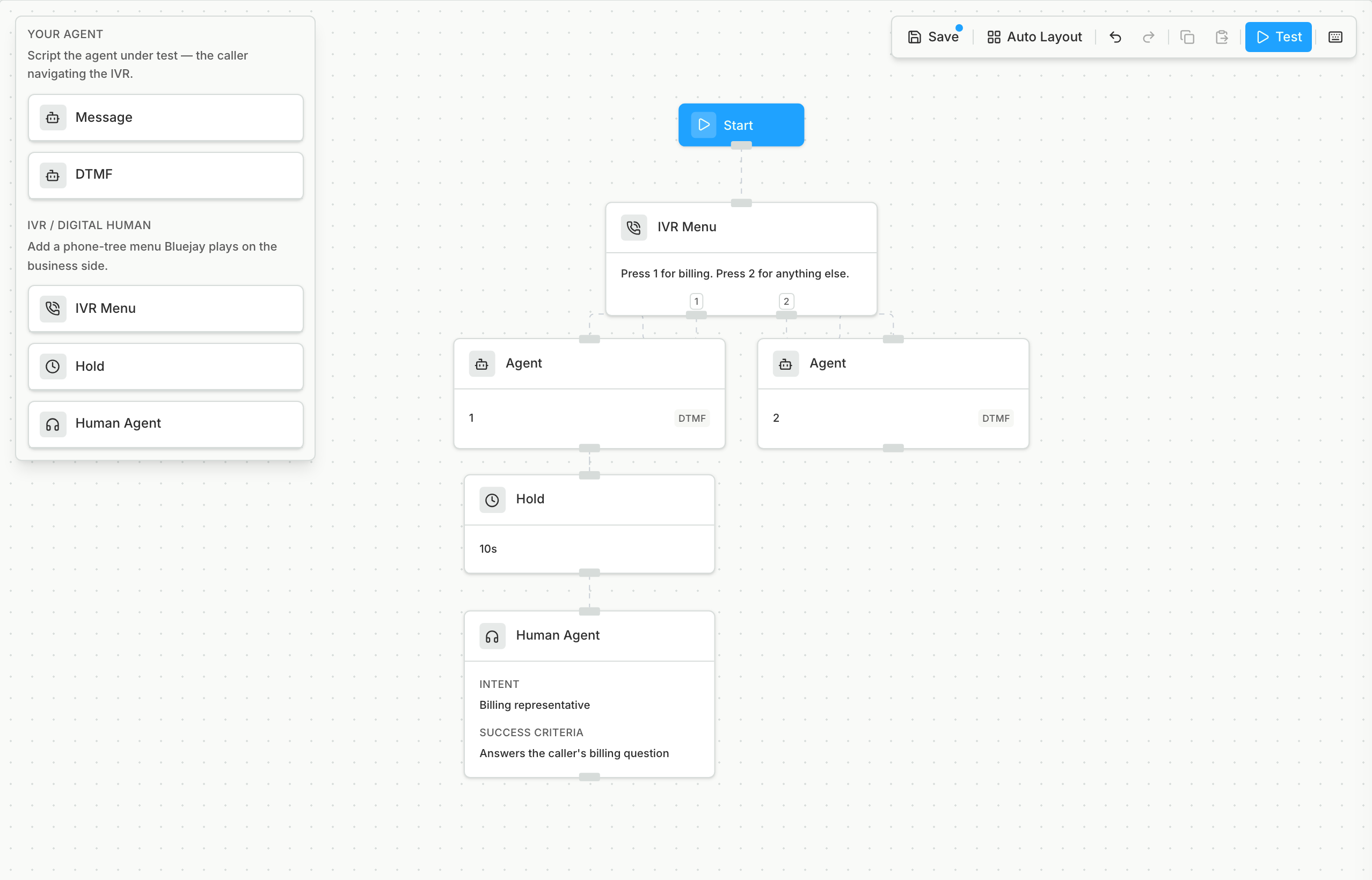
5
Grade the outcome you care about
Add an LLM as a Judge custom metric for your agent that checks the result of the call, for example “The agent reached the billing department and stated the reason for the call”. New simulations run all of the agent’s metrics, so the first run is scored on it.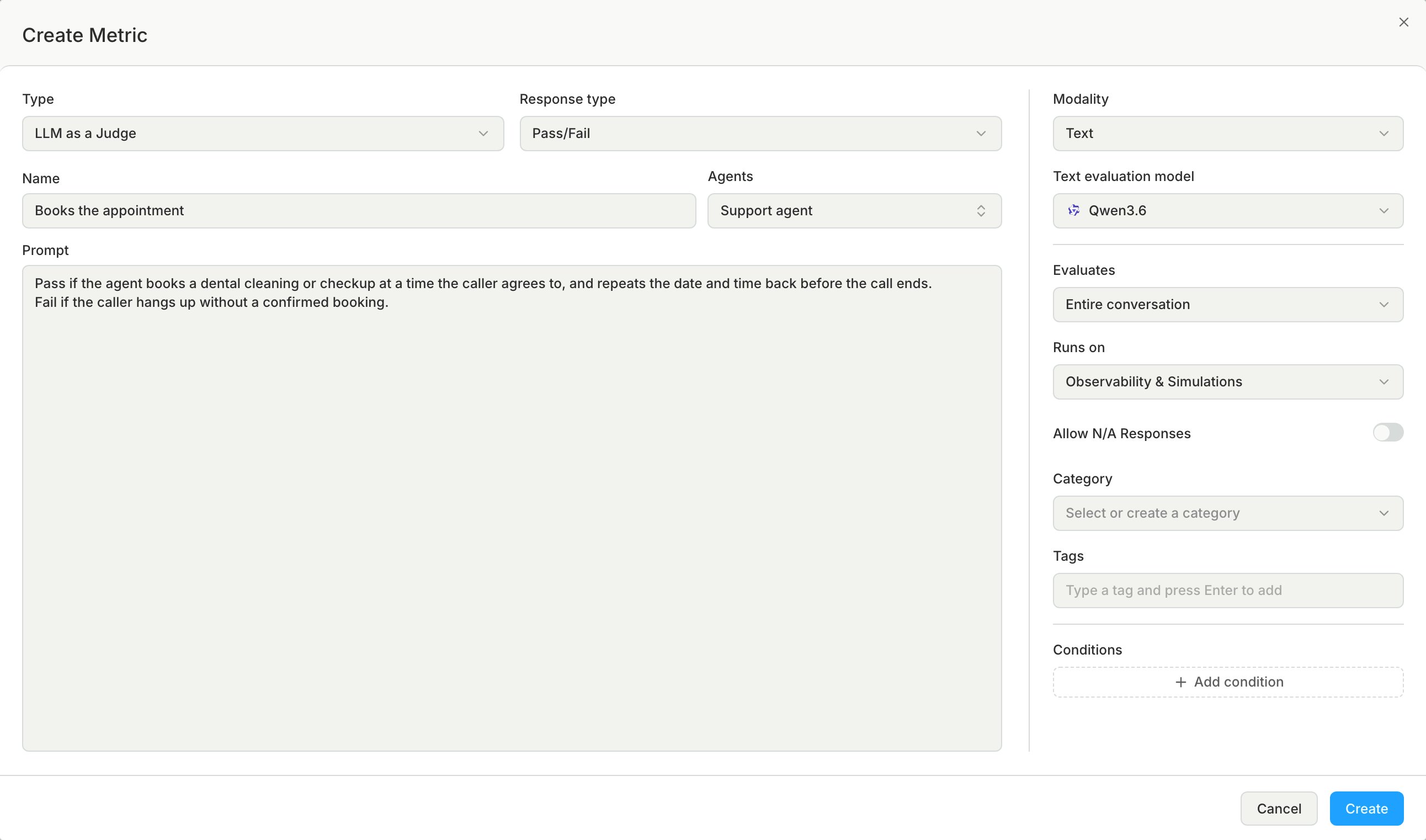
6
Run it as a simulation
In the builder, click Test to run the flow, or create a simulation and select the IVR Flow card to run several flows at once. Each IVR Flow becomes one Digital Human that goes through the whole menu in one call. See IVR Flow.
Check the result
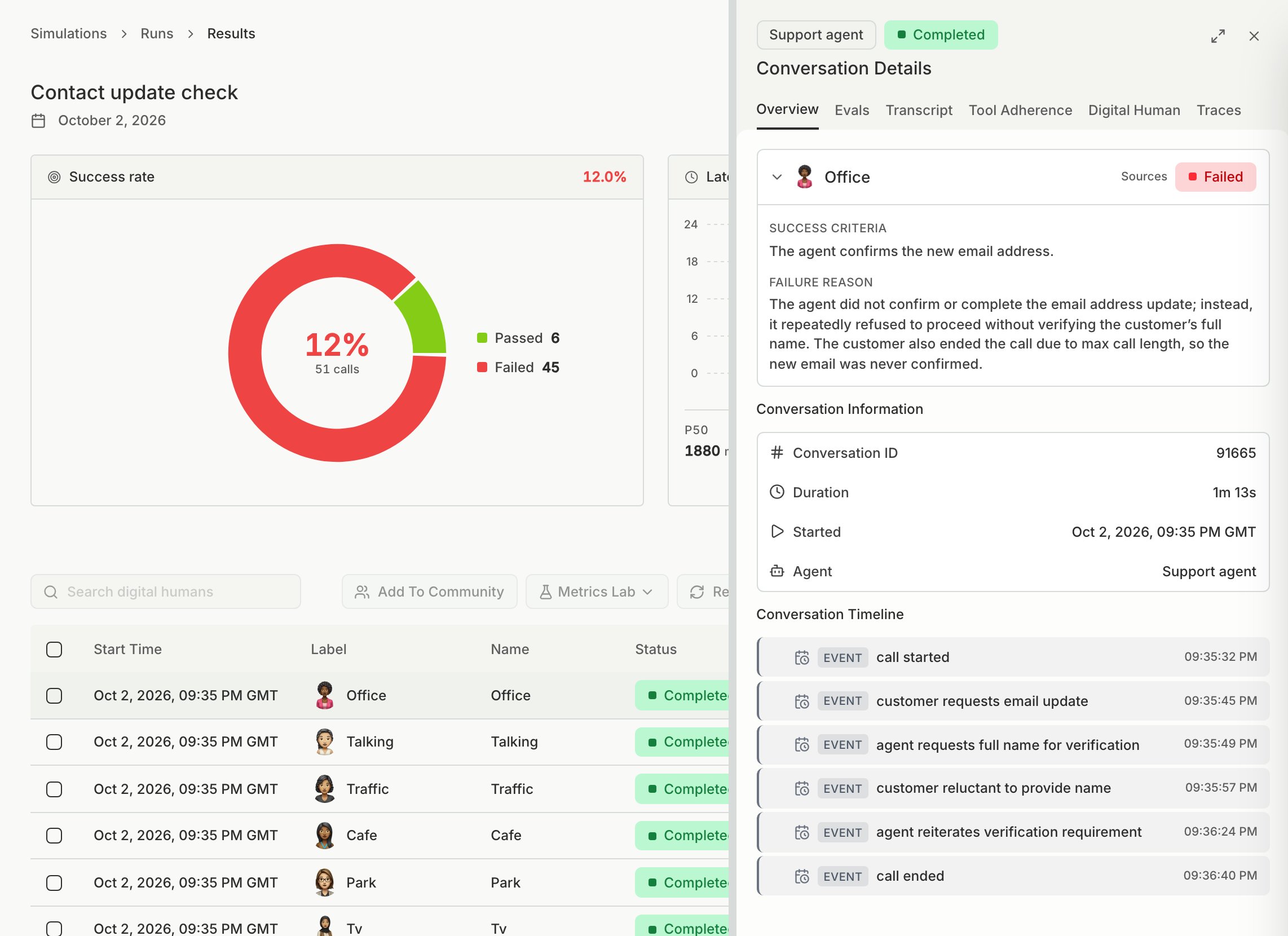
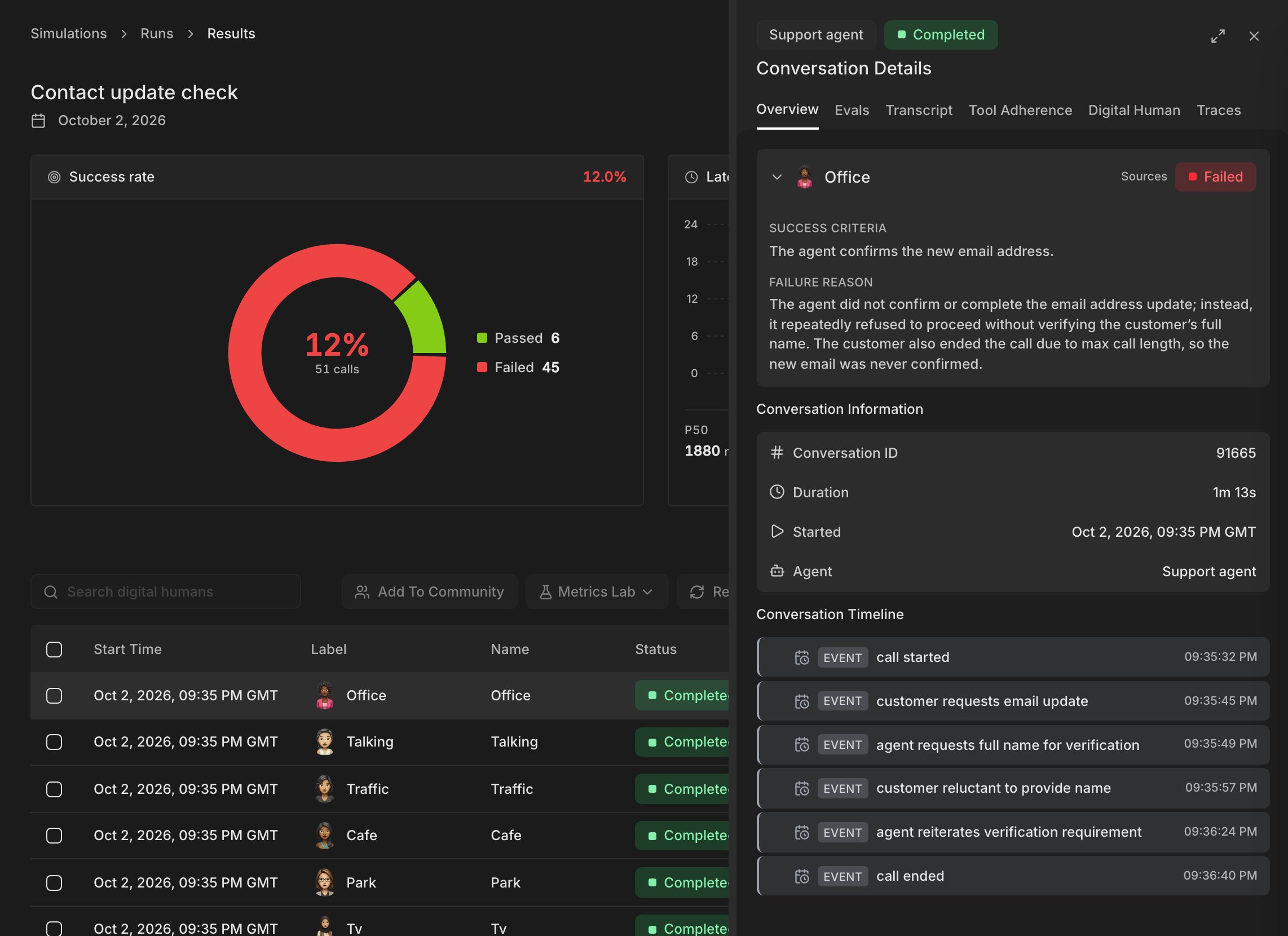
A Completed call with a passing metric means your agent pressed the right keys and stayed on through hold. If the metric fails, open the conversation and read the call to find the menu where the agent went wrong. Then change the agent’s prompt and click Rerun. See Simulation Results.