

Before you start
- Have the finished calls as recordings, transcripts, or both.
- Create an API key on the API Keys page of the app.
- Ask a QA lead to label a sample of calls in step 5. Their judgment is what makes the scores trusted.
Steps
1
Create an agent for the human team
Create one agent for each team or queue you want to measure, for example “Member Services (human agents)”. Create it in the app, or with Add Agent, which needs a
name and a system_prompt.Use the prompt to describe the team’s job and the policies its reps follow. Bluejay reads an agent’s context when it generates metrics for it.Keep human calls on their own agent. Calls on that agent stay separate from your AI agent’s calls, and you can compare the two side by side later.Each rep on the team gets a label, so you can see every rep on their own. See Track individual reps.2
Send the calls
Send each call to In
POST /v1/evaluate after it ends, with a recording_url, a transcript, or both. The rep is the AGENT and the customer is the USER, the same as for an AI agent. To send calls from the Logs page instead, use Upload.metadata, send ids and labels you want to slice by, not names or other personal data. Each key becomes a filter on the Logs page and a dynamic variable that a custom metric can read. Use agent_type to mark the calls as human, and external_conversation_id to update a call later. Each evaluation is billed, and the API allows 100 requests per minute for each organization.Single-channel and multichannel recordingsSet multichannel to true only when the rep and the customer are on separate audio channels. Bluejay then transcribes each channel on its own, so every line goes to the right person. If you set it for a file that has one channel, Bluejay treats the file as single channel.Without separate channels, Bluejay tells the two voices apart from the audio alone, and it can label the rep as the customer. Set spoke_first on the participant who talks first, because Bluejay uses it when it separates voices on a single-channel recording. On an outbound call the customer often speaks first. If your phone system can record each side on its own channel, turn that on.On the Logs page, Upload has an Audio Channel setting for this. It treats the rep as the first speaker and every call as inbound, and it has no fields for metadata or tags. Use the API for outbound calls or when you need either.3
Pick the built-in metrics that fit people
Open the Metrics page to see the metrics on your agent. Add more from the Library tab.These describe a conversation, so they apply to a rep as they do to an AI agent:
Read these with care, because they were built for AI agents:
- Agent Latency and its percentile versions measure the pause before the agent answers. For a person, that is a normal pause, so do not use it as a target.
- Hallucination checks what the agent says against its Knowledge Bases. It only means something if you attached one to the human agent.
- Tool Call and Trace metrics need
tool_callsor a trace in the request. A human call usually has neither.
4
Write the QA scorecard as custom metrics
A QA scorecard is a set of custom metrics, one for each behavior you check. On the Metrics page, click Create, then Create manually. Use the LLM as a Judge type with the Pass/Fail response type. In Agents, select the human agent, and set Runs on to include production conversations.Follow the Prompting Guide. For human calls, add these rules to the top of every prompt:The rule about side talk matters on open microphones, which record the room before and after the call. The last rule keeps a prompt written for an AI agent from scoring a person unfairly. Write every prompt this way, so one metric can score both a person and an AI agent.Here are six prompts to start from.Choose the modalityEach custom metric has a Modality setting of Auto, Text, or Audio. A Text metric judges the transcript. An Audio metric listens to the recording instead, so it does not depend on the transcript’s speaker labels. It still receives the call’s metadata. With Auto, Bluejay decides from the metric’s name and description whether it needs audio.Prefer Audio for tone, and for any metric on single-channel calls, where the transcript’s labels can be wrong. An Audio metric needs the recording. On a call sent with only a transcript, Bluejay judges it on the transcript.
- Greeting
- Identity verification
- Required disclosure
- Empathy
- Hold and transfer
- Resolution and wrap-up
5
Calibrate the metrics in Metrics Lab
On the Logs page, filter to the human agent and select 20 to 50 calls. Include clear passes, clear fails, single-channel calls, and calls with side talk. Use the Metrics Lab option to put them in a new lab.Ask your QA leads to set the Human verdict on every call and write a short reason on the borderline ones. Then tune each prompt until the alignment score is high, and publish it. The full workflow is in Improve the Accuracy of a Metric.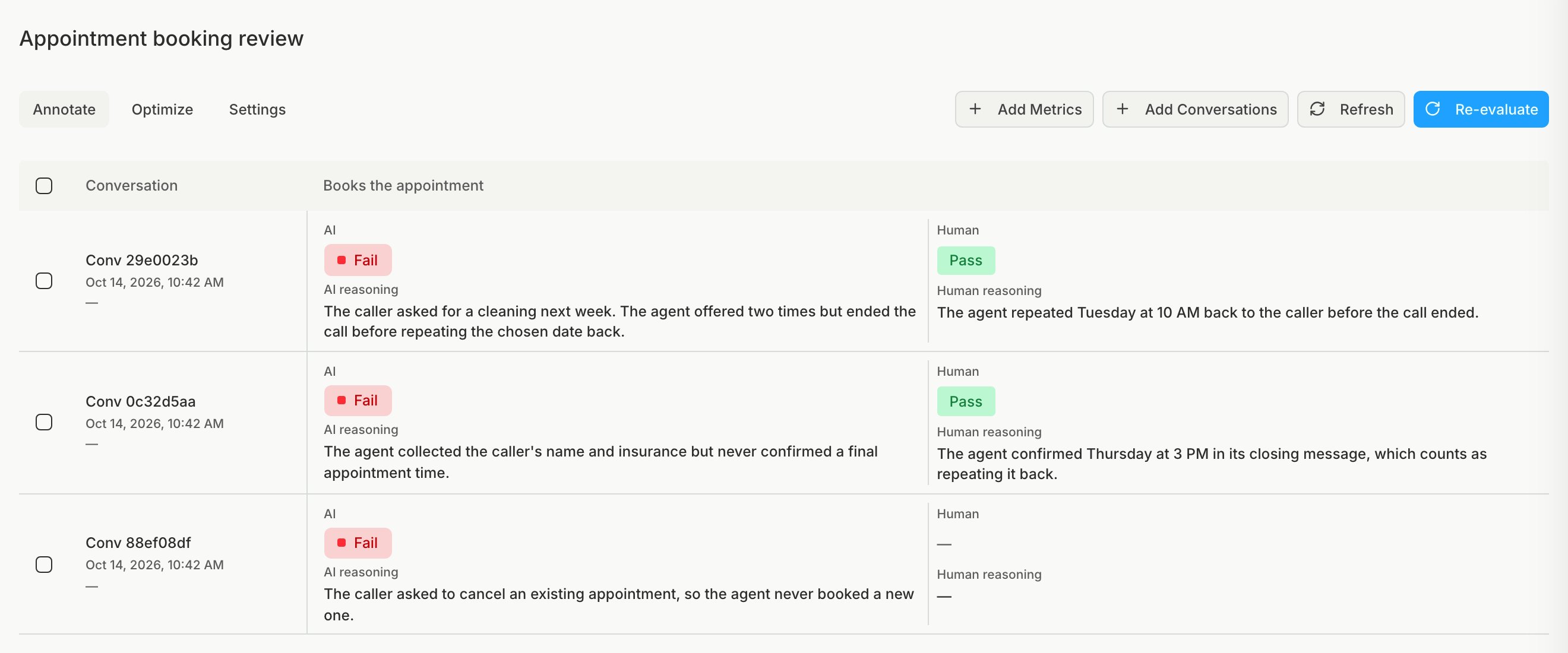
6
Compare human and AI on one scale
To compare people with an AI agent, attach the same published metric to both agents. Then follow these rules so the numbers mean the same thing:
- Keep each group of calls clean. Never put human-handled and AI-handled calls on one agent.
- Give a call that the AI handed to a human its own agent, such as “Member Services (AI handoff)”, so it does not blur either group.
- Compare the same queue and the same dates. Send the same
queuekey inmetadatafor both agents, and filter both on that key and one date range in Logs. - Use the same prompt, which is why the prompt does not assume who the agent is.
7
Watch the metrics in production
Track individual reps
Every call can carry a label, and a label is how Bluejay tracks a rep. Send the rep’s id as thelabel on each call. Bluejay then shows that rep on the Logs page, on dashboards, and in the API, next to the rest of the team.
One agent holds the whole team, and each rep is a label on it. This works for a team of ten reps and for a contact center with thousands.
Send the rep as the label
Addlabel to each call you send to POST /v1/evaluate. Use the rep’s id from your phone system, not a name.
See each rep
1
Filter Logs by rep
The Logs page has a Label column that shows the rep on every call. Add a filter on Label and pick a rep to see only their calls. To keep the filter, save it as a View, for example “Rep 2217, last 7 days”.
2
Compare reps on a dashboard
In a dashboard widget, set Group By to Labels to draw one bar or series for each rep. Use it to rank reps on a QA metric or to compare handle time. To show one rep, set the label filter at the top of the dashboard.
3
Pull a rep's calls with the API
GET /v1/observability/conversations filters by label and can count conversations for each label with group_by=label.Good to know
- A call has one label. Put anything else you want to slice by, such as the queue or the site, in
metadata. - A label belongs to one agent. A rep who works on two teams has a label on each team’s agent.
- An alert watches the whole team’s agent. To find the rep behind an alert, filter the Logs page by label.
Check the result
Send three calls, then open them on the Logs page. Check that each call shows under the human agent, that the lines belong to the right speaker, and that each metric returned a result. If the speakers are swapped on a single-channel call, setspoke_first correctly or ask for a recording with one channel per person.