

- Test
- Monitor
Connect
1
Save the LiveKit keys
In LiveKit Cloud, copy the API key, API secret, and server URL from Settings > API keys. Paste them in Bluejay under Settings → Integrations → LiveKit. Skip this step if you use a token webhook.
2
Create the agent
Create a Voice agent with the LiveKit connection type.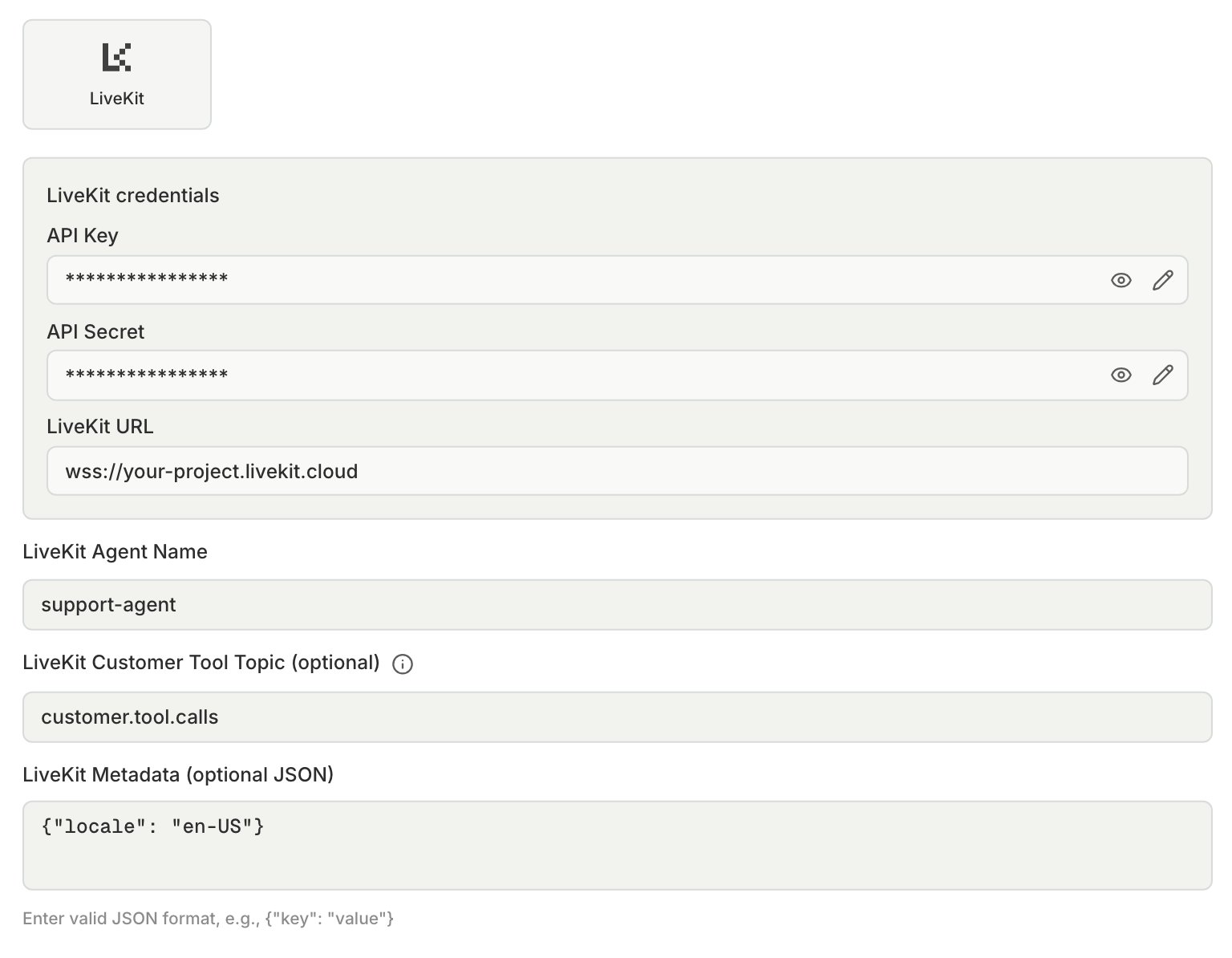
3
Set the agent name
Set LiveKit Agent Name to your worker’s registered name. Leave it empty only with automatic dispatch.
4
Choose the authentication
Set Authentication in the agent’s Connection Settings:
- API Key: Bluejay creates the room token with your saved keys.
- Token Webhook: your server creates the room token. Put the full header value, such as
Bearer <token>, in Authorization Header (Optional).
5
Add metadata (optional)
Bluejay sends LiveKit Metadata as the job metadata, with each Digital Human’s
livekit_metadata and the simulation IDs, such as X-Simulation-Result-Id, merged in.Run a test
- Direct
- SIP
- Outbound
Test agent logic without phone audio. Bluejay creates a room in your LiveKit project and dispatches your agent into it.
Token webhook
Before each call, Bluejay sends aPOST to the Token Webhook URL:Dispatch your agent with a
RoomAgentDispatch in the token, or from your server. Bluejay waits 15 seconds and tries up to 3 times on a timeout, 408, 429, or 5xx. A 401 or 403 fails the run with no retry.Tool calls
Set LiveKit Customer Tool Topic, and publish one data packet on that topic for each tool call.Traces
Export OpenTelemetry traces to Bluejay, and link them to the result at shutdown.force_flush() before the POST, or the trace can be missing.