

Connect
- Website
- API
1
Create the agent
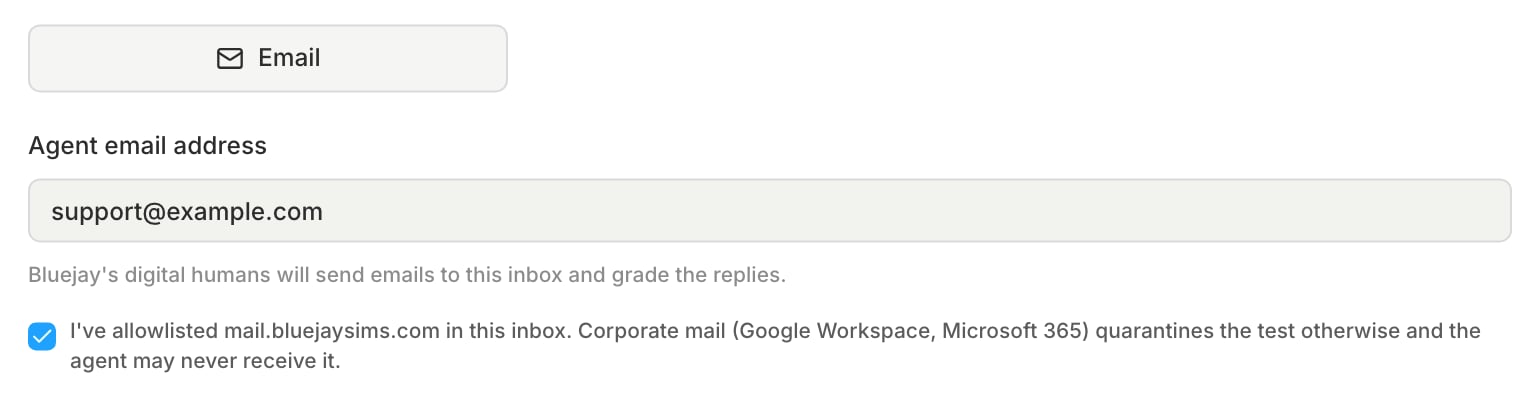
Create an agent with the Email mode. Choose Inbound if customers write to your agent first, or Outbound if your agent writes first. Set up the allowlist for
mail.bluejaysims.com first, as in Allow Bluejay’s mail, or the agent may never receive the test.If your agent answers from addresses other than its inbox, add them later under Reply-from addresses in the agent’s connection settings. Bluejay ignores a reply from any other address.2
Run a simulation
Add the agent to a simulation and run it. For an Outbound agent, send the first email from your own system, as in How a conversation runs.
Allow Bluejay’s mail
Corporate mail services such as Google Workspace and Microsoft 365 quarantine mail from unknown senders. If the agent’s inbox does not allowlistmail.bluejaysims.com, the agent never receives the test and every check fails.
Google Workspace
- In the Admin console, open Apps > Google Workspace > Gmail > Spam, phishing, and malware.
- Under Email allowlist, add a rule that bypasses spam for
mail.bluejaysims.com, and save.
Microsoft 365
- In Microsoft 365 Defender, open Policies & rules > Threat policies > Anti-spam.
- Add
mail.bluejaysims.comto the allowed domains, or add a mail flow rule that bypasses spam filtering for that domain, and save.
How a conversation runs
Every Digital Human has its own address onmail.bluejaysims.com, which stays the same across runs, and your agent replies to that address. The agent type sets who writes first:
- Inbound: the Digital Human writes the first email to the agent email address.
- Outbound: your agent writes first. Each Digital Human waits for an email at its own address, then replies. Bluejay does not call an outbound trigger webhook for an email agent, even if one is set, so send the first email from your own system. Each Digital Human’s address is on its Connection tab.
How a conversation ends
Bluejay does not read an end signal from your agent’s email. A conversation ends when one of these happens:- The Digital Human ends it.
- The thread reaches the simulation’s maximum number of turns, 100 messages from both sides by default.
- No email arrives for the inactivity timeout, 30 minutes by default. If the simulation sets its own inactivity timeout, Bluejay uses that value, between 5 and 30 minutes.
- In an uptime check, the agent sends its first reply.
Metrics
Bluejay grades the mail itself with built-in metrics, such as SPF Pass Rate and DKIM Pass Rate on your agent’s reply. Three of them need a note:- Spam Score: lower is better.
- Delivered Rate: checks the Digital Human’s email, not your agent’s reply. It passes when the email reached your agent’s inbox without a hard bounce or a spam complaint.
- DMARC Pass Rate: a domain with no DMARC policy fails this metric, even though Bluejay still accepts its reply.
What the email checks mean
Mail servers run these checks to decide whether an email really comes from the domain it claims, and whether it goes to the inbox or to spam. A failed check is a common reason a reply never reaches the customer.- SPF (Sender Policy Framework) checks whether the server that sent the email is allowed to send for the sender’s domain. The domain lists its allowed servers in its DNS, the public records that describe a domain.
- DKIM (DomainKeys Identified Mail) checks the email’s digital signature. The sending domain signs each email with a private key and publishes the matching public key in its DNS. A valid signature proves that whoever holds the domain’s key signed the email, and that the signed parts, usually the body and key headers, did not change on the way. An unsigned email fails.
- DMARC (Domain-based Message Authentication, Reporting and Conformance) checks that the domain in the From address matches a domain that passed SPF or DKIM. The match can be the same domain or a subdomain of it, and it is called alignment. The domain must also publish a DMARC policy, a DNS record that tells receivers what to do with mail that fails. Bluejay counts a domain with no DMARC policy as a fail, even when SPF and DKIM pass.
- Spam is a spam score that a receiving mail server added to the email. Lower is better. Each server sets its own threshold. With SpamAssassin, the most common scorer, 5 or more usually means spam.
- N/A means there was nothing to judge, for example because the email carries no verdict from a receiving server.
Monitor
To check an email agent on a schedule, use Uptime Monitoring. In the app, an uptime monitor or a scheduled run for an email agent runs at most every 30 minutes. If the Digital Human’s email hard bounces or gets a spam complaint, Bluejay pauses the monitor so that it stops sending to an inbox that rejects its mail.Limits
- Email runs take longer than voice or SMS runs.
- A Digital Human can be in only one open email conversation at a time, because Bluejay matches your agent’s replies to the Digital Human by its address. In a run, each Digital Human’s conversations take turns, and it runs once even if the simulation sets more runs per Digital Human.