

How It Works
The HTTP webhook integration allows you to simulate conversations with your text-based agent. Bluejay sends messages to your agent via HTTP, and your agent responds through a configured webhook endpoint.- Simple
- Technical
Tutorial
1
Create an Agent
- Website
- API
Go to the “Agents & Simulations” section in the sidebar. Click the ”+” button to create a new agent. Choose “Text/Chat” as the agent type and select “HTTP Webhook” as the integration. Make sure to enter your webhook URL in the designated field.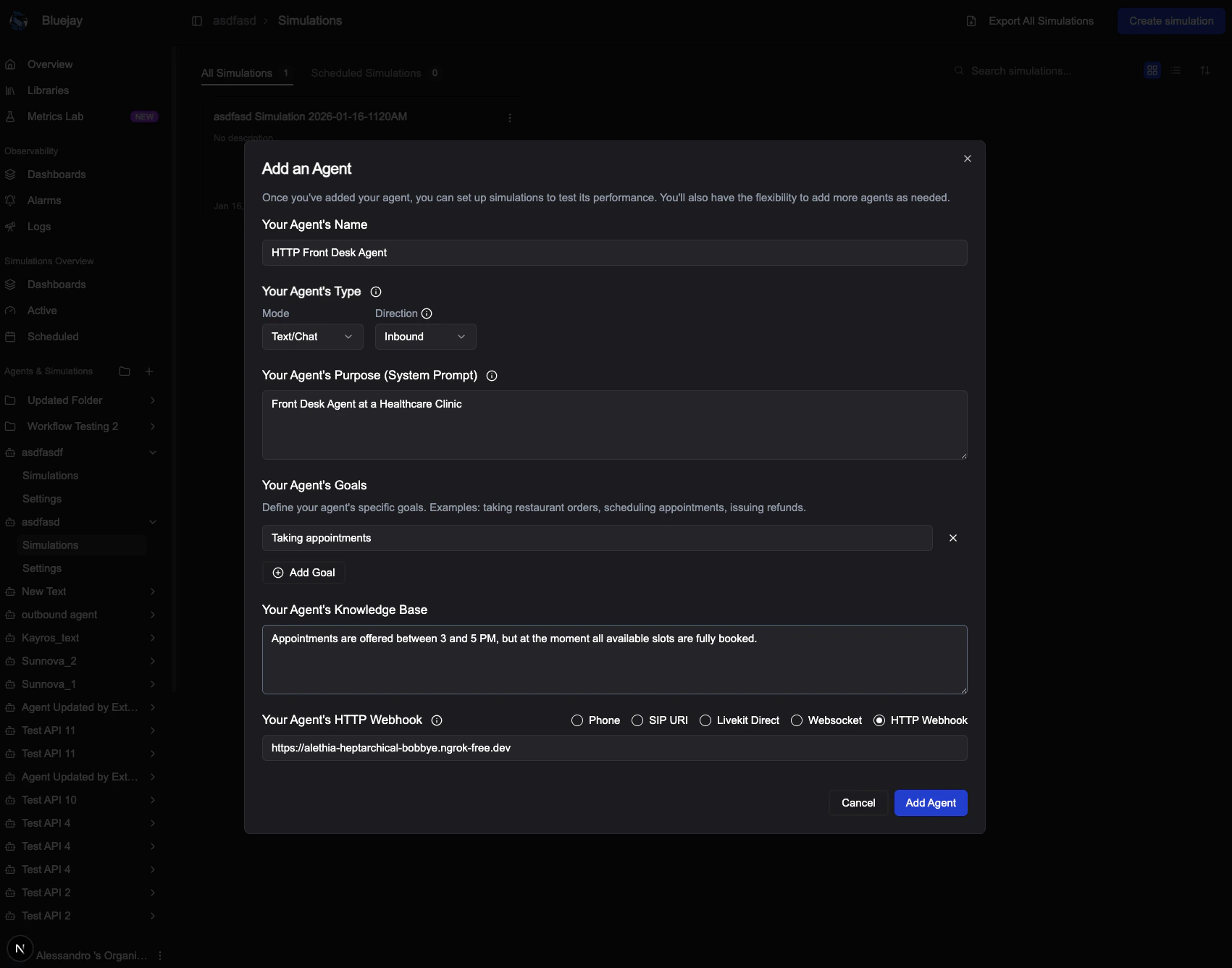
2
Create a Simulation
- Website
- API
Click the “Create new simulation” button.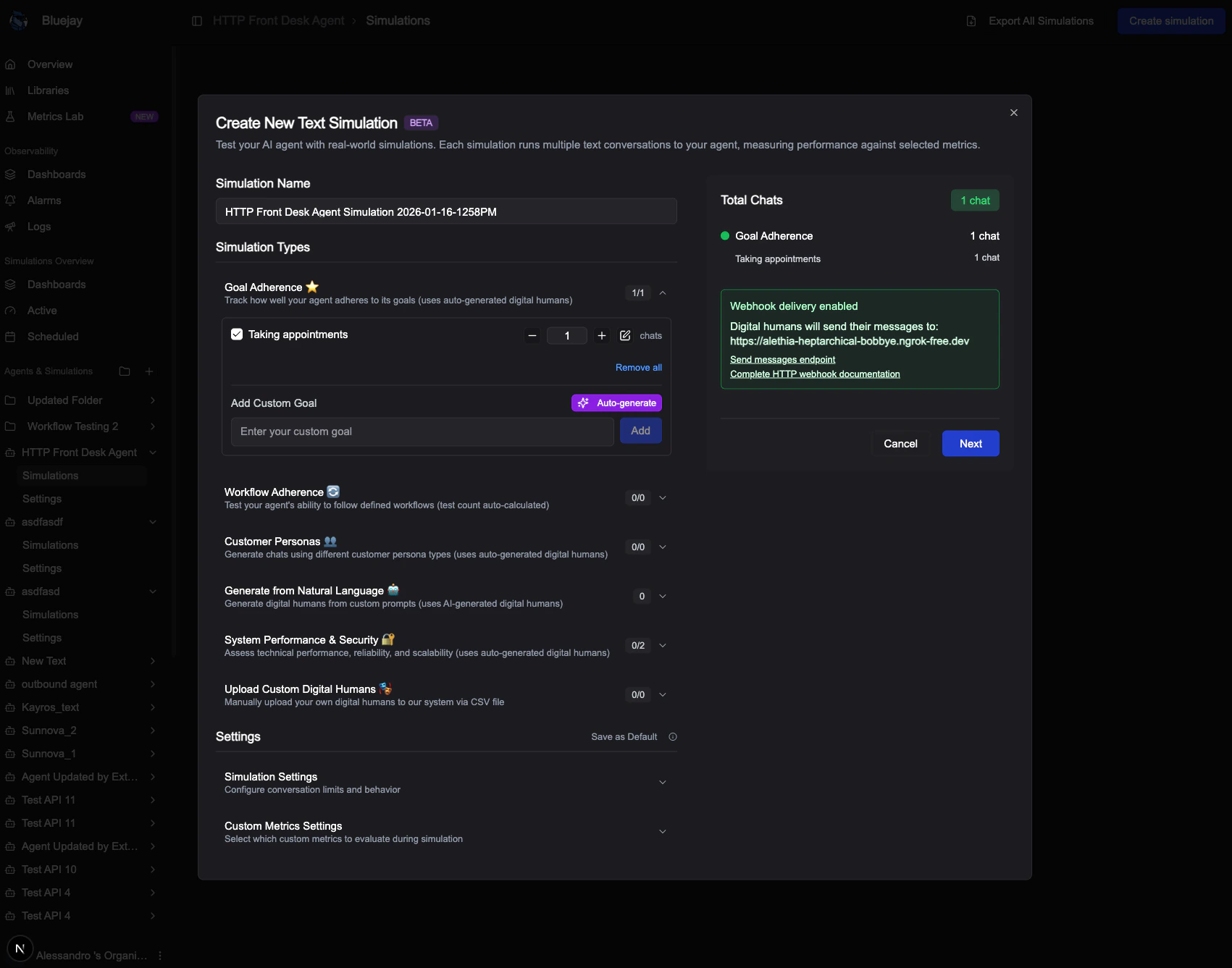
3
Create Digital Humans
- Website
- API
After selecting the number of agents in the “Goal Adherence” section, click “Next”.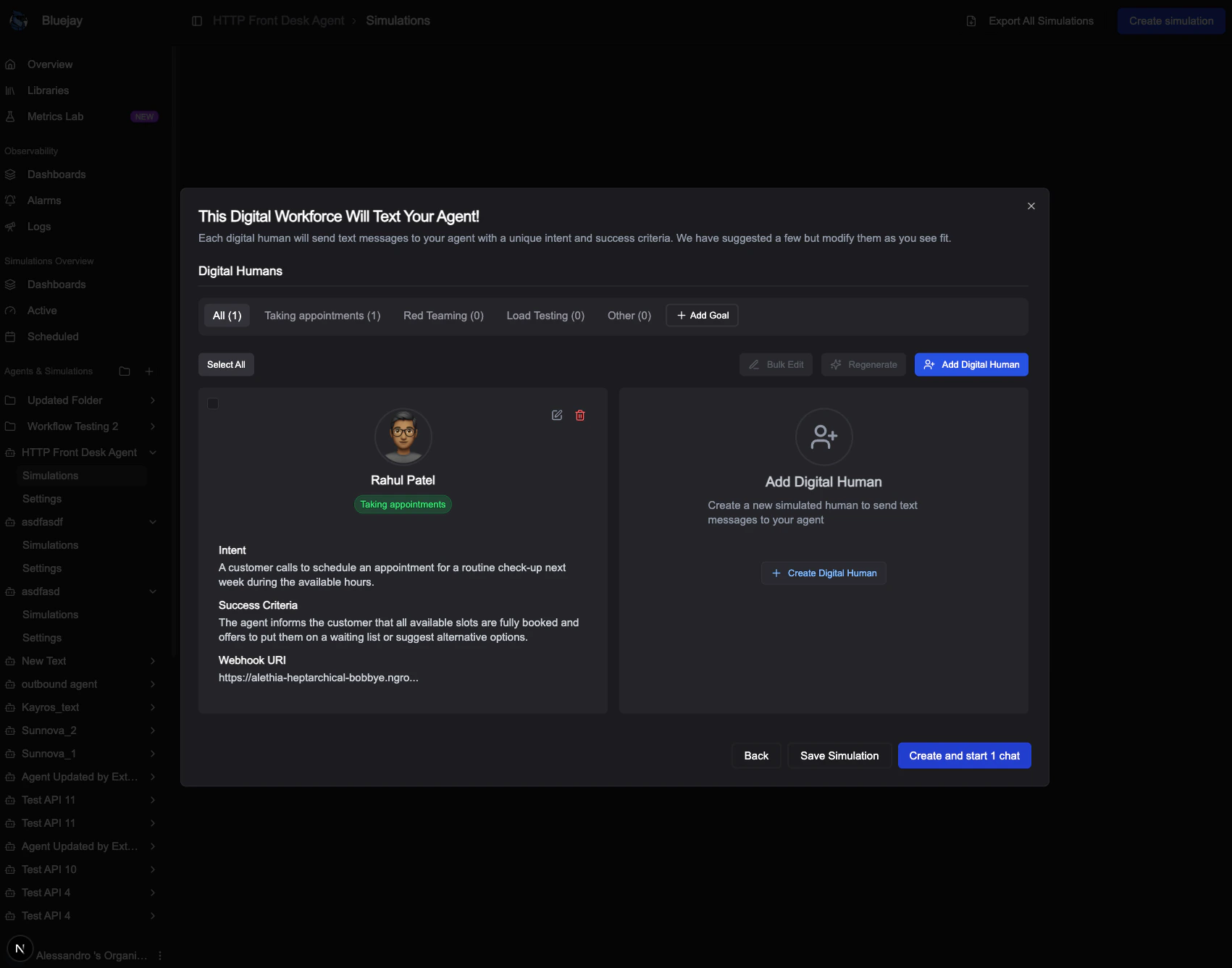
4
Queue a Simulation Run
- Website
- API
Click “Create and start X chats” to queue a new simulation run. The “#ID” shown is the 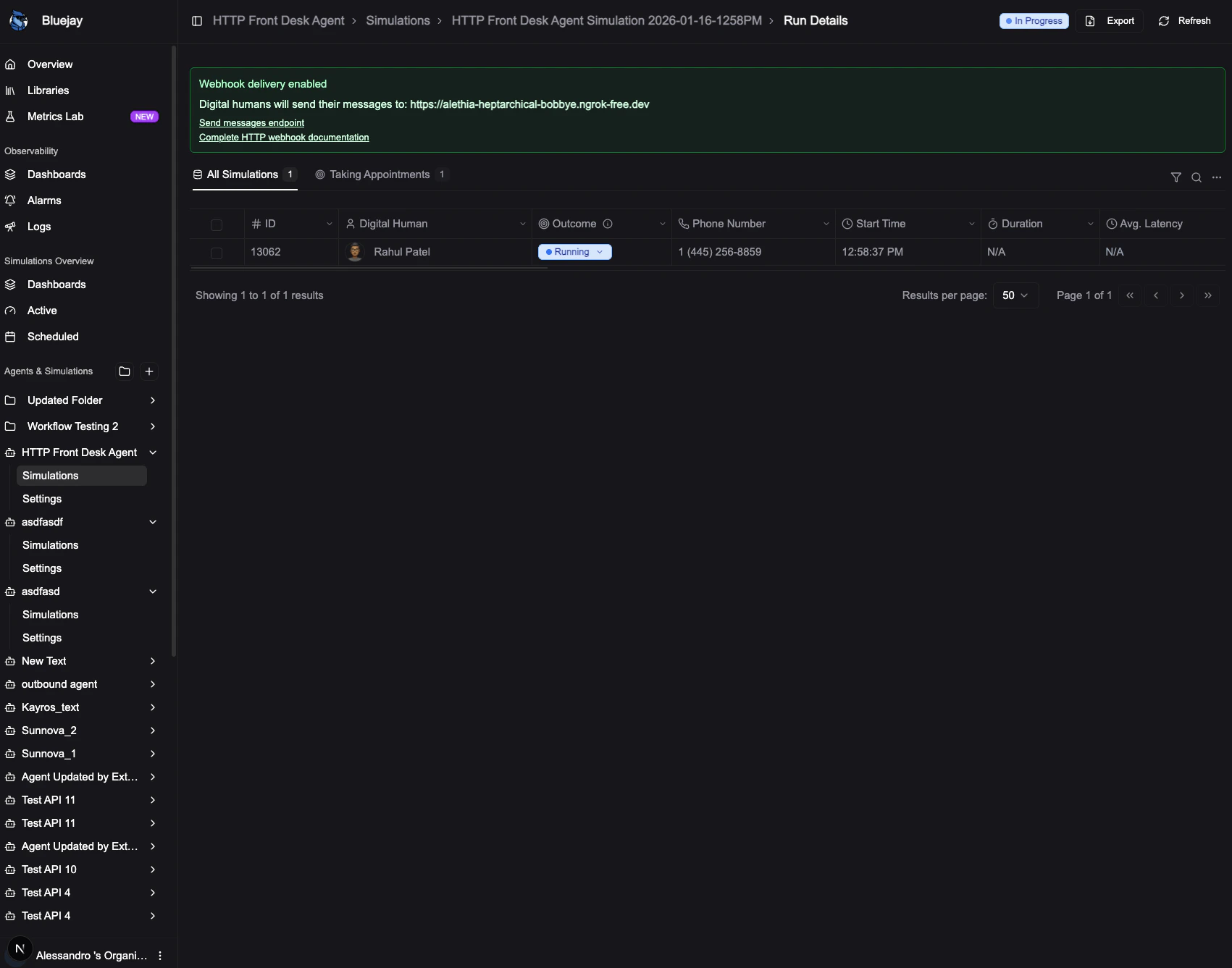
simulation_result_id that you’ll need for sending messages.5
Send Messages
Use the Send HTTP Text Message endpoint to send messages during the simulation. Each message should include the Request Parameters:Send one request per tool call, as close to when the tool runs as possible. Bluejay will automatically calculate the
simulation_result_id from the previous step.Logging Tool Calls Live
If your agent invokes tools during the conversation, you can log them in real time by sending a request withtype="tool_call". This records the tool call against the simulation result for evaluation — it does not append anything to the conversation transcript or trigger a Digital Human response.start_offset_ms from the conversation start time.6
Receive Webhook Responses
Bluejay sends the Digital Human’s responses to your configured webhook URL. Your server should be ready to receive POST requests with the conversation messages.Webhook Payload:When a Digital Human responds, Bluejay will POST to your webhook URL with the following structure:Webhook Request Headers:
Your webhook endpoint should:
- Return a
200 OKstatus code to acknowledge receipt - Verify the
X-Bluejay-Signatureheader (see Verifying Webhook Signatures section below) - Process the message and send follow-up messages using the Send HTTP Text Message endpoint
Verifying Webhook Signatures
To ensure webhook requests are genuinely from Bluejay, verify the signature included in each request. Bluejay signs the raw request body with HMAC-SHA256 using your signing key (generated in the agent’s Connection settings) and sends the hex digest in theX-Bluejay-Signature header.
The signing key is created the first time an HTTP webhook is saved. Later updates, including ones that send http_webhook again, leave that key in place. Generate a new key from the agent’s Connection settings when you want to rotate it.