

Set up the GitHub App
1
Connect GitHub
Go to Settings > Integrations, open the CI/CD tab, select GitHub, click Connect, and approve the Bluejay GitHub App on the repositories you want to test.
2
Add a trigger
Open a simulation, click CI/CD, and add a trigger with a repository, an environment name, and a minimum score. The environment name must match the deployment environment your host reports to GitHub, for example
Production.Production and preview triggers
A Production trigger runs the simulation against the saved agent after a successful production deploy. A preview trigger runs against the preview deployment, for that one run only. The saved agent is not changed. Set an endpoint template, and Bluejay fills in the placeholders from the deployment:
Examples:
- WebSocket agent:
wss://{environment_url_host}/ws - LiveKit agent:
my-agent-pr-{pr_number}, used as the LiveKit agent name
vercel.app when the template uses or . It is required for those templates. The host of the rendered URL must end with it. Only https and wss URLs are allowed, and private addresses are blocked.
If previews are protected, for example by Vercel Deployment Protection, add a bypass header to the trigger so Bluejay can reach the deployment.
See the result
Bluejay adds a check to the commit and its pull request. It passes when the score is at least the trigger’s minimum score, and links to the run. To block merges on a failing score, make the check required in your branch protection rules.Use the GitHub Action instead
Use the Action when your host does not report deployments to GitHub, or when you want the run inside your own workflow. You need a Bluejay API key, an agent, and a simulation with the Digital Humans you want to run.Test an existing agent
All runs go to the same simulation, so you can compare them.1
Add your API key and variables
In GitHub, under Settings > Secrets and variables > Actions, add your API key as a repository secret named
BLUEJAY_API_KEY, and add these repository variables:The simulation ID is in the simulation’s General Settings tab, and each Digital Human ID is on its card in the Digital Humans tab.
2
Create your workflow
Add
.github/workflows/bluejay-tests.yml to your repo:3
Trigger a simulation
Open a pull request. The action runs the simulation on each PR and shows pass or fail in the PR checks. The score is in the job logs.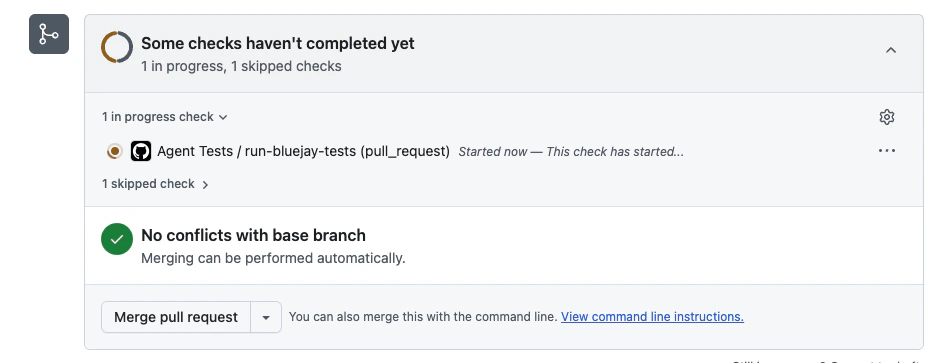
Test a preview deployment
Use this option if CI makes a preview deployment for each PR. For each PR, the workflow creates an agent and a simulation, runs the test, and then deletes both. Your Digital Humans are not deleted, because they are your test suite and every PR reuses them. The example uses aWEBSOCKET agent. Set PREVIEW_WEBSOCKET_URL to the URL of the preview deployment. For other connection types, send that type’s fields instead. Add Agent lists them.
For this option, set BLUEJAY_DIGITAL_HUMAN_IDS, for example 101,102, because a new simulation has no Digital Humans and the run fails without them.
Pin to a commit SHA
Some organizations require every third-party action to be pinned to a full-length commit SHA. If yours does, the workflow fails with “all actions must be pinned to a full-length commit SHA”. To find the commit forv1, run:
v1:
A SHA pin does not follow updates to
v1. To get fixes, run the command again and update the pin.Inputs
The step fails if the run does not complete, if the score is below
min_score, or if timeout_seconds passes first. To only queue the run without checking the score, set wait_for_results to false.
Outputs
Triggers
To run the tests on a different event, change only theon: section. Any GitHub Actions trigger works. For example, to run daily at 09:00 UTC: