Quick Prerequisites
- A Bluejay account
- A Slack workspace where you can install the Bluejay app (admin or permission to add apps)
Setting Up the Integration
1. Go to Integrations
- Log into your Bluejay Dashboard
- Click your Organization in the bottom left corner
- Select Integrations
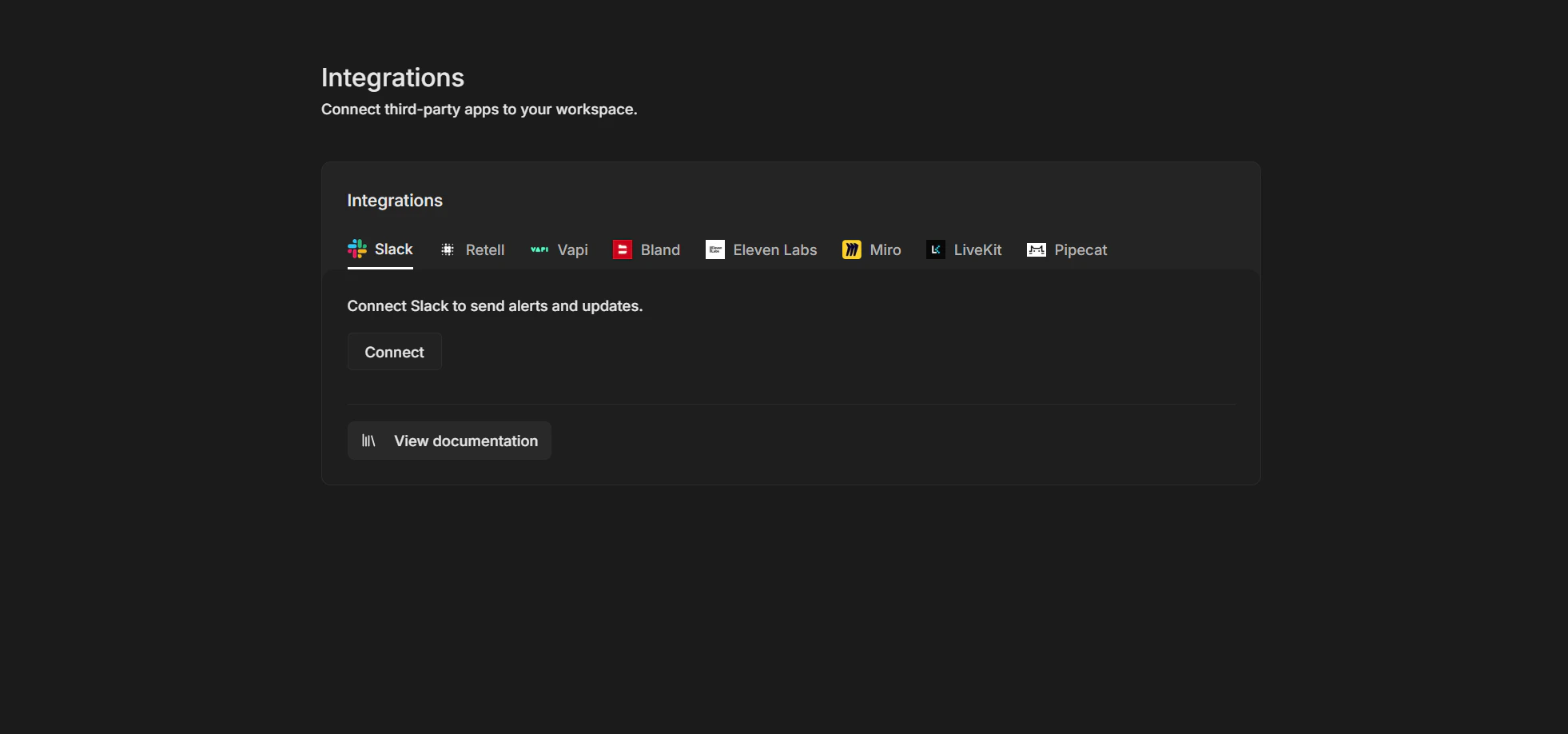
- Open the Slack tab
- Click Connect to start the Slack authorization
2. Approve Bluejay in Slack
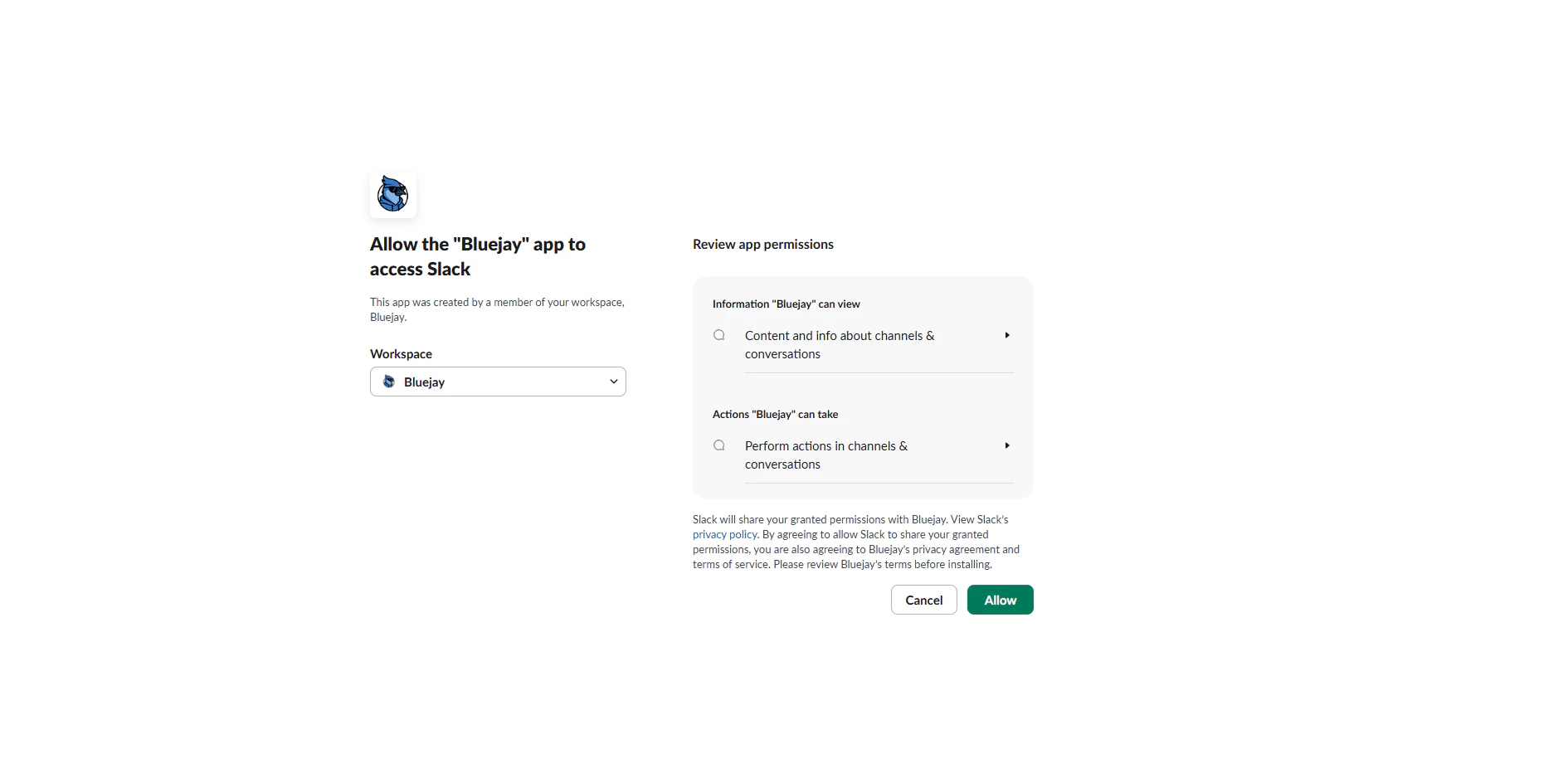
- After clicking Connect, you are redirected to Slack
- Review the requested permissions (channels and sending messages)
- Click Allow (or “Approve for Bluejay”) to authorize Bluejay for your workspace
3. Attach Slack to an alert
- Go to Monitor → Alerts
- Create a new alert or edit an existing one
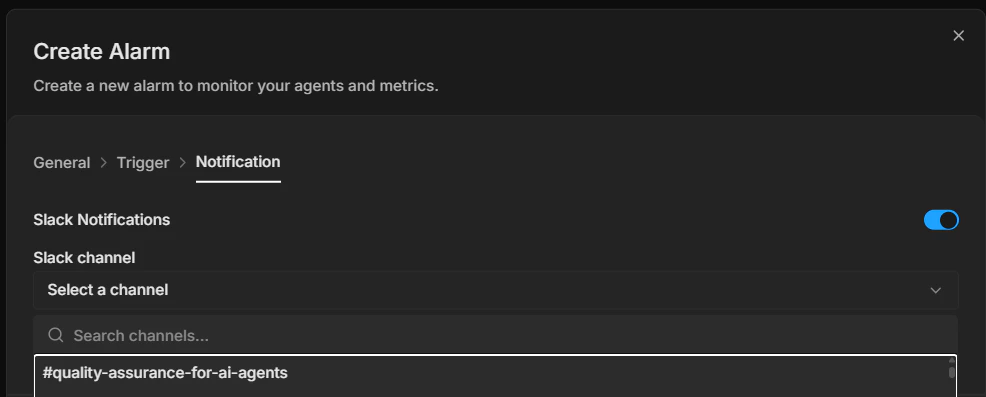
- In the notification section, turn on Slack Notifications
- Choose a Slack channel from the dropdown (only populated when Slack is connected)
- Save the alert. When the alert triggers or recovers, a message is sent to that channel